ianbrown.cc – computer tech & repair services – onsite and remote
  • Home
  • About Ian
  • Services
    • 10% Off Mobile Onsite Computer Repair – Greater Hartford, CT
  • Testimonials
  • Blog Archives
  • For Sale
  • Biofeedback Resources
    • + FREE DOWNLOAD
      The first 315 Pages of Nirvana Zarabi-Smith’s famous Quantum Encyclopedia ebook
      LIMITED TIME ONLY!
    • + FREE DOWNLOAD
      The first 100 pages of Nirvana Zarabi-Smith’s A-Z Protocols – INDIGO/SCIO ebook
      LIMITED TIME ONLY!
    • 25% Off Biofeedback Certification Courses at The Quantum Academies!
      LIMITED TIME ONLY!
  • Payments
  • Contact
Home
About Ian
Services
    10% Off Mobile Onsite Computer Repair – Greater Hartford, CT
Testimonials
Blog Archives
For Sale
Biofeedback Resources
    + FREE DOWNLOAD
The first 315 Pages of Nirvana Zarabi-Smith's famous Quantum Encyclopedia ebook
LIMITED TIME ONLY!

    + FREE DOWNLOAD
The first 100 pages of Nirvana Zarabi-Smith's A-Z Protocols – INDIGO/SCIO ebook
LIMITED TIME ONLY!

    25% Off Biofeedback Certification Courses at The Quantum Academies!
LIMITED TIME ONLY!

Payments
Contact
ianbrown.cc – computer tech & repair services – onsite and remote
  • Home
  • About Ian
  • Services
    • 10% Off Mobile Onsite Computer Repair – Greater Hartford, CT
  • Testimonials
  • Blog Archives
  • For Sale
  • Biofeedback Resources
    • + FREE DOWNLOAD
      The first 315 Pages of Nirvana Zarabi-Smith’s famous Quantum Encyclopedia ebook
      LIMITED TIME ONLY!
    • + FREE DOWNLOAD
      The first 100 pages of Nirvana Zarabi-Smith’s A-Z Protocols – INDIGO/SCIO ebook
      LIMITED TIME ONLY!
    • 25% Off Biofeedback Certification Courses at The Quantum Academies!
      LIMITED TIME ONLY!
  • Payments
  • Contact
Browsing Category
PC
PC•Tips and Tricks•Windows Updates

How to get rid of the annoying Windows 10 Free Upgrade notification

August 29, 2015 by Ian Brown No Comments

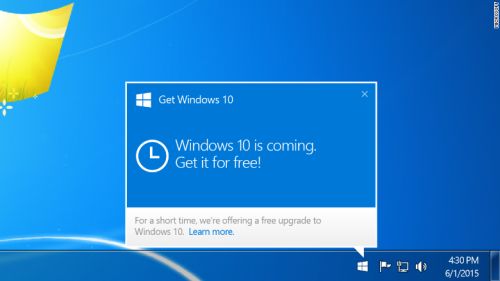
Have you been getting this annoying pop-up recently asking you to upgrade to Windows 10 every time you start your computer?

windows-10-upgrade-500

I don’t know about you, but I found it very annoying. And if you’ve been reading up on Windows 10, it pretty much spies on everything you do. I like my privacy, so although you can opt out of it (which is a pain in the butt), I’m sticking with Windows 7.

So I did a quick search and found out how to get rid of it.

Continue reading
Share:
Reading time: 1 min
Beta Testing•Beta Testing•Cool Products & Services•Google+•Social Media•Tech News

What is Google+? Is it a Facebook and Twitter killer? Here’s an overview. Want an invite?

August 1, 2011 by Ian Brown 2 Comments

Have you heard of Google+?

You can find it here: http://plus.google.com.

It’s Google’s version of Facebook and Twitter, combined into one, and it’s actually pretty cool.

It allows you to share photos, videos, have unlimited text in your status updates, and other features that are similar to Facebook and Twitter (sans the unlimited text in the status updates).

Here is Google’s overview of its new social network:

The Google+ Project: A quick look
[youtube]http://www.youtube.com/watch?v=xwnJ5Bl4kLI[/youtube]

The Google+ Project: Explore Settings
[youtube]http://www.youtube.com/watch?v=vnv1Mbj1jKw[/youtube]
Aside from the similarities it has to Facebook and Twitter, there are some very unique features that Google has come up with…

HANGOUTS

One really cool feature G+ has that Facebook and Twitter do not is called “Hangouts.” This is where you can have a group video conference call of up to 10 people! That’s pretty sweet. And a buddy of mine said the quality is great.

Facebook has rolled out video calling via Skype, although it does not support group chat yet. So G+ definitely has 1 up, or should I say 10 up, on Facebook on this one!

The Google+ Project: Hangouts
[youtube]http://www.youtube.com/watch?v=Tku1vJeuzH4&NR=1[/youtube]

The Google+ Project: Explore Hangouts
[youtube]http://www.youtube.com/watch?v=QN38vHZjWXw[/youtube]
CIRCLES

Circles allows you to put people you know in certain groups. So you can have your family in one Circle, your co-workers in another Circle, your business contacts in another Circle, your clients in another Circle, and maybe people you’re “following” (a la Twitter) in another Circle (more on the “following” concept later).

This allows you to group your contacts, which is very helpful, as you’ll see.

For example, clicking your family Circle allows you to only view the status updates of people in your family. Likewise, if you want to check out what your co-workers are talking about, you can click on your co-workers circle.

SHARE YOUR CONTENT WITH CERTAIN PEOPLE IN YOUR NETWORK

G+ also allows you to do another cool thing, which you can’t really do in Facebook. You can, but it is a bit clunky, and you have to go through a lot more hoops to share your content with groups of people, especially in the initial setup of it.

In Google+, you can easily share your status updates, which includes photos, videos, links, etc., with just certain Circles of yours, or with just one Circle, or with just one person, or with just certain people.

So if you have pictures from your family outing that you only want your family to see, then simply opt to only share it with your family Circle. That’s yet another feature which Facebook definitely needs to make easier to use if they want to be able to compete with G+.

CAN I SHARE MY CONTENT WITH EVERYONE, EVEN THOSE NOT IN MY CIRCLES?

If you want to share a status update (or picture or link or video, etc) with anyone and everyone, including those who aren’t even in your circles or who you even know, then you can select to share whatever you’re sharing with the ‘Public.’

Google definitely nailed it with Circles.

The Google+ Project: Circles
[youtube]http://www.youtube.com/watch?v=BeMZP-oyOII[/youtube]

The Google+ Project: Explore Circles
[youtube]http://www.youtube.com/watch?v=ocPeAdpe_A8[/youtube]

SPARKS

There is also a feature called “Sparks.” This is where you can create streams of news articles, videos, pictures, etc., that are being shared on the Internet and organize them by topic.

So if you want to see all of the news that’s being shared a lot related to the upcoming iPhone 5, you can do that.

And if you want to see all of the news that’s being shared related to raw food recipes, you can do that as well.

It’s a great way to sift through information overload, because the articles, videos, and blog posts that are being shared by many many people are obviously of high quality.

The Google+ Project: Sparks
[youtube]http://www.youtube.com/watch?v=MRkAdTflltc[/youtube]

The Google+ Project: Explore Sparks
[youtube]http://www.youtube.com/watch?v=0DoAl4JXhQo[/youtube]

MOBILE

Google+ now has an app for both Android phones and the iPhone. They both have the following features: Stream (it’s like your homepage on Facebook where you see all of the postings of whatever Circle you’ve selected, or you can select to see them all), Huddle, Photos, Profile, Circles. The only difference right now between the Android App and the iPhone app is the Android app has the INSTANT UPLOAD feature (see below). Both are great apps and work very well. Very stable so far, as expected from Google.

[youtube]http://www.youtube.com/watch?v=N8gvHaX1cwY[/youtube]

INSTANT UPLOAD

This is a feature specifically for Android smart phones at the moment. There is an iPhone app for G+ now, however, it does not have this feature.

Instant Upload allows you to upload every picture and video you take with your Android smart phone to a private photo album in your G+ account. This way, all you have to do is decide who to share it with once it’s uploaded.

It takes the hassle of syncing your phone with your computer to get the photos and videos from your phone on to your computer, then uploading them from your computer to the Internet…out of the equation. This feature does all of that for you automatically.

The Google+ Project: Instant Upload
[youtube]http://www.youtube.com/watch?v=6y_xKVSRAy8[/youtube]

HUDDLE

Huddle is a cool way to be able to group text with your friends (or group instant message if you prefer that term).

In Huddle, which is a feature in both the Android and iPhone G+ app, you can all text in the same conversation so everyone in the group can see everyone else’s texts. It’s great for organizing a night out on the town, or for setting up a mastermind meeting.

The Google+ Project: Huddle
[youtube]http://www.youtube.com/watch?v=iA22daAstNg[/youtube]

MORE GOOGLE +1 BUTTON LOVE FOR YOUR WEBSITE (HUGE!)

Here’s a BIG reason to join G+ if you have a website. First, you’ll need to add the Google +1 Button to your website. Then, every time you share a link to a blog post that you made, or a new web page that you created, you can share it on G+ and get some more +1 love from your friends, colleagues and followers.

On G+, it’s as easy to +1 a link as it is to “Like” a link on Facebook. This will help increase the ranking of your website in Google, which will push it higher up in the search results.

And if things go the way the industry says it’s going to go (they’re saying that Google is going to place a lot more weight on the number of +1’s a page/website has in determining the page rank), then this is going to be a HUGE game changer, especially if you have 100,000 people “following” you on G+ whom you’re sharing your website links to, which is a great lead-in to my last topic on G+.

Google Business: Introducing the +1 Button
[youtube]http://www.youtube.com/watch?v=4RyY2-ofP4g[/youtube]

And if you want a more indepth look at the +1 button. Check out the video below. I watched the first five minutes, and it definitely seems like a worth while watch if you really want a good understanding of what the +1 button is, and what it can do for your website. Plus it only has 1 dislike (probably from a Facebook fan), so it must be good.

Google I/O 2011: An introduction to the +1 button
[youtube]http://www.youtube.com/watch?v=Fl3c79n_wRg[/youtube]

WHAT DO YOU MEAN PEOPLE CAN “FOLLOW” ME ON GOOGLE+?

This is where Google+ acts like Twitter. Yes, people can follow your posts just like they can on Twitter, and you don’t have to approve them for them to be able to follow you. They can just follow you (you can block them if you want, though). They can put you in any of their Circles that they wish. They can even put you in more than one Circle (Friends Circle and Business Circle, for example).

The thing that is different from Twitter is that when someone follows you, their posts are put into a stream of yours called “Incoming.” So if you want to see the posts of people who are following you, all you have to do is click on your “Incoming” stream and voila! You get to see what your followers are up to.

WANT AN INVITE?

So now that you have a pretty good idea what Google+ is about, do you want an invite so you can check it out? With products like Google+, you can only do so much research before you realize that you actually have to experience it to really know it.

So if you want an invite so you can experience Google+, send me an email with “Google+ Invite Request” in the subject line, and I’ll send one right over to you. Please note that I can only send out a certain amount per day. So if you don’t get an invite on the same day, be patient. I will get to you within a few days after you request it.

Have any comments, opinions or experiences with Google+? Think it’s a Facebook or Twitter killer? Leave a comment below and tell me what you think!

Match.com: #1 Dating Site – View Pics for Free


Los Angeles Computer Repair | Los Angeles Computer Tech | Computer Repair Services

Share:
Reading time: 8 min
PC•Software•Spyware, Malware, Browser Hijacking, etc.•Viruses•Viruses, Spyware & Malware•Windows 7

Has your computer slowed down dramatically after installing Microsoft Security Essentials?

July 27, 2011 by Ian Brown No Comments

Did you recently install Microsoft Security Essentials to protect your computer, and right after installing it, your computer slowed to a crawl? Well, the good news is, you’re not going crazy. It is completely possible for this to happen.

Why? Because for some reason, Microsoft made it so that if you are running MSE on Windows XP, MSE only needs 256MB of RAM to run. BUT (and that’s a BIG BUT!), if you’re running Windows Vista or Windows 7, then MSE requires a whopping 1GB of RAM! That’s how much RAM a lot of people have in their whole system, which means there would not be any RAM left to run the OS, never mind run any additional programs.

Windows 7 alone needs 1GB of RAM to run. So if you have WSE installed or want to have it installed, then you need at least 2GB of RAM just to run WSE and Windows 7!

Since that’s the case, if you’re running Windows 7 or Windows Vista, make sure you have at least 3GB of RAM, preferably 4GB, if you want to have MSE as your security suite.

Just a little FYI for ya!

Here’s the page you want to go to to confirm the system requirements for MSE:
System requirements for Microsoft Security Essentials


Los Angeles Computer Repair | Los Angeles Computer Tech | Computer Repair Services
Share:
Reading time: 1 min
Data Recovery•Errors•Hardware Issues•PC•Tips and Tricks•Windows 7

Is your SATA drive NOT being seen in Windows but it IS being seen in your BIOS? Is Windows calling it a Foreign Dynamic disk drive in Disk Management?

May 16, 2011 by Ian Brown 6 Comments

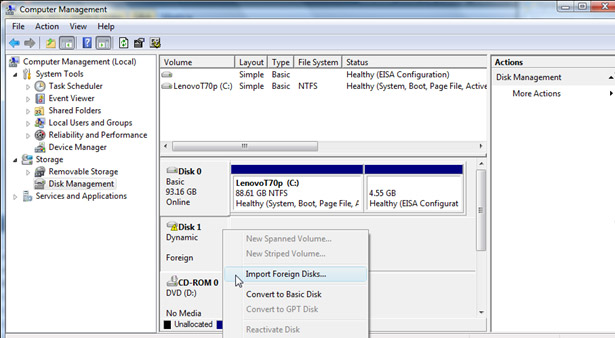
I just had a client who reformatted his drive and reinstalled Windows XP Pro on it. After he did that, when he reattached the 2 other SATA internal hard drives that he has for his data, one showed up fine, and the other showed up as a “Foreign Domestic Drive” and had a yellow question mark next to it in Disk Management (see image of similar situation below).

(click to enlarge)

 
When I RIGHT-clicked on it in Disk Management, it gave the options to either “convert to basic disk” (which you do NOT want to do unless you want to lose all of your data), or to “Import Foreign Disk.” The answer was to Import Foreign Disk. It only took about 10 seconds.

So here’s how to get to Disk Management in Windows XP to do this:

1. Log on as administrator or as a member of the Administrators group (which basically means just log into your computer since a user is set up as an “Administrator” by default)
2. Click Start button in bottom left
3. Click Run (Windows 7 or Vista see below)
4. Type compmgmt.msc (Windows 7 or Vista see below)
5. Click OK (Windows 7 or Vista see below)
6. In the console tree, click Disk Management (Windows 7 or Vista see below)

NOTE 1: If you’re using Windows 7 or Vista, skip steps 3 – 6 above, and after you click the colored start ball in the bottom left of your screen, simply type Disk Management in the search field and hit your key to get to Disk Management.

7. Once in Disk Management, RIGHT-click on the section for the hard drive in question where the yellow exclamation mark is on the the icon for the hard drive (same section where it as “Dynamic Foreign”; see image above)
8. Select “Import Foreign Disk”
9. It will take about 10 seconds to do its thing
10. It will then ask, “Before using these disks, add them to your system configuration. Disk groups: ” Below that text will be a box with a check box already checked next to “Foreign disk group (1 of 1 disk).” Yes, you want to do that. Just click OK.
11. After this, you should be good to go and have all of your data back, so check it.

NOTE 2: During my research, one guy said after he clicked “Import Foreign Disk,” it hanged for about 10 hours, however everyone else said that it worked. And it worked for my client. So maybe that one guy was experiencing a user error or had a more serious problem. But I still feel compelled to say to do this at your own risk.

After you do this, the only thing that will be different is that the bar in Disk Management for that disk that was just imported will be green instead of blue. But other than that, things will be back to normal.

NOTE 3: If you your disk is being classified as “invalid” instead of “foreign,” then you might have it connected via USB, which Windows Vista & 7 do not like. If that’s the case, then find a way to connect it directly via SATA or IDE (depending on what kind of drive it is), and then it should show up as a foreign drive and you can follow the above instructions to import it.

Enjoy!


Los Angeles Computer Repair | Los Angeles Computer Tech | Computer Repair Services
Share:
Reading time: 2 min
Page 1 of 131234»10...Last »

FREE DOWNLOADS


Get immediate access to the first 315 pages of Nirvana Zarabi-Smith’s famous Quantum Encyclopedia book and get 10% OFF!

Click here!

LIMITED TIME ONLY!

Now compatible with iPad and Android tablets!


Get immediate access to the first 100 pages of the 6th edition of Nirvana Zarabi-Smith’s incredibly useful A-Z Protocols book and get 10% OFF!

Click here!

LIMITED TIME ONLY!

Now compatible with iPad and Android tablets!

25% OFF Biofeedback Certification Training!

Have you been yearning to get certified as a biofeedback professional? Would you like to deepen your biofeedback knowledge so you can get the most out of your device?

Then take advantage of this
LIMITED TIME OFFER of getting 25% OFF of Nirvana Zarabi-Smith’s amazing Biofeedback Certification Training Program!

Click here!

LIMITED TIME ONLY!

Recent Posts

Do you find personalized ads on your smartphone “creepy”?  Here’s how to opt-out.

Do you find personalized ads on your smartphone “creepy”? Here’s how to opt-out.

January 31, 2016
How to get rid of the annoying Windows 10 Free Upgrade notification

How to get rid of the annoying Windows 10 Free Upgrade notification

August 29, 2015
How to turn any song into a cool iPhone ringtone (mp3)

How to turn any song into a cool iPhone ringtone (mp3)

March 12, 2015
Is your Mac slow?  Here are the 6 top ways to speed up your Mac!

Is your Mac slow? Here are the 6 top ways to speed up your Mac!

February 6, 2015

Blog Post Categories

Archives

© 2020 copyright Ian Brown // All rights reserved