ianbrown.cc – computer tech & repair services – onsite and remote
  • Home
  • About Ian
  • Services
    • 10% Off Mobile Onsite Computer Repair – Greater Hartford, CT
  • Testimonials
  • Blog Archives
  • For Sale
  • Biofeedback Resources
    • + FREE DOWNLOAD
      The first 315 Pages of Nirvana Zarabi-Smith’s famous Quantum Encyclopedia ebook
      LIMITED TIME ONLY!
    • + FREE DOWNLOAD
      The first 100 pages of Nirvana Zarabi-Smith’s A-Z Protocols – INDIGO/SCIO ebook
      LIMITED TIME ONLY!
    • 25% Off Biofeedback Certification Courses at The Quantum Academies!
      LIMITED TIME ONLY!
  • Payments
  • Contact
Home
About Ian
Services
    10% Off Mobile Onsite Computer Repair – Greater Hartford, CT
Testimonials
Blog Archives
For Sale
Biofeedback Resources
    + FREE DOWNLOAD
The first 315 Pages of Nirvana Zarabi-Smith's famous Quantum Encyclopedia ebook
LIMITED TIME ONLY!

    + FREE DOWNLOAD
The first 100 pages of Nirvana Zarabi-Smith's A-Z Protocols – INDIGO/SCIO ebook
LIMITED TIME ONLY!

    25% Off Biofeedback Certification Courses at The Quantum Academies!
LIMITED TIME ONLY!

Payments
Contact
ianbrown.cc – computer tech & repair services – onsite and remote
  • Home
  • About Ian
  • Services
    • 10% Off Mobile Onsite Computer Repair – Greater Hartford, CT
  • Testimonials
  • Blog Archives
  • For Sale
  • Biofeedback Resources
    • + FREE DOWNLOAD
      The first 315 Pages of Nirvana Zarabi-Smith’s famous Quantum Encyclopedia ebook
      LIMITED TIME ONLY!
    • + FREE DOWNLOAD
      The first 100 pages of Nirvana Zarabi-Smith’s A-Z Protocols – INDIGO/SCIO ebook
      LIMITED TIME ONLY!
    • 25% Off Biofeedback Certification Courses at The Quantum Academies!
      LIMITED TIME ONLY!
  • Payments
  • Contact
Browsing Tag
tag1
Supercars•Video

Awesome videos of the new Lamborghini Aventador LP700-4

May 16, 2011 by Ian Brown No Comments

I thought I would start sharing my passion for exotic sports cars, AKA supercars. I know this is a tech blog, but it’s MY tech blog. ;p I’m sure you’ll enjoy them.

If you’re not into supercars (at least not yet), then you should know that Lamborghini just came out with a new model called the Aventador LP700-4. It replaces the amazing Murcielago, and does a GREAT job doing it.

Here are the specs:

Power: 700 bhp (horsepower)
Torque: 509 lb-ft at 5,500 rpm
Drivetrain: All-wheel drive
0-62mph: 2.9 seconds! (that’s motorcycle fast!)
Top Speed: 217 mph

Not bad!

Lamborghini does a GREAT job having these videos produced. Not sure if they do it in-house or not, but the soundtracks that they use are perfect. They capture the amazing drama of this car.

So, here they are…

Enjoy!

2 Lamborghini Aventadors LP700-4 race around Rome, Italy HD

[youtube width=”560″ height=”349″]http://www.youtube.com/watch?v=5f6ivgq9KSY[/youtube]

2 Lamborghini Aventadors LP700-4 racing in Bracciano Hills, Italy HD

[youtube width=”560″ height=”349″]http://www.youtube.com/watch?v=2SK2AToql9o[/youtube]

Lamborghini Aventador LP700-4 Official Commercial HD

[youtube width=”560″ height=”349″]http://www.youtube.com/watch?v=NfZKfy94Q6A[/youtube]
Los Angeles Computer Repair | Los Angeles Computer Tech | Computer Repair Services

Share:
Reading time: 1 min
Data Recovery•Errors•Hardware Issues•PC•Tips and Tricks•Windows 7

Is your SATA drive NOT being seen in Windows but it IS being seen in your BIOS? Is Windows calling it a Foreign Dynamic disk drive in Disk Management?

by Ian Brown 6 Comments

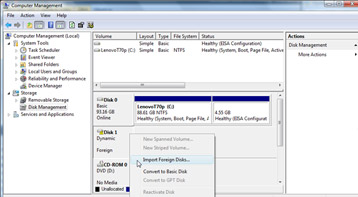
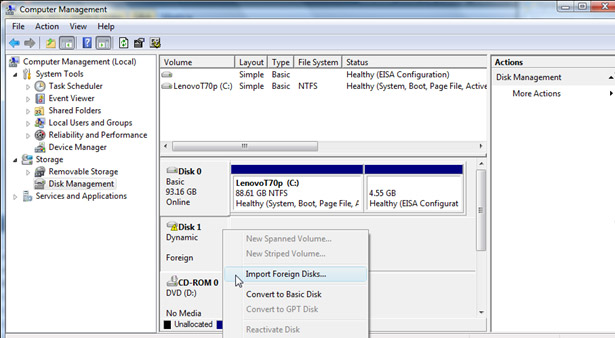
I just had a client who reformatted his drive and reinstalled Windows XP Pro on it. After he did that, when he reattached the 2 other SATA internal hard drives that he has for his data, one showed up fine, and the other showed up as a “Foreign Domestic Drive” and had a yellow question mark next to it in Disk Management (see image of similar situation below).
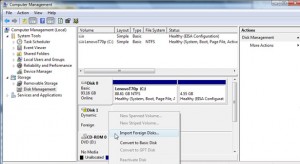
(click to enlarge)

 
When I RIGHT-clicked on it in Disk Management, it gave the options to either “convert to basic disk” (which you do NOT want to do unless you want to lose all of your data), or to “Import Foreign Disk.” The answer was to Import Foreign Disk. It only took about 10 seconds.

So here’s how to get to Disk Management in Windows XP to do this:

1. Log on as administrator or as a member of the Administrators group (which basically means just log into your computer since a user is set up as an “Administrator” by default)
2. Click Start button in bottom left
3. Click Run (Windows 7 or Vista see below)
4. Type compmgmt.msc (Windows 7 or Vista see below)
5. Click OK (Windows 7 or Vista see below)
6. In the console tree, click Disk Management (Windows 7 or Vista see below)

NOTE 1: If you’re using Windows 7 or Vista, skip steps 3 – 6 above, and after you click the colored start ball in the bottom left of your screen, simply type Disk Management in the search field and hit your key to get to Disk Management.

7. Once in Disk Management, RIGHT-click on the section for the hard drive in question where the yellow exclamation mark is on the the icon for the hard drive (same section where it as “Dynamic Foreign”; see image above)
8. Select “Import Foreign Disk”
9. It will take about 10 seconds to do its thing
10. It will then ask, “Before using these disks, add them to your system configuration. Disk groups: ” Below that text will be a box with a check box already checked next to “Foreign disk group (1 of 1 disk).” Yes, you want to do that. Just click OK.
11. After this, you should be good to go and have all of your data back, so check it.

NOTE 2: During my research, one guy said after he clicked “Import Foreign Disk,” it hanged for about 10 hours, however everyone else said that it worked. And it worked for my client. So maybe that one guy was experiencing a user error or had a more serious problem. But I still feel compelled to say to do this at your own risk.

After you do this, the only thing that will be different is that the bar in Disk Management for that disk that was just imported will be green instead of blue. But other than that, things will be back to normal.

NOTE 3: If you your disk is being classified as “invalid” instead of “foreign,” then you might have it connected via USB, which Windows Vista & 7 do not like. If that’s the case, then find a way to connect it directly via SATA or IDE (depending on what kind of drive it is), and then it should show up as a foreign drive and you can follow the above instructions to import it.

Enjoy!


Los Angeles Computer Repair | Los Angeles Computer Tech | Computer Repair Services

Share:
Reading time: 2 min
iPhone & Mobile•iPhone Tips•Jailbreaking & Unlocking•Tips and Tricks

How to Restore Your Cydia Apps if You Didn’t Back Them Up From Your iPhone or iPod Touch

May 6, 2011 by Ian Brown No Comments

If you have a jailbroken iPhone/iPod Touch and you bought some apps via Cydia that you forgot to backup before you upgraded to the latest version of iOS, then have no fear. Your Cydia purchases are intact! All you have to do after you jailbreak your iOS device again is log into Cydia, download and install the app that wasn’t backed up, and re-register it. It should remember your registration number. It did for my iPhone anyway. I just downloaded the Cydia app that I had bought before, opened it, clicked on “Register,” and on the page it brought up, my registration number was already filled in. I just had to click “Activate” and I was good to go! Pretty cool.

Even if you get another iPhone/iPad (upgrade to the latest version, for example), Cydia apparently transfers your purchase history to your new device. I haven’t tried that yet, but that’s what they said on HowardForums.com, one of the most well-known and respected cell phone forums on the net.

Just to be clear, though, unless you backed up your Cydia apps BEFORE you did the jailbreak (in which case you wouldn’t have a need to read this), then all of your inputted data in the app will be lost, as well as the settings. But that’s to be expected, right, since you’re downloading the latest version of the app directly from Cydia? But at least you didn’t have to buy it again!

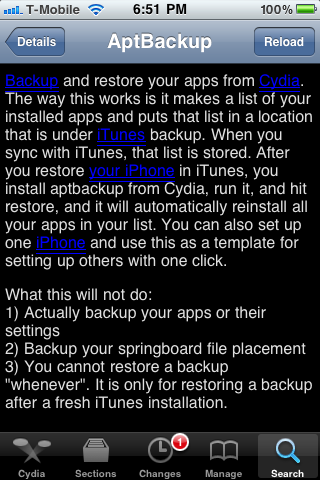
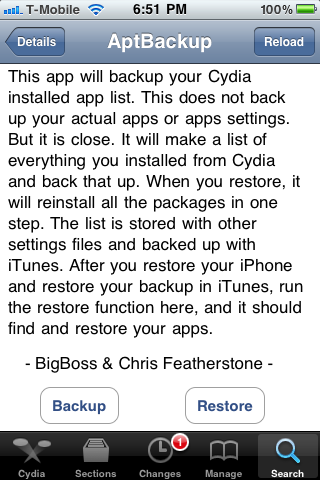
If you want to backup your apps before you upgrade to the latest iOS, then you can do it with a free app called AptBackup that you can download from Cydia. But just know that it only backs up the LIST of apps that you downloaded, not the actual apps themselves or the app settings.

PLEASE NOTE that it does say in the instructions (see below) that you first have to “restore your iPhone and restore your backup in iTunes“, which I do NOT recommend doing. When I restored my iPhone from a backup, my battery drained crazy fast! I did a ton of research (which I will be posting soon), and found out that the reason why my battery was draining so fast was that I had restored it from a previous backup. You must set it up as a NEW PHONE if you don’t want that to happen, which means you will NOT be restoring from a backup. So this app would not work for how I suggest upgrading your iOS device based on my experience, unfortunately.


Los Angeles Computer Repair | Los Angeles Computer Tech | Computer Repair Services
Share:
Reading time: 2 min
Errors•Tips and Tricks•YouTube

YouTube Upload Error? Bad Value?

April 30, 2011 by Ian Brown No Comments

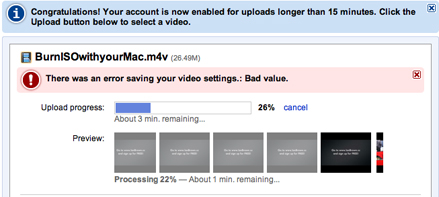
Did you get a “bad value” error while uploading a video to YouTube? Want to know what the deal is? It’s simply that there is a symbol in the description of your video that you typed that YouTube doesn’t like.

The one that gave me the error was the “>” symbol. So if you used “>” or “< " in the desription of your video, then that's your problem. Simply delete it and then save your changes. If that was not what you used, then look for other symbols in your description. Just try deleting each one, one by one, saving it after you delete each one so you know which one is causing the issue. If there are other characters that you used in your description that caused this error and you know what it is, then please post it in the comments below so others can benefit. Thanks!
Los Angeles Computer Repair | Los Angeles Computer Tech | Computer Repair Services
Share:
Reading time: 1 min
Page 10 of 11« First...«891011»

FREE DOWNLOADS


Get immediate access to the first 315 pages of Nirvana Zarabi-Smith’s famous Quantum Encyclopedia book and get 10% OFF!

Click here!

LIMITED TIME ONLY!

Now compatible with iPad and Android tablets!


Get immediate access to the first 100 pages of the 6th edition of Nirvana Zarabi-Smith’s incredibly useful A-Z Protocols book and get 10% OFF!

Click here!

LIMITED TIME ONLY!

Now compatible with iPad and Android tablets!

25% OFF Biofeedback Certification Training!

Have you been yearning to get certified as a biofeedback professional? Would you like to deepen your biofeedback knowledge so you can get the most out of your device?

Then take advantage of this
LIMITED TIME OFFER of getting 25% OFF of Nirvana Zarabi-Smith’s amazing Biofeedback Certification Training Program!

Click here!

LIMITED TIME ONLY!

Recent Posts

Do you find personalized ads on your smartphone “creepy”?  Here’s how to opt-out.

Do you find personalized ads on your smartphone “creepy”? Here’s how to opt-out.

January 31, 2016
How to get rid of the annoying Windows 10 Free Upgrade notification

How to get rid of the annoying Windows 10 Free Upgrade notification

August 29, 2015
How to turn any song into a cool iPhone ringtone (mp3)

How to turn any song into a cool iPhone ringtone (mp3)

March 12, 2015
Is your Mac slow?  Here are the 6 top ways to speed up your Mac!

Is your Mac slow? Here are the 6 top ways to speed up your Mac!

February 6, 2015

Blog Post Categories

Archives

© 2020 copyright Ian Brown // All rights reserved