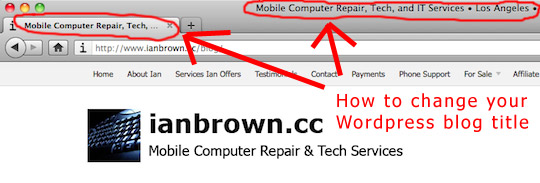
Want to change the name the home page on your WordPress blog?
 Does the title of your WordPress home page not serve you or your business? Is it helping or hurting your ranking in Google? Does it even make sense when you read it? No?
Then you’ve come to the right place. Here are two options that will allow you to change it.
Update: According to some of the comments of the readers, Option #1 may not work any longer. I originally posted this back in 2008. I’ve added a second option which definitely works (I recently did it), and it’s super easy to do.
Option #1
- Log into your Administrator section (wp-admin)
- Go to DESIGN > THEME EDITOR (or PRESENTATION > THEME EDITOR in older versions of WordPress)
- On the RIGHT-HAND side where it says “[Your Theme’s Name] theme files”, find header.php or just Header and open it (click on it)
- Find this line:
 (click to enlarge)
 - Only change the word “Home” in two places: 1. To the right of “title=”, and 2. In between the brackets after that (e.g. >Home>)
- Change them to whatever you want your blog’s home page to be titled
- If you can’t save the change in Theme Editor, then either follow the link to The Codex beneath the window in which you are editing the file, or log into your server via FTP and change the “header.php” file in the folder of your current theme, which will be located in /public_html/wp-content/themes/yourcurrenttheme (“yourcurrenttheme” being the name of the theme you are currently using), if your WordPress install is in your root directory.

NOTE: If you want to be ranked high in Google and other search engines for the keywords that are related to your blog, then I highly suggest you put those keywords in your blog’s title. Just make sure that there is some order to the keywords, and that it makes sense. Do not put the keywords in the title randomly.
Option#2: Install the “All in One SEO” WordPress plugin
If Option#1 does not work for you, then simply install the WordPress plugin, All in One SEO, and follow the instructions below.
Instead of going to the plugin page above to install it, you can also just log into the Admin section of your blog, go to the DASHBOARD (which is where you should be when you first log in anyway), click on PLUGINS in the nav bar on the left, click on “Add new plugin” toward the top of the PLUGINS page, and then search for “All in One SEO” and install it.
After you install it, do this:
- Go to your DASHBOARD in the admin section of WordPress
- Scroll down to SETTINGS in the navigation bar on the left
- If you don’t see the different SETTINGS options listed below the word, “SETTINGS,” in the nav bar on the left, then click on the arrowhead to the right of the word SETTINGS in the nav bar to expand the list of SETTINGS OPTIONS
- Click on “All in One SEO” under SETTINGS in the nav bar on the left
- Once on the “All in One SEO” plugin page, scroll down past the ads, and look for “Home Title”
- Whatever you want to change the name of your home page to, type it in there, and then scroll down to the bottom of the page and click on “Update Options.”
NOTE: Again, as I stated above, you want to make sure you include the most popular and relevant keywords to your business in the title of your homepage, as Google rates the words that are in the title of your home page VERY highly when deciding the ranking of your blog in its search results. Choose wisely, and make sure you put your keywords in an order that makes sense. Don’t just randomly list the keywords in your home page title. Make a phrase out of them that makes sense.
Once you do that, you should be good to go! Open up your blog home page in Firefox and look at the very top of the browser. You should see your new home page title there!
SEO TIP
Once you update your blog’s home page title, you need to tell Google about it so you don’t have to wait for Google’s bots to crawl your site to see the update. Simply go here and enter the URL of your blog’s homepage to speed up the process (e.g. http://www.yourblog.com; be sure and include the “http://”):
Submit the URL of your blog to Google here.
Match.com: #1 Dating Site – View Pics for Free
Los Angeles Computer Repair | Los Angeles Computer Tech | Computer Repair Services








Hey great post! I enjoyed that.
Unfortunatly this does not work anymore, I can not find this line nor the word ‘Home’ in my header.php file
true!..does not work anymore…
Nice one… did not know that….anyone has link to other similiar stuff ? thx Mariano
I have been told by a friend that Clickbank make it extremely tough to receives a commission through requiring you to trade dozens of totally different digital products by alternative bank cards and also Paypal. I want to work with Clickbank however I am concerned with this process. Is it actualy true?
I had a similar issue, and I was using the All in One SEO Pack plugin, which seemingly had a place for changing the Home page title, but it wasn’t working. I eventually found it in the plugin’s settings, and that gave an override. I wrote a blog post about the step-by-step process to show others, so if it’s helpful to you: http://www.debi-z.com/2011/08/04/how-do-i-change-the-title-of-my-home-page-in-wordpress/
It work little diferent
go to themas end in zour thema find header.php
” <li ><a href="”><?php _e('Po?etna','SimplePress')"
I change home to pocetna ….
Thanks for everyone’s input. I updated this blog post to reflect the changes in WordPress.
i love this post , this i awesome and solved my problem quickly. thank you very much sir
Good to hear, Deepak! Glad to help!
great post, my problem is slightly different in that i have my latest blog posts set as my landing page – on the tab in ie9 when i go to it, it says welcome! – is there anyway to change that? it’s driving me mad!
Hey Lisa,
I just went to your site and viewed it with IE9, along with Chrome and Firefox, and I do not see where it says, “Welcome.” Take a screen shot of it, upload it to http://www.tinypic.com, and then post the link here so I can check it out. If you have Windows 7, use the app, “Snipping Tool” that comes with Windows 7 to take the screenshot.
Thanks so much for taking the time to do that:) I realised it was the all in one seo plug in controlling it and found how to change it – eventually!
You bet, Lisa. ;) That’s it! You got it!