ianbrown.cc – computer tech & repair services – onsite and remote
  • Home
  • About Ian
  • Services
    • 10% Off Mobile Onsite Computer Repair – Greater Hartford, CT
  • Testimonials
  • Blog Archives
  • For Sale
  • Biofeedback Resources
    • + FREE DOWNLOAD
      The first 315 Pages of Nirvana Zarabi-Smith’s famous Quantum Encyclopedia ebook
      LIMITED TIME ONLY!
    • + FREE DOWNLOAD
      The first 100 pages of Nirvana Zarabi-Smith’s A-Z Protocols – INDIGO/SCIO ebook
      LIMITED TIME ONLY!
    • 25% Off Biofeedback Certification Courses at The Quantum Academies!
      LIMITED TIME ONLY!
  • Payments
  • Contact
Home
About Ian
Services
    10% Off Mobile Onsite Computer Repair – Greater Hartford, CT
Testimonials
Blog Archives
For Sale
Biofeedback Resources
    + FREE DOWNLOAD
The first 315 Pages of Nirvana Zarabi-Smith's famous Quantum Encyclopedia ebook
LIMITED TIME ONLY!

    + FREE DOWNLOAD
The first 100 pages of Nirvana Zarabi-Smith's A-Z Protocols – INDIGO/SCIO ebook
LIMITED TIME ONLY!

    25% Off Biofeedback Certification Courses at The Quantum Academies!
LIMITED TIME ONLY!

Payments
Contact
ianbrown.cc – computer tech & repair services – onsite and remote
  • Home
  • About Ian
  • Services
    • 10% Off Mobile Onsite Computer Repair – Greater Hartford, CT
  • Testimonials
  • Blog Archives
  • For Sale
  • Biofeedback Resources
    • + FREE DOWNLOAD
      The first 315 Pages of Nirvana Zarabi-Smith’s famous Quantum Encyclopedia ebook
      LIMITED TIME ONLY!
    • + FREE DOWNLOAD
      The first 100 pages of Nirvana Zarabi-Smith’s A-Z Protocols – INDIGO/SCIO ebook
      LIMITED TIME ONLY!
    • 25% Off Biofeedback Certification Courses at The Quantum Academies!
      LIMITED TIME ONLY!
  • Payments
  • Contact
Browsing Tag
tag1
Apple•Cell Phone Tips•iPhone & Mobile•iPhone Tips•Jailbreaking & Unlocking

How to find out the bootrom version of your iPhone [VIDEO]

November 5, 2011 by Ian Brown 1 Comment

Since the jailbreak for iOS 5 is still tethered, I wanted to find out if my iPhone 3GS had the old bootrom version or the new one. The old version will allow you to have an untethered jailbreak, which means you will NOT have to hook up your iPhone to your computer to keep the jailbreak every time you restart your iPhone, you turn it off, or it dies.

Watch the video below to see how to do it. And for those of you who would like the written instructions, I put them below the video.

Enjoy!

[youtube]http://www.youtube.com/watch?v=lcxyBKL1HZM[/youtube]

Instructions

  1. Connect your iPhone to your computer
  2. Turn iPhone off
  3. Start iTunes
  4. Hold Power and Home buttons together for 10 seconds or so
  5. Release Power button but keep holding the Home button until your computer recognizes a new USB device
  6. iTunes will now recognize your iPhone
  7. Note: Your iPhone screen at this time should be black (black in color), if not, then you are most likely in Recovery Mode, not DFU mode.

    Here’s a visual for you that shows the difference between “Recovery Mode” and “DFU Mode”:

  8. Click on the background image of your desktop (not an icon) OR click on “Finder” at the bottom of your screen in the dock, all the way to the left
  9. Click on “Go” at the top of your screen in the menu bar and select “Utilities”
  10. Double-click on “System Profiler”
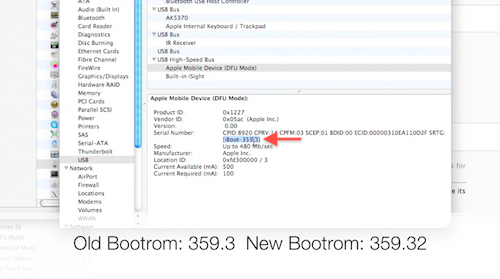
  11. Click on USB on the left
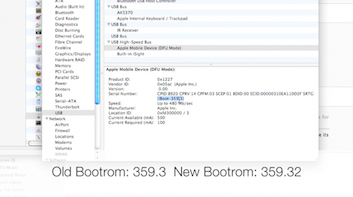
  12. On the right, you should see “Apple Mobile Device (DFU Mode).” Click on it.
  13. After you click on it, a new section should appear below it.
  14. You should see “Serial Number.” Right below the serial number, you should see [iBoot-359.3] or [iBoot-359.32]. The second one is the new bootrom. The first one is the old one.
  15. Done!

If you have the old bootrom, count yourself LUCKY! You can go and jailbreak/unlock your iPhone and it will be an untethered jailbreak, which means once you jailbreak it, it’s jailbroken. You will NOT need to hook up your iPhone to your computer every time your iPhone restarts or dies, which is what everyone else has to do as of now, until the iPhone Dev Team produces an untethered jailbreak for iOS 5.

Match.com: #1 Dating Site – View Pics for Free


Los Angeles Computer Repair | Los Angeles Computer Tech | Computer Repair Services

Share:
Reading time: 1 min
Facebook•Social Media

How to Remove Your Location from Your Facebook Status Update

November 4, 2011 by Ian Brown 13 Comments

I love Facebook, but one thing that I don’t care for is that they automatically activate their new features in our profiles instead of telling us about it, and asking us if we want the new idea implemented into our profile.

So when Facebook adds a new feature, and we don’t like it, we have to go through the hassle of finding the new setting for the new feature, and then change it back to the way it was. But I suppose that is a small price to pay for a website that allows us to easily communicate and share things with people from all over the world in seconds…for free.

One of the relatively new features Facebook implemented is including your current location in your status update. I don’t know about you, but I’m not one to want everyone to know where I am at any given moment, and plenty of my friends are the same way.

In fact, it was one of my friends that posted a status update about this very issue. So I found out how to do it, told her, and then figured that there are plenty of other people who would like to know the same thing, which is why I am here right now, sharing this info with you.

So let’s get to it…

Here’s what your status update box looks like now if it still has the location in it. I’ve circled my location in red.

To get rid of the location in your status, do this:

  1. Start typing a new status update
  2. When you see your location being displayed at the bottom of the status box, hover over the city with your cursor and look for the “X” to the right of the city
  3. Click on that “X” and your status updates will no longer have the location added to them.
  4. You may have to click on the “Places” icon. It looks kind of like a hot air balloon.

And when you’re done, it should look like this:

That’s it. Pretty painless. So now you can continue to post Facebook status updates with your current location and destination remaining unknown.

Match.com: #1 Dating Site – View Pics for Free


Los Angeles Computer Repair | Los Angeles Computer Tech | Computer Repair Services
Share:
Reading time: 1 min
Announcements•iPad•iPhone & Mobile•iPhone Tips•Mobile•News

iCloud Gives You 5GB of Online Storage for Free. Want 50GB More for Free? Limited Time Only!

October 13, 2011 by Ian Brown No Comments

A client friend of mine just sent me an email telling me about a killer free offer that a very well known and widely used online storage service is offering.

Box.net is an online storage service that, according to Box, is used by 73% of the Fortune 500 companies. Impressive.

Well, they just launched their new iPhone app and they are offering you a 50GB Lifetime account if you sign up before December 2, 2011. Pretty sweet, huh?

All you have to do is download the app to your iPhone, iPad, or iPod Touch, sign up for a free account, and you automatically get upgraded to a 50GB account for free.

Here’s how to do it:

Step 1

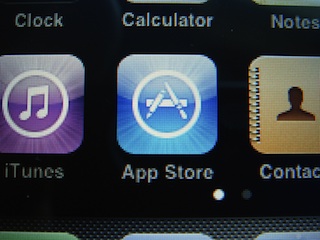
Open the App Store on your iPhone, iPad, or iPod Touch

Step 2

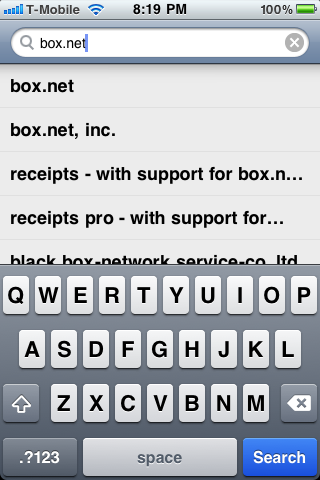
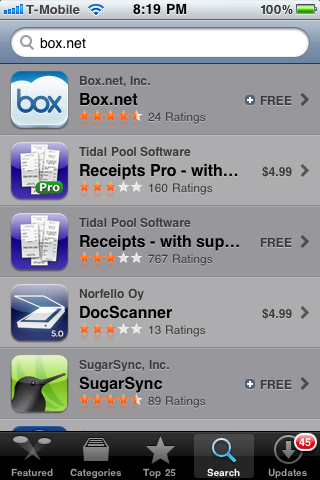
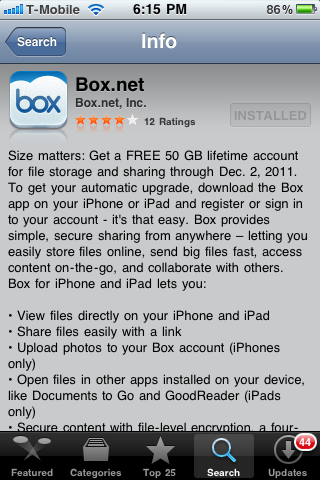
Click on the “Search” icon on the bottom of the screen, type “box.net” (no quotes) in the search field up top, and click on “box.net” in the search results.

Step 3

Click on the Box.net app

Step 4

Click on the green install button in the upper right (it’ grayed out in the pic below because I already installed it)

Step 5

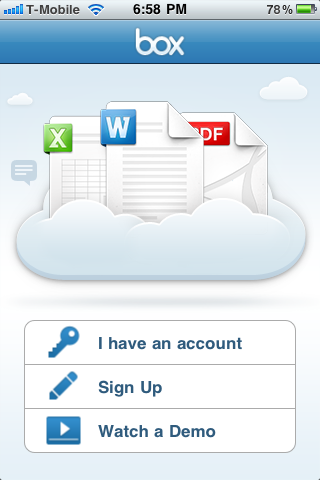
Launch the application

Step 6

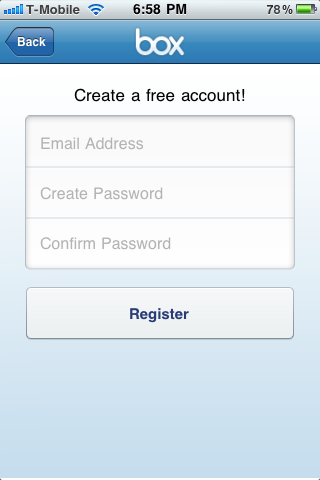
Enter your email address, password, confirm your password, and click “Register”

Step 7

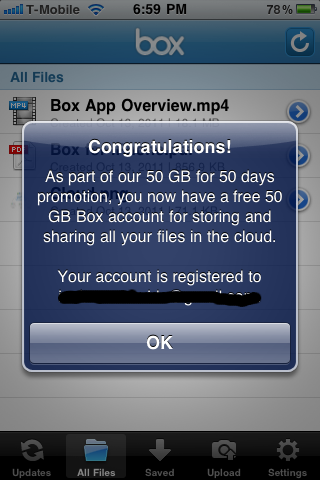
Bada bing! You now have a 50GB Lifetime online storage account with Box that you can use with your iOS device.

You can either upload your data from your iOS device or via your computer by going to box.net, logging into your account with the email address and password that you just used to register, and then clicking on Upload.

Here’s a tour of the service:

[youtube]http://www.youtube.com/watch?v=IcjgqQTPFx4[/youtube]

And here is the co-founder and some employees talking about Box’s simple, mobile, and open approach to online storage.

[youtube]http://www.youtube.com/watch?v=bExkpidJaAQ [/youtube]

Enjoy!

Match.com: #1 Dating Site – View Pics for Free


Los Angeles Computer Repair | Los Angeles Computer Tech | Computer Repair Services

Share:
Reading time: 1 min
Announcements•Apple•Breaking News•Cool Products & Services•iPad•iPhone & Mobile•iPhone Tips•Mobile•News

You Can Download iOS 5 Now! iCloud Update for Lion! BIG Apple Update Day!

October 12, 2011 by Ian Brown No Comments

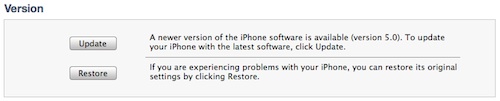
Apple has just released the latest version of their operating system for their iOS devices…iOS 5, and it’s now available for download! If you have an iPhone 3GS or 4, or a 3rd or 4th generation iPod, or either of the iPads, hook it up to your computer, open iTunes, click on your iOS device on the left under “Devices’, click update, and get rocking with the new iOS!

This is a really big update and has a plethora of new features, most notably an all new drop down notification system, iCloud (online storage and wireless syncing), iMessage (FREE text messaging and multi-media messaging among other iOS 5 users), lock screen access to your camera (can take pics immediately even if your screen is locked), major Twitter integration, Find My Friends (allows you to share you location with your friends, even just temporarily so they can give you directions, etc.), and an upgraded Safari browser, among others.

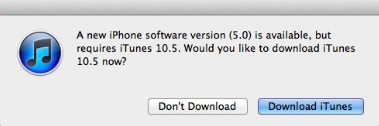
If you do not have at least iTunes 10.5, then you will need to do a software update to update iTunes first (Apple menu in upper left corner of your screen > Software Update).

Also being released today is an update to Mac OS X Lion, version 10.7.2, which includes support for iCloud.

To get the update, simply go to your Apple menu in the upper left corner of your screen and select Software Update. It will scan your computer and see what you need, and then list all of the updates. Just click the Update button and you’ll be good to go! Make sure you repair your disk permissions after you install the updates to keep you Mac running optimally.

So if you’re an Apple fan and have the devices to prove it, then go get downloading and enjoy!

Match.com: #1 Dating Site – View Pics for Free


Los Angeles Computer Repair | Los Angeles Computer Tech | Computer Repair Services

Share:
Reading time: 1 min
Page 6 of 11« First...«5678»10...Last »

FREE DOWNLOADS


Get immediate access to the first 315 pages of Nirvana Zarabi-Smith’s famous Quantum Encyclopedia book and get 10% OFF!

Click here!

LIMITED TIME ONLY!

Now compatible with iPad and Android tablets!


Get immediate access to the first 100 pages of the 6th edition of Nirvana Zarabi-Smith’s incredibly useful A-Z Protocols book and get 10% OFF!

Click here!

LIMITED TIME ONLY!

Now compatible with iPad and Android tablets!

25% OFF Biofeedback Certification Training!

Have you been yearning to get certified as a biofeedback professional? Would you like to deepen your biofeedback knowledge so you can get the most out of your device?

Then take advantage of this
LIMITED TIME OFFER of getting 25% OFF of Nirvana Zarabi-Smith’s amazing Biofeedback Certification Training Program!

Click here!

LIMITED TIME ONLY!

Recent Posts

Do you find personalized ads on your smartphone “creepy”?  Here’s how to opt-out.

Do you find personalized ads on your smartphone “creepy”? Here’s how to opt-out.

January 31, 2016
How to get rid of the annoying Windows 10 Free Upgrade notification

How to get rid of the annoying Windows 10 Free Upgrade notification

August 29, 2015
How to turn any song into a cool iPhone ringtone (mp3)

How to turn any song into a cool iPhone ringtone (mp3)

March 12, 2015
Is your Mac slow?  Here are the 6 top ways to speed up your Mac!

Is your Mac slow? Here are the 6 top ways to speed up your Mac!

February 6, 2015

Blog Post Categories

Archives

© 2020 copyright Ian Brown // All rights reserved