ianbrown.cc – computer tech & repair services – onsite and remote
  • Home
  • About Ian
  • Services
    • 10% Off Mobile Onsite Computer Repair – Greater Hartford, CT
  • Testimonials
  • Blog Archives
  • For Sale
  • Biofeedback Resources
    • + FREE DOWNLOAD
      The first 315 Pages of Nirvana Zarabi-Smith’s famous Quantum Encyclopedia ebook
      LIMITED TIME ONLY!
    • + FREE DOWNLOAD
      The first 100 pages of Nirvana Zarabi-Smith’s A-Z Protocols – INDIGO/SCIO ebook
      LIMITED TIME ONLY!
    • 25% Off Biofeedback Certification Courses at The Quantum Academies!
      LIMITED TIME ONLY!
  • Payments
  • Contact
Home
About Ian
Services
    10% Off Mobile Onsite Computer Repair – Greater Hartford, CT
Testimonials
Blog Archives
For Sale
Biofeedback Resources
    + FREE DOWNLOAD
The first 315 Pages of Nirvana Zarabi-Smith's famous Quantum Encyclopedia ebook
LIMITED TIME ONLY!

    + FREE DOWNLOAD
The first 100 pages of Nirvana Zarabi-Smith's A-Z Protocols – INDIGO/SCIO ebook
LIMITED TIME ONLY!

    25% Off Biofeedback Certification Courses at The Quantum Academies!
LIMITED TIME ONLY!

Payments
Contact
ianbrown.cc – computer tech & repair services – onsite and remote
  • Home
  • About Ian
  • Services
    • 10% Off Mobile Onsite Computer Repair – Greater Hartford, CT
  • Testimonials
  • Blog Archives
  • For Sale
  • Biofeedback Resources
    • + FREE DOWNLOAD
      The first 315 Pages of Nirvana Zarabi-Smith’s famous Quantum Encyclopedia ebook
      LIMITED TIME ONLY!
    • + FREE DOWNLOAD
      The first 100 pages of Nirvana Zarabi-Smith’s A-Z Protocols – INDIGO/SCIO ebook
      LIMITED TIME ONLY!
    • 25% Off Biofeedback Certification Courses at The Quantum Academies!
      LIMITED TIME ONLY!
  • Payments
  • Contact
Browsing Tag
ipad 2
Apple•Errors•iPad•iPhone & Mobile•iPhone Problems•iPhone Tips•Mobile

Can’t backup your iPhone, iPad, or iPod Touch to iCloud? Not Enough Storage?

April 12, 2012 by Ian Brown 38 Comments

If you’re getting the following error message…
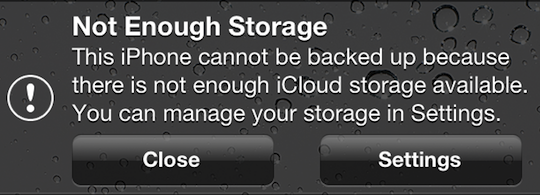
“Not Enough Storage: This iPhone cannot be backed up because there is not enough iCloud storage available. You can manage your storage in Settings.”

…this may be a legitimate error for you, and if that’s the case, then the answer for you is to either copy some of the data from your iOS device to your computer and delete the data you just copied from your iOS device so there is less to backup to iCloud, OR you can simply buy more iCloud storage.

And keep in mind that if you are backing up more than one device to the iCloud, that each backup of each device will count as additional space being taken up, even if they are the same files on each device.

However, if your situation is similar to the one that I encountered where you aren’t backing up much data in the first place, and then all of a sudden you don’t have enough space to backup your device via iCloud, this fix is for you.

Here is how to fix it:

Go to Settings>General>Usage>under “iCloud”, select Manage Storage>select your iOS device

Here is the screen that you’ll get:
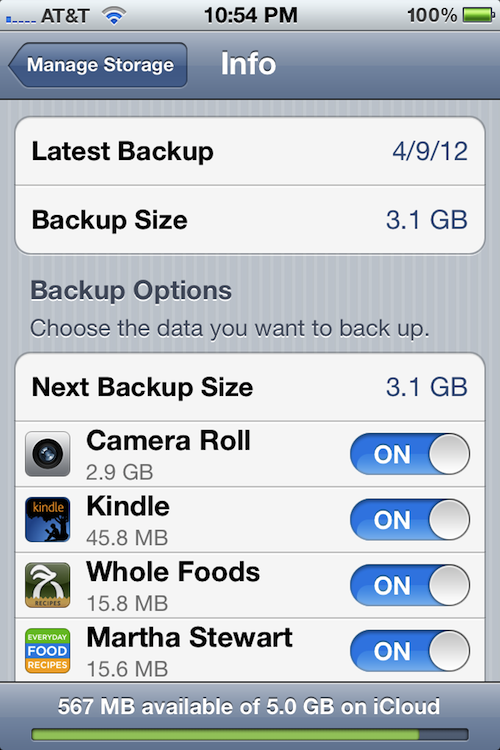
[ Yes, it says, “Martha Stewart” and no, it is not my iPhone. ;p ]

It will tell you the date of the lastest backup, as well as its size. Below that, under “Backup Options”, it will tell you the “Next Backup Size”, which tells you how large the next backup will be. And below that, it will tell you the items that are taking up the most space in order of size, from most to least.

The On/Off switch next to each item listed is turning on and off the backing up of the data for that section or app. So if there is data that you don’t care about backing up, just switch the On/Off switch next to it to “Off”, and if that fixes your storage issue (frees up enough space), then you are good to go.

In this case, the next backup was going to be 5.3GB (this is not pictured above, because I fixed the issue before I decided to blog about it), however the most recent one was only 3.1GB.

On top of that, Apple only gives you 5GB free in your iCloud account. Any more storage space, and you’ll need to pay. Since both the iPhone and iPad were being backed up in this case, something needed to be done.

So I looked under the “Next Backup Size” to see what was taking up the most space, and it was the Camera Roll, which is the album in the Photos app that has all of the photos that you take with your iPhone, the screenshots that you take of the phone’s screen, and the videos that you take with the phone.

I then went to the Camera Roll album to take a look at what was taking up so much space so soon after the last backup, and I noticed that there was ONE video file that was 1hr 15 min long that was taking up 2.2GB of space!

Apparently, what happened was kind of like a pocket dial, where it started recording video without anyone intentionally touching it. The camera button was pressed accidentally while it was being put in a pocket.

The reason it started recording video instead of just taking a picture was that the last time the camera was used, video was taken. That setting will stay the same for the next use of the camera until you change it.

So, I just deleted the big ass video of nothingness and all was well again.

The reason this was able to happen is that with iOS 5, you can now go directly into the camera with the swipe of the screen (starting at the camera icon) without having to unlock the screen. So this is one of the downsides to that feature. However, I’ll deal with it, because it’s worth being able to catch those fleeting Kodak moments when they occur!

Hope that helps ya!

If any of you have any other fixes for this situation, feel free to post them below so others can benefit.

Thanks!

Match.com: #1 Dating Site – View Pics for Free


Los Angeles Computer Repair | Los Angeles Computer Tech | Computer Repair Services

Share:
Reading time: 3 min
Apple•Cool Products & Services•iPad•Mac

How to close an iPad app like a two year old

April 10, 2012 by Ian Brown No Comments

It never ceases to amaze me how intuitive Apple makes their operating systems, including that of the iPad. We were just at my uncle’s this weekend, and a close friend of the family had his two year old with him. His parents are very much Apple fans, so of course they have an iPad.

Consequently, Hiro, the very cool and hip two year old, has working knowledge of the iPad. His favorite app? Angry Birds? Nope. Need for Speed? Not old enough. Elmo’s ABCs? Not a chance. No, the app of choice for this clever toddler is none other than Netflix. I didn’t derive any conclusion from that (I’m not one to judge a two year old), but I found that to be pretty interesting.

Anyway, we recently gave my mother the new iPad for her birthday, and so we had that with us. First I took some pictures, and then a movie with the iPad of Hiro and his older brother horsing around. They were wrestling on the floor. And when they found out that I was recording it, they really put on a show! Clearly they LOVE the attention.

So after they finished their “match”, they crawled up to the couch where I was recording them from and asked to see it. I showed it to them. Hiro LOVED watching himself wrestle with his brother and make noises that you would think would be coming from a cat in pain.

In fact, he loved it so much that he asked if he could put the iPad on his lap so he could watch it again. I obliged, of course. He then proceeded to play that 20 second clip over and over and over again, laughing more hysterically with each subsequent viewing.

But like all children, his attention span waned, and he wanted to move on. So he reached out with his tiny hand with his figures spread out, put all five fingers on the iPad screen, and brought his fingers together so they touched. What happened? The iPhoto app closed, of course!

I know that it seems obvious now, but I would have never thought of that as a way to close an app being a tech guy. However children, especially at that age, just do things intuitively. They use their sixth sense more in a day than we adults do in a month, and it certainly seems to work well for them.

This is also a perfect example of the brilliance of Apple. They make their computers think the way we humans think (no matter how old), instead of having to teach us humans how their computers think (PC, are you reading this? ;p ).

There’s a quote by Steve Jobs that encompasses the mindset Apple has when they design their products:

“They’re not stupid for not knowing how to use our products. We’re stupid if they don’t know how to use our products.”

So if you want to get better at using the iPad, tap deeper into your intuition and think more like a two year old. ;)

Match.com: #1 Dating Site – View Pics for Free


Los Angeles Computer Repair | Los Angeles Computer Tech | Computer Repair Services

Share:
Reading time: 2 min
Announcements•Apple•Cool Products & Services•iPad•iPhone & Mobile•Software

Snapseed, the iPad App of the Year for 2011 is FREE (LIMITED TIME)!

February 14, 2012 by Ian Brown No Comments

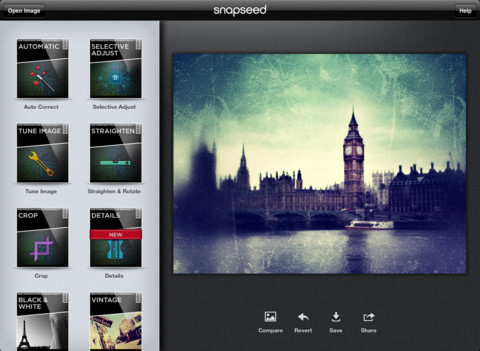
Snapseed, a very popular photo editing app for the iPod (and iPhone/iPod Touch) that was voted App of the Year for 2011 by Apple is currently FREE in the app store. It’s usually $4.99.

Here is a description of it:

Snapseed is the only photo app you’ll want to use every day. It makes any photograph extraordinary with a fun, high-quality photo experience right at your fingertips.

Anyone can enhance, transform, and share their photos with ease using incredibly advanced features from the leader in digital photography software.

And with respect to the features, here is what you can do with the app:

  • Easily adjust your photos with a single tap using Auto Correct
    Tweak your photo to perfection with Tune Image
  • Use Selective Adjust to enhance specific objects or areas in your photos
  • Experiment with fun & innovative filters like Drama, Vintage, Grunge, and Tilt-Shift
  • Add Image Borders for a finishing touch
  • Share your creations via email, Facebook, Flickr, and Twitter

Sound cool? Well, I’m not done selling you this free app yet!

Check out these videos that include an overview of the app, and some video tips on how to use some of the more popular features:

Snapseed: An Overview
[youtube]http://www.youtube.com/watch?v=i9_MWOaI9fg[/youtube]

Snapseed: Creative Editing
[youtube]http://www.youtube.com/watch?v=Q8Dgknd9yG0[/youtube]

Snapseed: Selective Adjust
[youtube]http://www.youtube.com/watch?v=xdw6GhhCwso[/youtube]

Snapseed: Black & White
[youtube]http://www.youtube.com/watch?v=1EncyhDeA6A[/youtube]

How about now? Are you sold now? Then go grab it now while it is still free!

Download Snapseed here

Enjoy!

Below is a list of the countries where it is free, and list of those countries where it is not free or not available. If your country is not listed here, then please let me know whether or not it’s available for free in your country by commenting below, and I will update this post. Thanks.

Countries Where It is Free
US, UK, Canada, Germany, Australia, Singapore, Japan, and Chile.

Countries Where is is Not Free
New Zealand

Match.com: #1 Dating Site – View Pics for Free


Los Angeles Computer Repair | Los Angeles Computer Tech | Computer Repair Services

Share:
Reading time: 1 min
Announcements•iPad•iPhone & Mobile•iPhone Tips•Mobile•News

iCloud Gives You 5GB of Online Storage for Free. Want 50GB More for Free? Limited Time Only!

October 13, 2011 by Ian Brown No Comments

A client friend of mine just sent me an email telling me about a killer free offer that a very well known and widely used online storage service is offering.


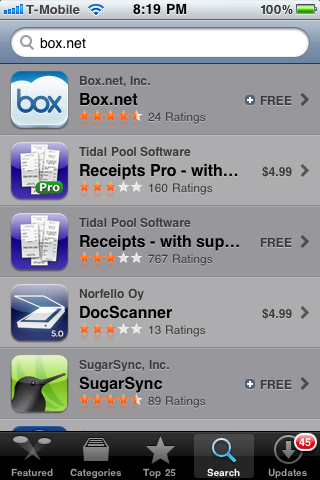
Box.net is an online storage service that, according to Box, is used by 73% of the Fortune 500 companies. Impressive.

Well, they just launched their new iPhone app and they are offering you a 50GB Lifetime account if you sign up before December 2, 2011. Pretty sweet, huh?

All you have to do is download the app to your iPhone, iPad, or iPod Touch, sign up for a free account, and you automatically get upgraded to a 50GB account for free.

Here’s how to do it:

Step 1

Open the App Store on your iPhone, iPad, or iPod Touch

Step 2

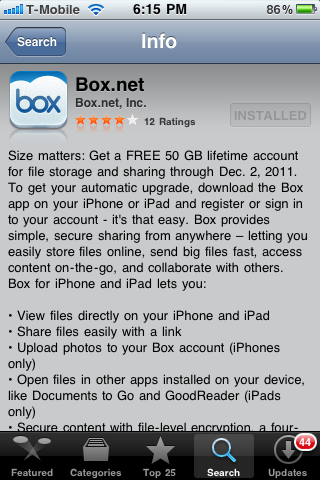
Click on the “Search” icon on the bottom of the screen, type “box.net” (no quotes) in the search field up top, and click on “box.net” in the search results.

Step 3

Click on the Box.net app

Step 4

Click on the green install button in the upper right (it’ grayed out in the pic below because I already installed it)

Step 5

Launch the application

Step 6

Enter your email address, password, confirm your password, and click “Register”

Step 7

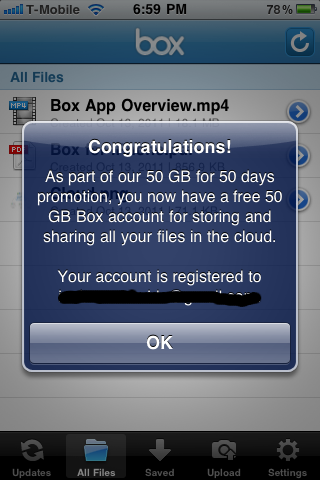
Bada bing! You now have a 50GB Lifetime online storage account with Box that you can use with your iOS device.

You can either upload your data from your iOS device or via your computer by going to box.net, logging into your account with the email address and password that you just used to register, and then clicking on Upload.

Here’s a tour of the service:

[youtube]http://www.youtube.com/watch?v=IcjgqQTPFx4[/youtube]

And here is the co-founder and some employees talking about Box’s simple, mobile, and open approach to online storage.

[youtube]http://www.youtube.com/watch?v=bExkpidJaAQ [/youtube]

Enjoy!

Match.com: #1 Dating Site – View Pics for Free


Los Angeles Computer Repair | Los Angeles Computer Tech | Computer Repair Services

Share:
Reading time: 1 min
Page 1 of 212»

FREE DOWNLOADS


Get immediate access to the first 315 pages of Nirvana Zarabi-Smith’s famous Quantum Encyclopedia book and get 10% OFF!

Click here!

LIMITED TIME ONLY!

Now compatible with iPad and Android tablets!


Get immediate access to the first 100 pages of the 6th edition of Nirvana Zarabi-Smith’s incredibly useful A-Z Protocols book and get 10% OFF!

Click here!

LIMITED TIME ONLY!

Now compatible with iPad and Android tablets!

25% OFF Biofeedback Certification Training!

Have you been yearning to get certified as a biofeedback professional? Would you like to deepen your biofeedback knowledge so you can get the most out of your device?

Then take advantage of this
LIMITED TIME OFFER of getting 25% OFF of Nirvana Zarabi-Smith’s amazing Biofeedback Certification Training Program!

Click here!

LIMITED TIME ONLY!

Recent Posts

Do you find personalized ads on your smartphone “creepy”?  Here’s how to opt-out.

Do you find personalized ads on your smartphone “creepy”? Here’s how to opt-out.

January 31, 2016
How to get rid of the annoying Windows 10 Free Upgrade notification

How to get rid of the annoying Windows 10 Free Upgrade notification

August 29, 2015
How to turn any song into a cool iPhone ringtone (mp3)

How to turn any song into a cool iPhone ringtone (mp3)

March 12, 2015
Is your Mac slow?  Here are the 6 top ways to speed up your Mac!

Is your Mac slow? Here are the 6 top ways to speed up your Mac!

February 6, 2015

Blog Post Categories

Archives

© 2020 copyright Ian Brown // All rights reserved