ianbrown.cc – computer tech & repair services – onsite and remote
  • Home
  • About Ian
  • Services
    • 10% Off Mobile Onsite Computer Repair – Greater Hartford, CT
  • Testimonials
  • Blog Archives
  • For Sale
  • Biofeedback Resources
    • + FREE DOWNLOAD
      The first 315 Pages of Nirvana Zarabi-Smith’s famous Quantum Encyclopedia ebook
      LIMITED TIME ONLY!
    • + FREE DOWNLOAD
      The first 100 pages of Nirvana Zarabi-Smith’s A-Z Protocols – INDIGO/SCIO ebook
      LIMITED TIME ONLY!
    • 25% Off Biofeedback Certification Courses at The Quantum Academies!
      LIMITED TIME ONLY!
  • Payments
  • Contact
Home
About Ian
Services
    10% Off Mobile Onsite Computer Repair – Greater Hartford, CT
Testimonials
Blog Archives
For Sale
Biofeedback Resources
    + FREE DOWNLOAD
The first 315 Pages of Nirvana Zarabi-Smith's famous Quantum Encyclopedia ebook
LIMITED TIME ONLY!

    + FREE DOWNLOAD
The first 100 pages of Nirvana Zarabi-Smith's A-Z Protocols – INDIGO/SCIO ebook
LIMITED TIME ONLY!

    25% Off Biofeedback Certification Courses at The Quantum Academies!
LIMITED TIME ONLY!

Payments
Contact
ianbrown.cc – computer tech & repair services – onsite and remote
  • Home
  • About Ian
  • Services
    • 10% Off Mobile Onsite Computer Repair – Greater Hartford, CT
  • Testimonials
  • Blog Archives
  • For Sale
  • Biofeedback Resources
    • + FREE DOWNLOAD
      The first 315 Pages of Nirvana Zarabi-Smith’s famous Quantum Encyclopedia ebook
      LIMITED TIME ONLY!
    • + FREE DOWNLOAD
      The first 100 pages of Nirvana Zarabi-Smith’s A-Z Protocols – INDIGO/SCIO ebook
      LIMITED TIME ONLY!
    • 25% Off Biofeedback Certification Courses at The Quantum Academies!
      LIMITED TIME ONLY!
  • Payments
  • Contact
Browsing Category
iPhone Tips
Apple•Cell Phone Tips•Cool Products & Services•iPad•iPhone & Mobile•iPhone Tips

How to Charge Your iPhone Twice as Fast

November 20, 2013 by Ian Brown No Comments

A client of mine recently asked me why their iPad was charging so slowly. I asked him what he was using to charge it. He told me that he was using his iPhone charger.

“BINGO! That’s the reason!” I told him.

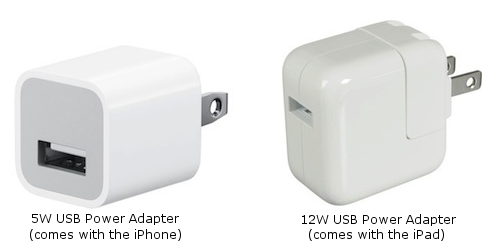
You see, the iPhone’s wall charger only has a 5W USB Power Adapter, whereas the iPad’s wall charger uses a 12W USB charger.

Charge your iPhone 2X as fast with the iPad's 12W USB Power Adapter!

Charge your iPhone 2X as fast with the iPad’s 12W USB Power Adapter!

So the iPad’s wall charger has over twice the charging power as the iPhone wall charger. Once he switched back to his iPad charger, its charging speed went back up to where it should be.

I then decided to switch that situation around and charge my iPhone with the iPad 12W USB charger.

Result?

BAMM! It charged twice as fast! So sweet!

Before I did that, I researched it to make sure it is safe to do, and it is.

So, if you want to charge your iPhone twice as fast when you plug it into the wall, simply get the Apple 12W USB Power Adapter.

You can use the same cord that came with your iPhone. Just take off the 5W USB charger on the end (see picture above), and replace it with the 12W USB charger (see picture above).

Or, if you have an iPad, you can use your iPad charger for your iPhone.

And it doesn’t matter if you have an iPhone 5 with a lightening connection and an iPad 3 with 30 pin connection, it will still work. Just put the 12W USB Power Adapter on the cord you will use to charge your iPhone.

A great tip for those busy professional types and for those who value time like I do. ;)

Match.com: #1 Dating Site – View Pics for Free

Los Angeles Computer Repair | Los Angeles Computer Tech | Computer Repair Services

Share:
Reading time: 1 min
Apple•Errors•iPad•iPhone & Mobile•iPhone Problems•iPhone Tips•Mobile

Can’t backup your iPhone, iPad, or iPod Touch to iCloud? Not Enough Storage?

April 12, 2012 by Ian Brown 38 Comments

If you’re getting the following error message…
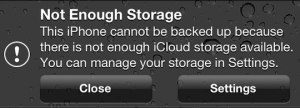
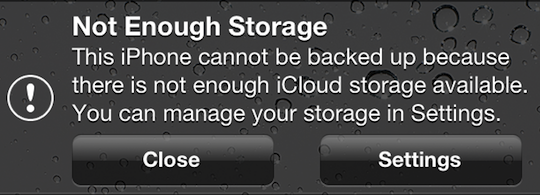
“Not Enough Storage: This iPhone cannot be backed up because there is not enough iCloud storage available. You can manage your storage in Settings.”

…this may be a legitimate error for you, and if that’s the case, then the answer for you is to either copy some of the data from your iOS device to your computer and delete the data you just copied from your iOS device so there is less to backup to iCloud, OR you can simply buy more iCloud storage.

And keep in mind that if you are backing up more than one device to the iCloud, that each backup of each device will count as additional space being taken up, even if they are the same files on each device.

However, if your situation is similar to the one that I encountered where you aren’t backing up much data in the first place, and then all of a sudden you don’t have enough space to backup your device via iCloud, this fix is for you.

Here is how to fix it:

Go to Settings>General>Usage>under “iCloud”, select Manage Storage>select your iOS device

Here is the screen that you’ll get:
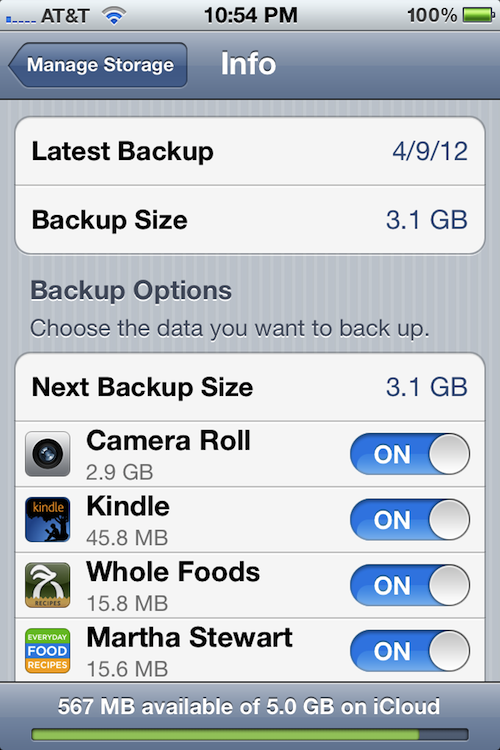
[ Yes, it says, “Martha Stewart” and no, it is not my iPhone. ;p ]

It will tell you the date of the lastest backup, as well as its size. Below that, under “Backup Options”, it will tell you the “Next Backup Size”, which tells you how large the next backup will be. And below that, it will tell you the items that are taking up the most space in order of size, from most to least.

The On/Off switch next to each item listed is turning on and off the backing up of the data for that section or app. So if there is data that you don’t care about backing up, just switch the On/Off switch next to it to “Off”, and if that fixes your storage issue (frees up enough space), then you are good to go.

In this case, the next backup was going to be 5.3GB (this is not pictured above, because I fixed the issue before I decided to blog about it), however the most recent one was only 3.1GB.

On top of that, Apple only gives you 5GB free in your iCloud account. Any more storage space, and you’ll need to pay. Since both the iPhone and iPad were being backed up in this case, something needed to be done.

So I looked under the “Next Backup Size” to see what was taking up the most space, and it was the Camera Roll, which is the album in the Photos app that has all of the photos that you take with your iPhone, the screenshots that you take of the phone’s screen, and the videos that you take with the phone.

I then went to the Camera Roll album to take a look at what was taking up so much space so soon after the last backup, and I noticed that there was ONE video file that was 1hr 15 min long that was taking up 2.2GB of space!

Apparently, what happened was kind of like a pocket dial, where it started recording video without anyone intentionally touching it. The camera button was pressed accidentally while it was being put in a pocket.

The reason it started recording video instead of just taking a picture was that the last time the camera was used, video was taken. That setting will stay the same for the next use of the camera until you change it.

So, I just deleted the big ass video of nothingness and all was well again.

The reason this was able to happen is that with iOS 5, you can now go directly into the camera with the swipe of the screen (starting at the camera icon) without having to unlock the screen. So this is one of the downsides to that feature. However, I’ll deal with it, because it’s worth being able to catch those fleeting Kodak moments when they occur!

Hope that helps ya!

If any of you have any other fixes for this situation, feel free to post them below so others can benefit.

Thanks!

Match.com: #1 Dating Site – View Pics for Free


Los Angeles Computer Repair | Los Angeles Computer Tech | Computer Repair Services

Share:
Reading time: 3 min
Apple•Cell Phone Tips•iPhone & Mobile•iPhone Tips•Jailbreaking & Unlocking

How to find out the bootrom version of your iPhone [VIDEO]

November 5, 2011 by Ian Brown 1 Comment

Since the jailbreak for iOS 5 is still tethered, I wanted to find out if my iPhone 3GS had the old bootrom version or the new one. The old version will allow you to have an untethered jailbreak, which means you will NOT have to hook up your iPhone to your computer to keep the jailbreak every time you restart your iPhone, you turn it off, or it dies.

Watch the video below to see how to do it. And for those of you who would like the written instructions, I put them below the video.

Enjoy!

[youtube]http://www.youtube.com/watch?v=lcxyBKL1HZM[/youtube]

Instructions

  1. Connect your iPhone to your computer
  2. Turn iPhone off
  3. Start iTunes
  4. Hold Power and Home buttons together for 10 seconds or so
  5. Release Power button but keep holding the Home button until your computer recognizes a new USB device
  6. iTunes will now recognize your iPhone
  7. Note: Your iPhone screen at this time should be black (black in color), if not, then you are most likely in Recovery Mode, not DFU mode.

    Here’s a visual for you that shows the difference between “Recovery Mode” and “DFU Mode”:

  8. Click on the background image of your desktop (not an icon) OR click on “Finder” at the bottom of your screen in the dock, all the way to the left
  9. Click on “Go” at the top of your screen in the menu bar and select “Utilities”
  10. Double-click on “System Profiler”
  11. Click on USB on the left
  12. On the right, you should see “Apple Mobile Device (DFU Mode).” Click on it.
  13. After you click on it, a new section should appear below it.
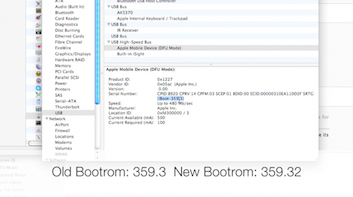
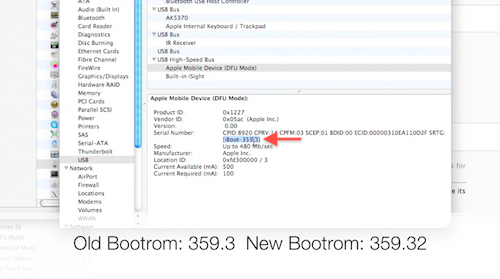
  14. You should see “Serial Number.” Right below the serial number, you should see [iBoot-359.3] or [iBoot-359.32]. The second one is the new bootrom. The first one is the old one.
  15. Done!

If you have the old bootrom, count yourself LUCKY! You can go and jailbreak/unlock your iPhone and it will be an untethered jailbreak, which means once you jailbreak it, it’s jailbroken. You will NOT need to hook up your iPhone to your computer every time your iPhone restarts or dies, which is what everyone else has to do as of now, until the iPhone Dev Team produces an untethered jailbreak for iOS 5.

Match.com: #1 Dating Site – View Pics for Free


Los Angeles Computer Repair | Los Angeles Computer Tech | Computer Repair Services
Share:
Reading time: 1 min
Breaking News•Cool Products & Services•iPhone & Mobile•iPhone Tips•Mobile•News•Tips and Tricks

iOS 5 can now be jailbroken AND unlocked!

October 14, 2011 by Ian Brown No Comments

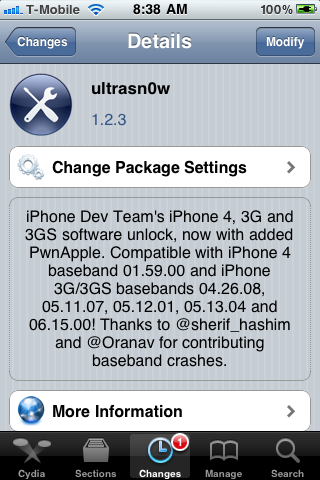
For you unlockers and jailbreakers, today the Dev Team has just released a version of UltraSnow that is compatible with iOS 5! So you can now unlock iOS 5 and use it with any provider. Check out the new features in iOS 5 here.

Just know that no new basebands are supported. The update only adds support for iOS 5. The iPhone 3G and 3GS basebands supported are 04.26.08, 05.11.07, 05.12.01, 05.13.04, and 06.15.00. The baseband supported for the iPhone 4 is 01.59.00.

Also know that the jailbreak is only a tethered jailbreak, except for those of you who have the 3GS that has the old bootrom. So that means, if your phone powers down, you’ll need to connect your phone to your computer when you boot back up.

I would also suggest saving your SHSH blobs before doing this using this tutorial:

http://www.iclarified.com/entry/index.php?enid=16988

Here is some more important info from the iPhone Dev Team Blog:

We’ve updated ultrasn0w to be compatible with iOS5, which came out a few days ago. While ultrasn0w 1.2.4 (available now in Cydia) doesn’t add support for any new basebands, the update is required for any ultrasn0w unlockers trying out iOS5 (it remains backwards compatible though, so you should be able to use it no matter what firmware you have).

Note: there’s a special “trick” that iPhone3GS owners with baseband 06.15 need for iOS5. During the new setup screens you see when you start iOS5 for the first time, you’ll be asked about Location Services. Be sure to select “Disable Location Services” when asked! Later on in the setup, you’ll have the chance to turn on Location Services again when asked if you want to use “Find my iPhone”. It’s fine to turn it back on at that point, if that’s your desire (or you can always go in and enable it in Settings.app).

Also, some iPhone3GS users with the 06.15 baseband may have tried to install iOS5 using a stock IPSW (even though you should never ever try to use a stock IPSW if you’re an ultrasn0w unlocker). If you did try this, your baseband is probably in an inconsistent state, and you’ll need to reflash the 06.15 baseband again (using redsn0w). Be very careful if you use redsn0w to reflash the iPad baseband – don’t interrupt the process! And please avoid using stock IPSWs in the future :) Unlockers should never go near stock IPSWs.

So if you qualify, and you don’t mind having a tethered jailbreak, then here are the three things that you want to do:

1. Upgrade to iOS 5 without upgrading your baseband

Tutorial: http://www.iclarified.com/entry/index.php?enid=17344

2. Jailbreak your iPhone

Again, this is a tethered jailbreak; the Dev team will be releasing an untethered jailbreak very soon, and I will post it on my blog when they do.

Tutorial: http://www.iclarified.com/entry/index.php?enid=17342

3. Unlock your iPhone (if need be)

Tutorial: http://www.iclarified.com/entry/index.php?enid=4253

I may or may not do this tethered jailbreak. It depends how much time I have. But once they release an untethered jailbreak, then I will definitely be upgrading to iOS 5, and when I do, I’ll record the process on video and post it.

And when they release an untethered jailbreak and unlock for the iPhone 4S, I will buy the iPhone 4S, record the jailbreaking and unlocking of it, and post that as well.

Enjoy iOS 5 and let me know what you think of it!

Match.com: #1 Dating Site – View Pics for Free


Los Angeles Computer Repair | Los Angeles Computer Tech | Computer Repair Services
Share:
Reading time: 3 min
Page 2 of 7«1234»...Last »

FREE DOWNLOADS


Get immediate access to the first 315 pages of Nirvana Zarabi-Smith’s famous Quantum Encyclopedia book and get 10% OFF!

Click here!

LIMITED TIME ONLY!

Now compatible with iPad and Android tablets!


Get immediate access to the first 100 pages of the 6th edition of Nirvana Zarabi-Smith’s incredibly useful A-Z Protocols book and get 10% OFF!

Click here!

LIMITED TIME ONLY!

Now compatible with iPad and Android tablets!

25% OFF Biofeedback Certification Training!

Have you been yearning to get certified as a biofeedback professional? Would you like to deepen your biofeedback knowledge so you can get the most out of your device?

Then take advantage of this
LIMITED TIME OFFER of getting 25% OFF of Nirvana Zarabi-Smith’s amazing Biofeedback Certification Training Program!

Click here!

LIMITED TIME ONLY!

Recent Posts

Do you find personalized ads on your smartphone “creepy”?  Here’s how to opt-out.

Do you find personalized ads on your smartphone “creepy”? Here’s how to opt-out.

January 31, 2016
How to get rid of the annoying Windows 10 Free Upgrade notification

How to get rid of the annoying Windows 10 Free Upgrade notification

August 29, 2015
How to turn any song into a cool iPhone ringtone (mp3)

How to turn any song into a cool iPhone ringtone (mp3)

March 12, 2015
Is your Mac slow?  Here are the 6 top ways to speed up your Mac!

Is your Mac slow? Here are the 6 top ways to speed up your Mac!

February 6, 2015

Blog Post Categories

Archives

© 2020 copyright Ian Brown // All rights reserved