Ok, this is something that I use all the time. I read a lot and have a lot of books in PDF format. And since I am on the go a lot, the most convenient way to read them wherever I am is on my iPhone (it’s a great way to catch up on your reading, especially if you are in a long line somewhere!).
However, if you have ever tried reading a PDF on an iPhone, you’ll know that it is challenging to read, to say the least!
The text is so teeny tiny that you’d have to be a hawk to be able to read it. Either that, or you’d have to keep on zooming in and out to read it, which would be very annoying (zoom in, scroll down the page to read, zoom out, turn the page, zoom in to read again…ugghh!).
Take a look…
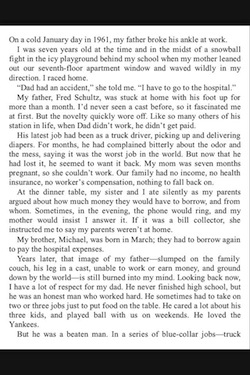
The teeny tiny text you have to deal with when reading a PDF natively (without converting it and without any special apps) on your iPhone
However, there is a solution to all of this madness! And I found out about it quite by accident.
How I found out about Amazon’s cool service that converts a PDF to a Kindle ebook…by accident!
A friend of mine had just gotten an Android phone and they could not open up a Kindle ebook (.mobi or .azw) in Amazon’s Kindle app on their Android phone no matter how they tried to access it (as an attachment to an email, from their Box.com account, from their Dropbox account, etc). Their Android phone simply would not list Amazon’s Kindle app as one of the options for apps to use when they tried to open it.
I had no problem opening a Kindle ebook on my iPhone with Amazon’s Kindle app no matter where I was opening it from (1 point for the iPhone!).
So we did some research and found out that on the Android, you can’t open a Kindle ebook directly. You have to either buy the Kindle ebook from Amazon and download it to your device from your Amazon Cloud account (click on the Cloud tab in the Kindle app, and then click on the book to download it to your Android device), or you have to send it to your Kindle email address that is associated with the Kindle app on your Android phone.
So we went a little deeper and we discovered a little-known way to convert a PDF into a Kindle ebook via email that will, in turn, deliver the newly converted PDF directly to your Kindle device or Kindle app on your mobile device!
But I’m getting ahead of myself. I’ll tell you exactly how to do that in a minute. First, I need to explain what I mean by a Kindle email address.
“What? You mean I have a Kindle email address?”
You betcha! We found out that you get a Kindle email address for each of your Kindle devices and mobile devices that have the Kindle app installed and registered. The only device that does not get a Kindle email address is a computer (Mac or PC), even though you can install the Kindle app on your Mac or PC.
The way it works is when you register your Kindle device or Kindle app on your mobile device with your Amazon account (register = log into your Amazon account via your Kindle or Kindle app), your device is given its own Kindle email address (e.g. yourdevice@kindle.com) that you can use to send your own ebooks and documents directly to your device!
And the cool thing is, you can change your Kindle email address to be something that you will remember, like KellysiPad@Kindle.com, as long as it has not already been taken by another Amazon user.
How to Find Your Kindle Email Address and Change it to Something You Will Remember
To find out what your Kindle email address is for a certain device (and change it to something you will remember, if you want), simply do the following:
- Go to http://www.amazon.com/myk (myk = manage your Kindle; it will ask you to log into your Amazon account if you aren’t already logged in)
- Click on the YOUR DEVICES tab
- Click on the icon for the device that you want to send documents to
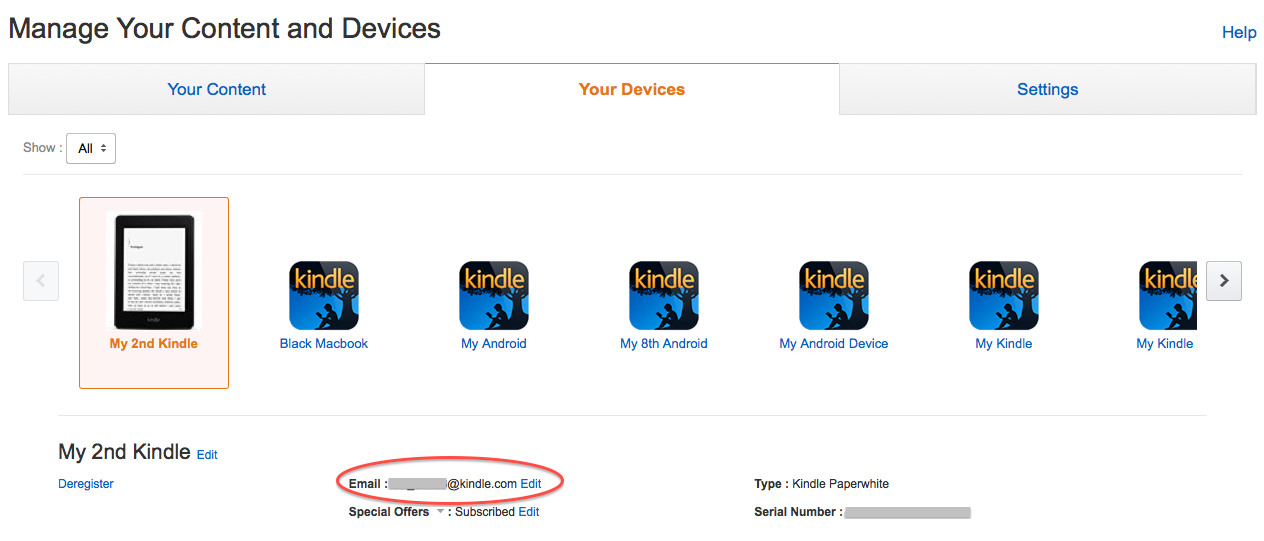
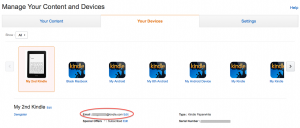
- Below the icon for that device, you will see your Kindle email address for that device
It will look like this…
(click image to enlarge)
This is where you get your Kindle email address, and where you can change your Kindle email address, if you want
- To change the Kindle email address to something you will remember, click the EDIT link next to it, change it to what you want, and then click SAVE (it will tell you if that email address is already taken; if it is, you will need to think of something else to change it to)
This is what it looks like when you click on EDIT next to your Kindle email address…
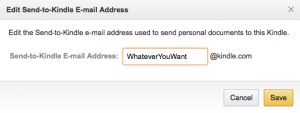
(click image to enlarge)
When you click on EDIT next to your Kindle email address, this is what comes up
- Your new Kindle email address will be saved and changed immediately, and you can use your new Kindle email address right away!
After you do that, you will need to click on the SETTINGS tab, scroll down the page, and submit the email address(es) that you want to send your documents FROM to your APPROVED PERSONAL DOCUMENT E-MAIL LIST so Amazon knows that the email address you’re sending your documents FROM is an email address that you’ve approved.
You can submit any email address, even the email address of a friend, family member, or colleague, as long as you or the person you are allowing to send documents to your Kindle device or Kindle app have access to that email address.
Here is how you do that:
- Go to http://www.amazon.com/myk
- Click on SETTINGS
- Scroll down to APPROVED PERSONAL DOCUMENT E-MAIL LIST
- Click ADD A NEW APPROVED E-MAIL ADDRESS
- Enter the email address you want to send FROM in the window that pops up
- Click the ADD ADDRESS button
- Done!
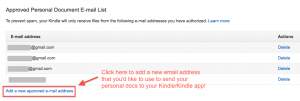
(click to enlarge)
Click on the link that I highlighted above in the MANAGE YOUR KINDLE section of your Amazon account to add a new email address that you want to use to send personal docs to your Kindle device or Kindle app on your mobile device
Now for the part you’ve been waiting for…
How to Convert a PDF to a Kindle Ebook in Just Minutes Via Email!
Now that you have your Kindle email address set up and set to something that you will remember, you are now ready to convert your PDF to a Kindle ebook with a few clicks of your mouse!
Here is how it works…
When you send a PDF via email to the Kindle email address that is associated with your Kindle device or Kindle app on your mobile device, and you put the word, convert, in the subject line (you can leave the body of the email empty), it will convert the PDF to a Kindle ebook and send it directly to your Kindle device or Kindle app on your mobile device in minutes!
Pretty sweet, huh?
By converting the PDF to a Kindle ebook, it will make the PDF much easier to read, because the font will be a normal size font (not squint your eyes, teeny tiny), and you can even adjust the size of the font to make it larger (or smaller) if you feel the need, just like a Kindle ebook!
If you’ve ever tried reading a PDF on your iPhone or Android via the Kindle app that has NOT been converted to a Kindle ebook, you’ll know that it’s a real challenge. And if you haven’t had the opportunity, take it from me, it’s not worth the effort.
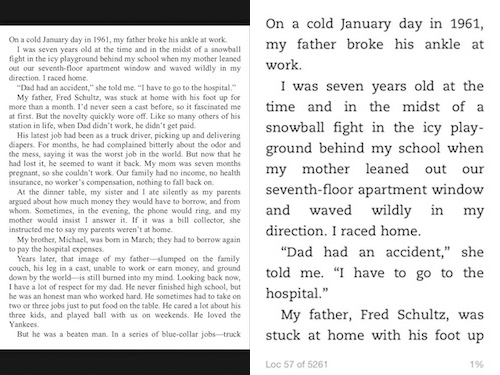
In fact, you don’t even need to take my word for it. Check out the comparison below!
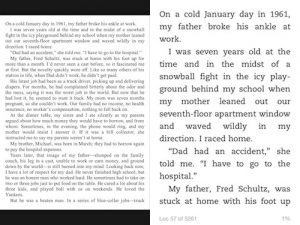
(click to enlarge)
Compare the difference between reading a PDF natively on my iPhone (LEFT) and reading the same PDF in the Kindle app on my iPhone after it’s been converted to a Kindle ebook via Amazon’s email converter service (RIGHT). HUGE DIFFERENCE!
This brilliant service that Amazon provides solves the problem. When an ebook is in Kindle format (either .mobi or .azw), you can adjust many things, including the text size, which, for many people, is a kick ass and vital feature!
In the past, I’ve used a special software program, Calibre, to convert my PDF ebooks to both the mobi format and the epub format so I can read them on my iPhone and Android, but I no longer need to do that, because Amazon does a much better job quickly and easily!
NOTE: I need to mention something here that is IMPORTANT. This will NOT work with PDFs that are scanned images of a book. The text in the PDF needs to be selectable. In other words, in order for Amazon to be able to convert the words to another format, it needs to be able to read the words. So if you can highlight the words in the PDF as if you were going to copy and paste them, then you are good to go. If you can’t, then unfortunately this will not work.
Just to confirm, here are the step-by-step instructions on how to convert your PDF to a Kindle ebook via Amazon’s email converter:
- Compose a new email
- Attach the PDF you want to convert to a Kindle ebook to the email
- Put the just the word convert in the subject line; you can leave the body of the email blank
- Address the email to the Kindle email address (ex. yourkindle@kindle.com) that is associated with the device you want to send it to; you can send it to more than one of your Kindle email addresses at the same time
- Send it
- Wait a minute or two, and then check your Kindle device or Kindle app on your mobile device that you sent it to
- It should download to your Kindle Library on that device before your very eyes!
- Click on it
- Read and enjoy!
And the cool thing is, once you send it to one of your Kindle devices or one of your mobile devices that has the Kindle app installed, if you have another Kindle device or mobile device that has the Kindle app installed that is also registered to your Amazon account, then all you have to do is click on the CLOUD tab in your Kindle device or in the Kindle app on your mobile device and you can click on the PDF you just sent and download it!
It’s a great service, and I’m sure you’ll enjoy it and use it as much as I do (if that’s possible)!
BONUS
But wait! There’s more!
You can send more than just ebooks and PDFs to your Kindle device or Kindle app on your mobile device
In addition to Kindle ebooks (.mobi or .azw) and PDFs, there are many other types of documents that you can send to your Kindle device or to your Kindle app on your mobile device via your Kindle email address.
You can send things like a blog post, a Word document, or even a picture to the Kindle email address for your device and it will appear on your device moments later! And you can have Amazon store the docs that you send in your free Amazon Cloud account (up to 5GB).
Not only does this give you a backup of these docs, but as I mentioned above, it also allows you to download these docs onto your other Kindle device(s) or mobile device(s) that has the Kindle app installed. All you have to do is click on the Cloud tab in your Kindle device or in the Kindle app on your mobile device, and click on the document you want to download to download it.
Cool, right?
Here are the types of files/documents that you can send to your Kindle device or Kindle app on your mobile device via your Kindle email address:
- Microsoft Word (.DOC, .DOCX)
- HTML (.HTML, .HTM)
- RTF (.RTF)
- JPEG (.JPEG, .JPG)
- Kindle Format (.MOBI, .AZW)
- GIF (.GIF)
- PNG (.PNG)
- BMP (.BMP)
- PDF (.PDF)
I was pretty excited about this since my Dropbox account was getting full (until I found out how to max out my Dropbox account to over 18GB in less than 15 minutes!).
So hopefully this has opened up a whole new world to you and your Kindle device or mobile device with the Kindle app, like it did for me.
Happy reading!
NOTE: You can also send your personal docs via a browser plugin or desktop app, appropriately called Send To Kindle.