ianbrown.cc – computer tech & repair services – onsite and remote
  • Home
  • About Ian
  • Services
    • 10% Off Mobile Onsite Computer Repair – Greater Hartford, CT
  • Testimonials
  • Blog Archives
  • For Sale
  • Biofeedback Resources
    • + FREE DOWNLOAD
      The first 315 Pages of Nirvana Zarabi-Smith’s famous Quantum Encyclopedia ebook
      LIMITED TIME ONLY!
    • + FREE DOWNLOAD
      The first 100 pages of Nirvana Zarabi-Smith’s A-Z Protocols – INDIGO/SCIO ebook
      LIMITED TIME ONLY!
    • 25% Off Biofeedback Certification Courses at The Quantum Academies!
      LIMITED TIME ONLY!
  • Payments
  • Contact
Home
About Ian
Services
    10% Off Mobile Onsite Computer Repair – Greater Hartford, CT
Testimonials
Blog Archives
For Sale
Biofeedback Resources
    + FREE DOWNLOAD
The first 315 Pages of Nirvana Zarabi-Smith's famous Quantum Encyclopedia ebook
LIMITED TIME ONLY!

    + FREE DOWNLOAD
The first 100 pages of Nirvana Zarabi-Smith's A-Z Protocols – INDIGO/SCIO ebook
LIMITED TIME ONLY!

    25% Off Biofeedback Certification Courses at The Quantum Academies!
LIMITED TIME ONLY!

Payments
Contact
ianbrown.cc – computer tech & repair services – onsite and remote
  • Home
  • About Ian
  • Services
    • 10% Off Mobile Onsite Computer Repair – Greater Hartford, CT
  • Testimonials
  • Blog Archives
  • For Sale
  • Biofeedback Resources
    • + FREE DOWNLOAD
      The first 315 Pages of Nirvana Zarabi-Smith’s famous Quantum Encyclopedia ebook
      LIMITED TIME ONLY!
    • + FREE DOWNLOAD
      The first 100 pages of Nirvana Zarabi-Smith’s A-Z Protocols – INDIGO/SCIO ebook
      LIMITED TIME ONLY!
    • 25% Off Biofeedback Certification Courses at The Quantum Academies!
      LIMITED TIME ONLY!
  • Payments
  • Contact
Browsing Category
iPad
Announcements•Apple•Breaking News•Cool Products & Services•iPad•iPhone & Mobile•Mobile•News

Google Maps Finally Hits the iOS App Store!

December 12, 2012 by Ian Brown No Comments

The long awaited Google Maps app for iOS devices FINALLY hit the App Store tonight! Although people have been having fewer and fewer problems with Apple’s Map app, Google still is king of maps, especially with the public transit maps.

google-maps-500

And the cool thing is, even if you have an iPhone 4 or 3GS, you get turn-by-turn voice navigation (unlike Apple’s Maps app where you need at least the iPhone 4S for voice navigation)!

You will have to have at least iOS 5.1 installed, though.

Also, you will most likely need to click on this link to get it in the App Store:

http://goo.gl/MdhWC

It didn’t show up in the App Store search when I did a search for it, probably because it is so new to the store.

Here is the description of the app from the App Store:


Navigate your world with Google Maps, now available for iPhone. Get comprehensive, accurate and easy-to-use maps with built-in Google local search, voice guided turn-by-turn navigation, public transit directions, Street View and more. Use Google Maps to discover great places to eat, drink, shop and play, with ratings and reviews from people you trust. Sign in to save your favorite places and quickly access all your past searches and directions from your computer, right on your phone.

Search
* Find addresses, places and businesses around the world with Google local search.
* Discover places to eat, drink, shop and play, with ratings and local reviews.
* Sign in to sync your searches, directions, and favorite places between your computer and your phone.

Directions
* Get voice guided, turn-by-turn driving directions.
* Find your way by train, bus, subway or walking directions.
* Access live traffic information in cities across the world.

Street View and imagery
* View 360-degree panoramas of places around the globe with Street View.
* See inside more than 100,000 businesses worldwide.
* View high resolution satellite imagery of locations around the world.

Simple and easy to use
* An entirely new Google Maps experience on your iPhone.
* Newly designed and streamlined interface for even easier navigation of your world.
* Use gestures to explore the map and browse results.

Let us know in the comments where in the world you successfully download it from, and how well it works for you.


Share:
Reading time: 1 min
Cool Products & Services•iPad•iPhone & Mobile•Mobile

Black Friday Deals Aren’t Over Yet! Check out these Amazing iPhone & iPad App Deals!

November 24, 2012 by Ian Brown No Comments


I know you might be thinking that it’s a bit late for Black Friday shopping, but think again, because there are still some sweet deals out there! Especially on the Internet, because many companies start their deals on Black Friday and carry them over until Cyber Monday, which is this Monday.

The cool thing about doing your shopping on the Internet is that there is no traffic, no long lines, nor do you have to deal with navigating between mobs of people. It’s just you, your device of choice, me (your personal deal finder), and the wide open information superhighway that has been dubbed the Internet.

So let’s not waste any more time and dig in, shall we, because time’s a tickin’!

This time around, the deals are to be found in the iPhone/iPad/iPod Touch App Store. The one that really stood out for me is the BEST app suite to view and edit Microsoft Office documents, Quickoffice Pro (iPhone & iPad Touch) and Quickoffice Pro HD (iPad). Quickoffice Pro HD is normally $19.99, but is on sale for only $4.99, and the Quickoffice Pro app for the iPhone is usually $14.99, but is priced at a whopping $.99!

So if you want MS Word, Excel and/or PowerPoint on your iPad (or iPhone), then I would suggest that you DEFINITELY jump on that deal.

If you’re looking for some fun, then you might want to check out Real Racing 2, if you like racing cars, like I do, or The Amazing Spiderman. Both are very popular.

There are many other cool apps that are on special right now, and below is a list of the more popular ones that I got from iPhoneHacks. I, myself, took advantage of a fair amount of them. I suggest you go through the list right now while you’re thinking of it, because who knows if they will be available tomorrow.

iPhone & iPod Touch App Deals

QuickOffice Pro – normally $14.99 –> $0.99
Real Racing 2 – normally $4.99 –> $0.99
PDF Expert – normally $9.99 –> Free
Smart Office 2 – normally $9.99 –> Free
Game Your Video – normally $1.99 –> $0.99
1Password for iPhone – normally $9.99 –> $6.99
Localscope – normally $1.99 –> $0.99
Scrabble – normally $1.99 –> $0.99
Fieldrunners – normally $2.99 –> $0.99
Plants vs Zombies – normally $2.99 –> $0.99
djay for iPhone – normally $0.99 –> Free
Star Walk – normally $2.99 –> $1.99
Momento (Diary/Journal) – normally $2.99 –> $0.99
Garmin U.S.A – normally $49.99 –> $24.99
SketchBook Mobile – normally $1.99 –> $0.99

NOTE: iPhone apps will work on the iPad. They just appear the size of the iPhone app. You can hit to 2X button to make it bigger, but it will be grainy.

iPad App Deals

QuickOffice Pro HD – normally $19.99 –> $4.99
Real Racing 2 HD normally $6.99 –> $0.99
NFS Shift 2 Unleashed for iPad – normally $4.99 –> $0.99
Monopoly Millionaire for iPad – normally $4.99 –> $1.99
Star Walk for iPad – normally $2.99 –> $1.99
Flight Control HD – normally $4.99 –> $0.99
djay for iPad – normally $19.99 –> $9.99
Tiger Woods PGA Tour 12 for iPad – normally $4.99 –> $0.99
Yahtzee HD – normally $4.99 –> $0.99
ReaddleDocs for iPad – normally $6.99 –> $1.99
SketchBook Pro for iPad – normally $4.99 –> $2.99

Universal Apps (Apps for iPhone, iPod Touch & iPad)

The Amazing Spider Man – normally $6.99 –> $0.99
Asphalt 7: Heat – normally $0.99 –> Free
Tango Remote – normally $4.99 –> Free
Documents To Go – normally $9.99 –> $5.99
Track 8 – normally $1.99 –> $0.99
The Sims Medieval – normally $4.99 –> $0.99
Galaxy on Fire – normally $4.99 –> Free
FIFA 13 – normally $6.99 –> $2.99
FiLMiC Pro – normally $3.99 –> Free
IM+ Pro – normally $9.99 –> $2.99
Navigon USA – normally $49.99 –> $24.99
Navigon North America – normally $59.99 –> $29.99
Scanner Pro – normally $6.99 –> $1.99
Printer Pro – normally $6.99 –> $1.99
TomTom U.S.A. – normally $49.99 –> $31.99
TomTom U.S. & Canada – normally $59.99 –> $39.99
TomTom U.S. & Mexico – normally $59.99 –> $39.99
Groove 2 – normally $3.99 –> $0.99
LensFlare – normally $0.99 –> Free

As I said above, even though it’s past Black Friday (Nov 23, 2012), don’t despair. The deals that you’re interested in above may still be valid. All you have to do is click on the links for the apps to find out! Some deals are lasting through Cyber Monday, or even longer, so it’s definitely worth a shot.

If you have any more deals that you would like me to add to the list, post it in the comments below and I’ll be sure and add them.

Happy Holidays!

Share:
Reading time: 3 min
Apple•Cool Products & Services•iPad•Mac•Tips and Tricks•Video

How to Download Photos From Your Camera to Your iPad without a Computer with the Apple iPad Camera Connection Kit [VIDEO]

August 20, 2012 by Ian Brown No Comments

A client of mine recently asked me how they can hook up their camera directly to their iPad without a computer so they can travel with just their iPad and a camera, download their photos onto their iPad, and share them online. A very good question. One that I’m sure many of you would like to know the answer to as well. So…here we go.

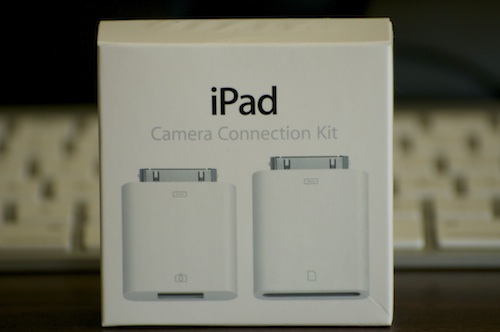
First thing you will need to do is purchase the Apple iPad Camera Connection Kit (Apple thinks of everything, don’t they?).

Apple iPad Camera Connection Kit
Product Link

Once you have that in hand, it’s a very simple process. But which adapter you use from the kit will be dependent upon whether your camera uses an SD card for its memory card or another type of memory card (the kit comes with both an SD card reader adapter and a USB adapter).

Your choice of adapter will also depend on whether you prefer to take out the SD card and pop that into the card reader, or if you just want to hook up your camera directly to your iPad via the USB cable, which will save you from having to take the SD card out of the camera. Given that, I will give you directions for both.

Option #1: Apple SD Card Reader Adapter

If your camera uses an SD card for its memory card

  1. Take the SD card out of your camera, insert it into the SD card reader adapter that comes with the Apple iPad Camera Connection Kit, and insert the adapter into the 30-pin dock on your iPad (the same place where you plug in the charger to charge it)
  2. The Photos app will launch on your iPad, and you will see thumbnail photos of the photos on your camera displayed on your iPad
  3. You have two choices when it comes to importing the pictures.
    • If you would like to import all of the pictures on your camera into your iPad, then touch the blue IMPORT button in the upper right corner of the screen, and select IMPORT ALL from the pop-down menu.
    • If you would like to just import certain photos from your camera into your iPad, then touch the photos that you want to import (after you touch each photo, a green circle with a white checkmark should appear next to it, telling you that you’ve successfully selected it). After you finish selecting the photos you want to import, touch the blue IMPORT button in the upper right hand corner of your screen, and select IMPORT SELECTED.
  4. After it imports your photos, it will ask you if you want to keep or delete the photos on your camera (the photos you just imported). Select the appropriate answer.
    NOTE: If you are traveling and have limited space on your card, then you might want to free up some space by selecting to delete the photos on your camera so you can take more pictures. If you do this, you might want to also back up your photos to iCloud (on your iPad, go to SETTINGS>iCloud>turn on PHOTOS) so you have your photos backed up.
  5. If you have imported all of the photos that you want to import, close the Photos app and then unplug the adapter you used from your iPad.
  6. Done!

Option #2: Apple USB Adapter

If your camera does not use an SD card for its memory card, or if you just don’t like feel like taking the SD card out of the camera

  1. Make sure your camera is ON, and is in PLAY mode (the mode that allows you to view the photos you’ve taken in the display screen/view finder of your camera).
  2. Hook up the USB cord that came with your camera to your camera, insert it into the USB adapter that comes with the Apple iPad Camera Connection Kit, and insert the adapter into the 30-pin dock on your iPad (the same place where you plug in the charger to charge it)
  3. The Photos app will launch on your iPad, and you will see thumbnail photos of the photos on your camera displayed on your iPad
  4. You have two choices when it comes to importing the pictures.
    • If you would like to import all of the pictures on your camera into your iPad, then touch the blue IMPORT button in the upper right corner of the screen, and select IMPORT ALL from the pop-down menu.
    • If you would like to just import certain photos from your camera into your iPad, then touch the photos that you want to import (after you touch each photo, a green circle with a white checkmark should appear next to it, telling you that you’ve successfully selected it). After you finish selecting the photos you want to import, touch the blue IMPORT button in the upper right hand corner of your screen, and select IMPORT SELECTED.
  5. After it imports your photos, it will ask you if you want to keep or delete the photos on your camera (the photos you just imported). Select the appropriate answer.
    NOTE: If you are traveling and have limited space on your card, then you might want to free up some space by selecting to delete the photos on your camera so you can take more pictures. If you do this, you might want to also back up your photos to iCloud (on your iPad, go to SETTINGS>iCloud>turn on PHOTOS) so you have your photos backed up.
  6. If you have imported all of the photos that you want to import, close the Photos app and then unplug the adapter you used from your iPad.
  7. Done!

I don’t have time to make a video right now to show you how to use it, so I will let the beautiful & smart Sharon Vaknin from CNET TV show you. She also includes some extra goodies, which I think you will find useful, including being able to hook up other USB devices to your iPad like a USB keyboard, USB mic, etc.

Enjoy!

Secrets of the Apple iPad Camera Connection Kit
by Sharon Vaknin from CNET TV

[youtube]http://www.youtube.com/watch?v=jgZiz3tojBE[/youtube]

Match.com: #1 Dating Site – View Pics for Free


Los Angeles Computer Repair | Los Angeles Computer Tech | Computer Repair Services

Share:
Reading time: 5 min
Apple•Errors•iPad•iPhone & Mobile•iPhone Problems•iPhone Tips•Mobile

Can’t backup your iPhone, iPad, or iPod Touch to iCloud? Not Enough Storage?

April 12, 2012 by Ian Brown 38 Comments

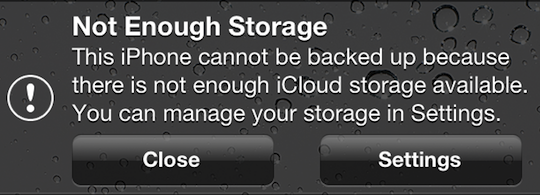
If you’re getting the following error message…

“Not Enough Storage: This iPhone cannot be backed up because there is not enough iCloud storage available. You can manage your storage in Settings.”

…this may be a legitimate error for you, and if that’s the case, then the answer for you is to either copy some of the data from your iOS device to your computer and delete the data you just copied from your iOS device so there is less to backup to iCloud, OR you can simply buy more iCloud storage.

And keep in mind that if you are backing up more than one device to the iCloud, that each backup of each device will count as additional space being taken up, even if they are the same files on each device.

However, if your situation is similar to the one that I encountered where you aren’t backing up much data in the first place, and then all of a sudden you don’t have enough space to backup your device via iCloud, this fix is for you.

Here is how to fix it:

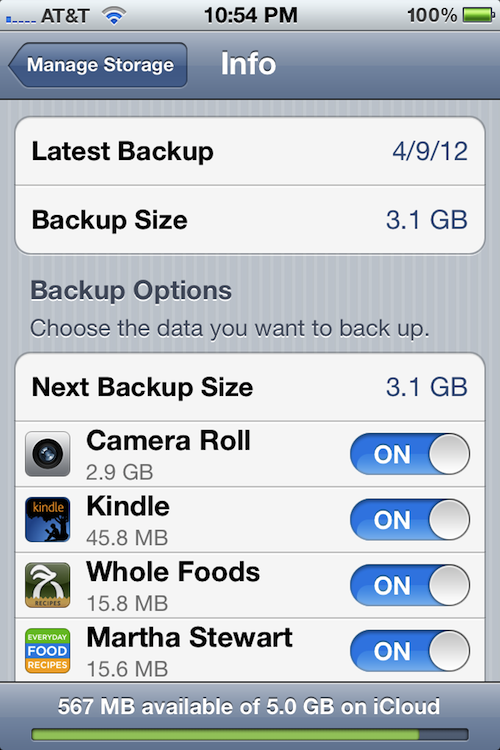
Go to Settings>General>Usage>under “iCloud”, select Manage Storage>select your iOS device

Here is the screen that you’ll get:

[ Yes, it says, “Martha Stewart” and no, it is not my iPhone. ;p ]

It will tell you the date of the lastest backup, as well as its size. Below that, under “Backup Options”, it will tell you the “Next Backup Size”, which tells you how large the next backup will be. And below that, it will tell you the items that are taking up the most space in order of size, from most to least.

The On/Off switch next to each item listed is turning on and off the backing up of the data for that section or app. So if there is data that you don’t care about backing up, just switch the On/Off switch next to it to “Off”, and if that fixes your storage issue (frees up enough space), then you are good to go.

In this case, the next backup was going to be 5.3GB (this is not pictured above, because I fixed the issue before I decided to blog about it), however the most recent one was only 3.1GB.

On top of that, Apple only gives you 5GB free in your iCloud account. Any more storage space, and you’ll need to pay. Since both the iPhone and iPad were being backed up in this case, something needed to be done.

So I looked under the “Next Backup Size” to see what was taking up the most space, and it was the Camera Roll, which is the album in the Photos app that has all of the photos that you take with your iPhone, the screenshots that you take of the phone’s screen, and the videos that you take with the phone.

I then went to the Camera Roll album to take a look at what was taking up so much space so soon after the last backup, and I noticed that there was ONE video file that was 1hr 15 min long that was taking up 2.2GB of space!

Apparently, what happened was kind of like a pocket dial, where it started recording video without anyone intentionally touching it. The camera button was pressed accidentally while it was being put in a pocket.

The reason it started recording video instead of just taking a picture was that the last time the camera was used, video was taken. That setting will stay the same for the next use of the camera until you change it.

So, I just deleted the big ass video of nothingness and all was well again.

The reason this was able to happen is that with iOS 5, you can now go directly into the camera with the swipe of the screen (starting at the camera icon) without having to unlock the screen. So this is one of the downsides to that feature. However, I’ll deal with it, because it’s worth being able to catch those fleeting Kodak moments when they occur!

Hope that helps ya!

If any of you have any other fixes for this situation, feel free to post them below so others can benefit.

Thanks!

Match.com: #1 Dating Site – View Pics for Free


Los Angeles Computer Repair | Los Angeles Computer Tech | Computer Repair Services

Share:
Reading time: 3 min
Page 2 of 4«1234»

FREE DOWNLOADS


Get immediate access to the first 315 pages of Nirvana Zarabi-Smith’s famous Quantum Encyclopedia book and get 10% OFF!

Click here!

LIMITED TIME ONLY!

Now compatible with iPad and Android tablets!


Get immediate access to the first 100 pages of the 6th edition of Nirvana Zarabi-Smith’s incredibly useful A-Z Protocols book and get 10% OFF!

Click here!

LIMITED TIME ONLY!

Now compatible with iPad and Android tablets!

25% OFF Biofeedback Certification Training!

Have you been yearning to get certified as a biofeedback professional? Would you like to deepen your biofeedback knowledge so you can get the most out of your device?

Then take advantage of this
LIMITED TIME OFFER of getting 25% OFF of Nirvana Zarabi-Smith’s amazing Biofeedback Certification Training Program!

Click here!

LIMITED TIME ONLY!

Recent Posts

Do you find personalized ads on your smartphone “creepy”?  Here’s how to opt-out.

Do you find personalized ads on your smartphone “creepy”? Here’s how to opt-out.

January 31, 2016
How to get rid of the annoying Windows 10 Free Upgrade notification

How to get rid of the annoying Windows 10 Free Upgrade notification

August 29, 2015
How to turn any song into a cool iPhone ringtone (mp3)

How to turn any song into a cool iPhone ringtone (mp3)

March 12, 2015
Is your Mac slow?  Here are the 6 top ways to speed up your Mac!

Is your Mac slow? Here are the 6 top ways to speed up your Mac!

February 6, 2015

Blog Post Categories

Archives

© 2020 copyright Ian Brown // All rights reserved