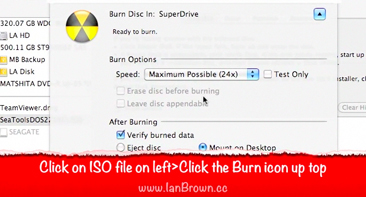
Want to know how to burn an .ISO file with your Mac? Here’s a quick video that I made that walks you through the entire process.
If you’re not sure what an .ISO file is, it’s simply a disk image file that, when you burn it to a CD, it creates an exact duplicate of the CD that the ISO file was made from. You usually download an ISO file from the Internet so you can burn it to CD.
Here’s the video:
[youtube]http://www.youtube.com/watch?v=a-ZoH3H9Tsw[/youtube]And here are the written instructions on how to do it so you have them:
1. Insert a blank CD into your Mac
2. Go to Applications>Utilities>Disk Utility
3. Go to File
4. Select “Open Disk Image”
5. Browse to the .ISO file you want to burn
6. Click Open
7. Click on .ISO file listed on left side of Disk Utility
8. Click the “Burn” icon at the top of the Disk Utility window
9. Select “Eject Disk” or “Mount on Desktop” to choose what you want it to do after it finishes burning
10. Click Burn (it may take longer to burn your ISO file; SeaTools is only 8.9MB in size)
11. It should come up with the message, “Image “Name of .ISO File” burned successfully.”
12. The disk will either eject automatically or appear on your Desktop, depending on what you chose in Step #9
13. Double-click on the CD to make sure the files got burned to the CD (insert the CD again if it you chose for it to eject automatically)
14. Done!
Los Angeles Computer Repair | Los Angeles Computer Tech | Computer Repair Services


 Do you have some computer problems that, even if you knew how to fix, you just would not want to take the time or effort to fix them? Or, do you have some things that need to be done with your computers or computer network, and you need someone to come to you to take care of it so you don’t have to go through the hassle of disconnecting all of the cords and lugging in your computer equipment to some shop across town? Then let me take care of that for you while you continue to do what you do best.





