ianbrown.cc – computer tech & repair services – onsite and remote
  • Home
  • About Ian
  • Services
    • 10% Off Mobile Onsite Computer Repair – Greater Hartford, CT
  • Testimonials
  • Blog Archives
  • For Sale
  • Biofeedback Resources
    • + FREE DOWNLOAD
      The first 315 Pages of Nirvana Zarabi-Smith’s famous Quantum Encyclopedia ebook
      LIMITED TIME ONLY!
    • + FREE DOWNLOAD
      The first 100 pages of Nirvana Zarabi-Smith’s A-Z Protocols – INDIGO/SCIO ebook
      LIMITED TIME ONLY!
    • 25% Off Biofeedback Certification Courses at The Quantum Academies!
      LIMITED TIME ONLY!
  • Payments
  • Contact
Home
About Ian
Services
    10% Off Mobile Onsite Computer Repair – Greater Hartford, CT
Testimonials
Blog Archives
For Sale
Biofeedback Resources
    + FREE DOWNLOAD
The first 315 Pages of Nirvana Zarabi-Smith's famous Quantum Encyclopedia ebook
LIMITED TIME ONLY!

    + FREE DOWNLOAD
The first 100 pages of Nirvana Zarabi-Smith's A-Z Protocols – INDIGO/SCIO ebook
LIMITED TIME ONLY!

    25% Off Biofeedback Certification Courses at The Quantum Academies!
LIMITED TIME ONLY!

Payments
Contact
ianbrown.cc – computer tech & repair services – onsite and remote
  • Home
  • About Ian
  • Services
    • 10% Off Mobile Onsite Computer Repair – Greater Hartford, CT
  • Testimonials
  • Blog Archives
  • For Sale
  • Biofeedback Resources
    • + FREE DOWNLOAD
      The first 315 Pages of Nirvana Zarabi-Smith’s famous Quantum Encyclopedia ebook
      LIMITED TIME ONLY!
    • + FREE DOWNLOAD
      The first 100 pages of Nirvana Zarabi-Smith’s A-Z Protocols – INDIGO/SCIO ebook
      LIMITED TIME ONLY!
    • 25% Off Biofeedback Certification Courses at The Quantum Academies!
      LIMITED TIME ONLY!
  • Payments
  • Contact
Browsing Category
Video
Apple•Cool Products & Services•iPad•Mac•Tips and Tricks•Video

How to Download Photos From Your Camera to Your iPad without a Computer with the Apple iPad Camera Connection Kit [VIDEO]

August 20, 2012 by Ian Brown No Comments

A client of mine recently asked me how they can hook up their camera directly to their iPad without a computer so they can travel with just their iPad and a camera, download their photos onto their iPad, and share them online. A very good question. One that I’m sure many of you would like to know the answer to as well. So…here we go.

First thing you will need to do is purchase the Apple iPad Camera Connection Kit (Apple thinks of everything, don’t they?).
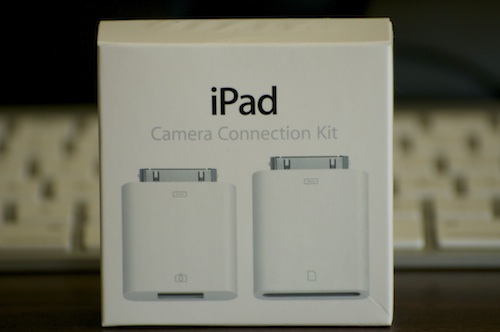
Apple iPad Camera Connection Kit
Product Link

Once you have that in hand, it’s a very simple process. But which adapter you use from the kit will be dependent upon whether your camera uses an SD card for its memory card or another type of memory card (the kit comes with both an SD card reader adapter and a USB adapter).

Your choice of adapter will also depend on whether you prefer to take out the SD card and pop that into the card reader, or if you just want to hook up your camera directly to your iPad via the USB cable, which will save you from having to take the SD card out of the camera. Given that, I will give you directions for both.

Option #1: Apple SD Card Reader Adapter

If your camera uses an SD card for its memory card

  1. Take the SD card out of your camera, insert it into the SD card reader adapter that comes with the Apple iPad Camera Connection Kit, and insert the adapter into the 30-pin dock on your iPad (the same place where you plug in the charger to charge it)
  2. The Photos app will launch on your iPad, and you will see thumbnail photos of the photos on your camera displayed on your iPad
  3. You have two choices when it comes to importing the pictures.
    • If you would like to import all of the pictures on your camera into your iPad, then touch the blue IMPORT button in the upper right corner of the screen, and select IMPORT ALL from the pop-down menu.
    • If you would like to just import certain photos from your camera into your iPad, then touch the photos that you want to import (after you touch each photo, a green circle with a white checkmark should appear next to it, telling you that you’ve successfully selected it). After you finish selecting the photos you want to import, touch the blue IMPORT button in the upper right hand corner of your screen, and select IMPORT SELECTED.
  4. After it imports your photos, it will ask you if you want to keep or delete the photos on your camera (the photos you just imported). Select the appropriate answer.
    NOTE: If you are traveling and have limited space on your card, then you might want to free up some space by selecting to delete the photos on your camera so you can take more pictures. If you do this, you might want to also back up your photos to iCloud (on your iPad, go to SETTINGS>iCloud>turn on PHOTOS) so you have your photos backed up.
  5. If you have imported all of the photos that you want to import, close the Photos app and then unplug the adapter you used from your iPad.
  6. Done!

Option #2: Apple USB Adapter

If your camera does not use an SD card for its memory card, or if you just don’t like feel like taking the SD card out of the camera

  1. Make sure your camera is ON, and is in PLAY mode (the mode that allows you to view the photos you’ve taken in the display screen/view finder of your camera).
  2. Hook up the USB cord that came with your camera to your camera, insert it into the USB adapter that comes with the Apple iPad Camera Connection Kit, and insert the adapter into the 30-pin dock on your iPad (the same place where you plug in the charger to charge it)
  3. The Photos app will launch on your iPad, and you will see thumbnail photos of the photos on your camera displayed on your iPad
  4. You have two choices when it comes to importing the pictures.
    • If you would like to import all of the pictures on your camera into your iPad, then touch the blue IMPORT button in the upper right corner of the screen, and select IMPORT ALL from the pop-down menu.
    • If you would like to just import certain photos from your camera into your iPad, then touch the photos that you want to import (after you touch each photo, a green circle with a white checkmark should appear next to it, telling you that you’ve successfully selected it). After you finish selecting the photos you want to import, touch the blue IMPORT button in the upper right hand corner of your screen, and select IMPORT SELECTED.
  5. After it imports your photos, it will ask you if you want to keep or delete the photos on your camera (the photos you just imported). Select the appropriate answer.
    NOTE: If you are traveling and have limited space on your card, then you might want to free up some space by selecting to delete the photos on your camera so you can take more pictures. If you do this, you might want to also back up your photos to iCloud (on your iPad, go to SETTINGS>iCloud>turn on PHOTOS) so you have your photos backed up.
  6. If you have imported all of the photos that you want to import, close the Photos app and then unplug the adapter you used from your iPad.
  7. Done!

I don’t have time to make a video right now to show you how to use it, so I will let the beautiful & smart Sharon Vaknin from CNET TV show you. She also includes some extra goodies, which I think you will find useful, including being able to hook up other USB devices to your iPad like a USB keyboard, USB mic, etc.

Enjoy!

Secrets of the Apple iPad Camera Connection Kit
by Sharon Vaknin from CNET TV

[youtube]http://www.youtube.com/watch?v=jgZiz3tojBE[/youtube]

Match.com: #1 Dating Site – View Pics for Free


Los Angeles Computer Repair | Los Angeles Computer Tech | Computer Repair Services

Share:
Reading time: 5 min
Interviews•News•Video

Bloomberg’s Game Changers: Steve Jobs Documentary

October 7, 2011 by Ian Brown 3 Comments

The passing of Steve Jobs really affected me, more than I thought it would. I spent the rest of the day on the 5th, and all day yesterday reading up on him, getting to know him better. It also made me really think about what I’m doing with my life and where I’m going.

I’ll post a much longer blog post about Steve, his life, and how my life was affected by his passing later. But first, check out this documentary on his life. He was a very private guy, so there is not much info on him. But Bloomberg did a good job coming up with what they did.

Enjoy!

Part 1
[youtube]http://www.youtube.com/watch?v=QgiEG-NsAB0[/youtube]

Part 2
[youtube]http://www.youtube.com/watch?v=3zvBLxvg7ds[/youtube]

Part 3
[youtube]http://www.youtube.com/watch?v=6tnz3NpR1xg[/youtube]

Part 4
[youtube]http://www.youtube.com/watch?v=K7tdqL_M87Y[/youtube]

Part 5
[youtube]http://www.youtube.com/watch?v=TUXUbVG-Lx8[/youtube]

Feel free to comment below with your thoughts!

Match.com: #1 Dating Site – View Pics for Free


Los Angeles Computer Repair | Los Angeles Computer Tech | Computer Repair Services

Share:
Reading time: 1 min
Announcements•Apple•Breaking News•Cool Products & Services•iPhone & Mobile•News•Video

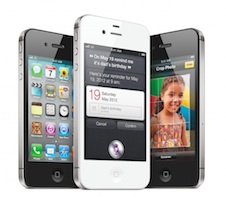
ANNOUNCING The NEW Apple iPhone 4S [VIDEO]

October 4, 2011 by Ian Brown No Comments

Apple just announced the latest version of it’s iPhone, the iPhone 4S, and consequently their servers have been going down quite frequently today. I kept on getting an “Access Denied” error. Did you? Cleary the entire world is trying to see what the new iPhone 4S is bringing to the table.

Well, wait no longer! Here is the official Apple video telling you all about the new iPhone 4S, “The Most Amazing iPhone yet!”

[youtube]http://www.youtube.com/watch?v=XwPC5TkRGuo[/youtube]
If you want to watch the entire Keynote on the iPhone 4S, iOS 5, iCloud, and the new iPod Touch, go here:

Apple iPhone 4S Keynote

Match.com: #1 Dating Site – View Pics for Free


Los Angeles Computer Repair | Los Angeles Computer Tech | Computer Repair Services

Share:
Reading time: 1 min
Apple•Cool Products & Services•iPad•iPhone & Mobile•iPhone Tips•Mobile•Tips and Tricks•Video

Stop Thief! How to Backup Your iPhone & Use “Find My iPhone” to Track Down Your Lost or Stolen iPhone

September 2, 2011 by Ian Brown 2 Comments


Ok, so 2 days ago, a friend of mine had her iPhone 4 stolen. She was in a Starbucks, got up from her table to leave, threw out her empty coffee cup, walked outside about 20 feet, and quickly realized that she forgot her iPhone. She looked in through the window at the table where she was just sitting and saw that her iPhone was already gone! Crazy.

I helped her look for it EVERYWHERE! In the trash, under all of the tables, in the corner, in the guy’s bag who had sat down at the same table where she was sitting…nada!

So we went through the options:

  • Did she subscribe to MobileMe? –> Nope!
  • Had she backed up her iPhone via iTunes? –> ‘Fraid not! Never did. Not even once.
  • Did she have insurance on her iPhone? –> Ummm…nope!

Unfortunately, she had not prepared for such a situation because she lives and hangs out in a really nice area of town. But, alas…this is LA! However, in her defense, one of the workers at that Starbucks who has worked there for a while said something gets stolen from a customer there maybe once or twice a year. So it just so happened that she was one of those two! Not cool.

But because that unfortunate incident happened, you guys benefit, because I’m going to hook you up with some info that will help you protect your iPhone (and your other iOS devices), or at the very least, protect your data, in case this happens, which hopefully it won’t!

Back it up!

First off, you MUST MUST MUST backup your phone. It’s super easy. All you have to do is hook up your iPhone to your computer via USB. Use the same cord you use to charge it, but take off the adapter that allows it to plug into the wall so you can plug that end into the USB port of your computer.

Then, select the music, movies, etc. that you want on your iPhone by clicking on the corresponding tabs at the top of iTunes, and putting check marks in the boxes next to the items that you want to put on your iPhone. Then click APPLY in the bottom right corner of iTunes. Let it do its thing (sync/copy the files), and then you’re done! Every time it syncs, it will backup your iPhone’s data, unless you tell it not to in the Preferences of iTunes.

Here, watch this for a visual:

[youtube]http://www.youtube.com/watch?v=5KHMLLpEYSs[/youtube]

OK. Cool. So now you have all of the data on your iPhone backed up, including SMS, photos, call history, music, email…everything. Nice. That way, if you don’t happen to get your iPhone back because the guy that took it is just too large for you to handle, then you can at least get another iPhone, sync it to your computer, put all of your data that was on your old iPhone onto the new one, and get your life back. However, you can always go to the cops and have them take on the large one who took your phone.

How to Use “Find My iPhone”

After you back up your iPhone, you want to register for the “Find My iPhone” service.

But first, before we do that, watch this video so you have a visual of how “Find My iPhone” works:

[youtube]http://www.youtube.com/watch?v=HlbJ4xePvL0[/youtube]

Isn’t that a cool service? And the best part? If you have an iPhone 4, an iPad, or a 4th generation iPod Touch, it’s FREE! Apple is so cool to us customers.

So, let’s get your iPhone registered right now.

First, you’ll need to download and install the “Find My iPhone” app, if you haven’t already.

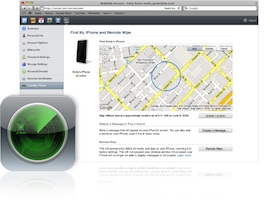
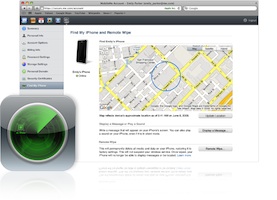
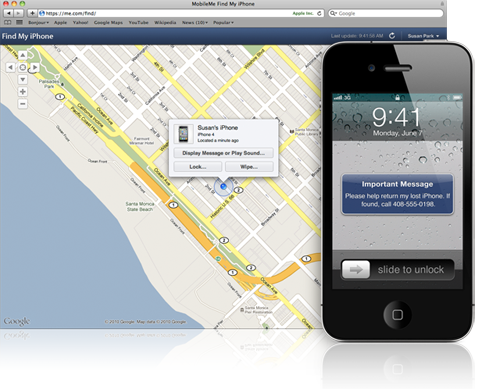
To do this, just click on the App Store app on your iPhone, click on the “Search” tab at the bottom of the screen, and then type in “Find My iPhone” (no quotes) in the search field at the top of the screen. The icon for it should pop up (it’s the same one as the green circle that’s in the main image for this blog post). Just click on it to go to the page for that app, and then click “Install”.

Once you have “Find My iPhone” installed on your iPhone, follow the steps below.

Step 1:

Make sure your iPhone is running iOS 4.2. The way to check is go to SETTINGS>GENERAL>ABOUT>and look at the number next to VERSION. If you have that version or higher, great. Let’s keep going.

If you don’t, then update your iPhone OS simply by connecting your iPhone to your Mac or PC and follow the onscreen instructions in iTunes (open iTunes if it doesn’t open automatically when you connect your iPhone to your computer).

If you’re creating a free account for the first time, you’ll need an iPhone 4.

Step 2:

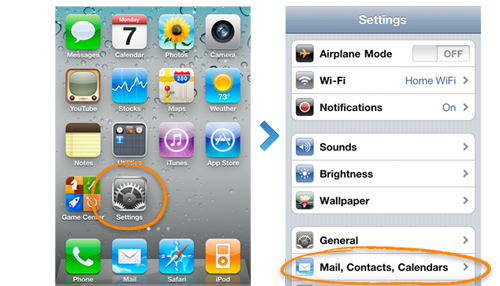
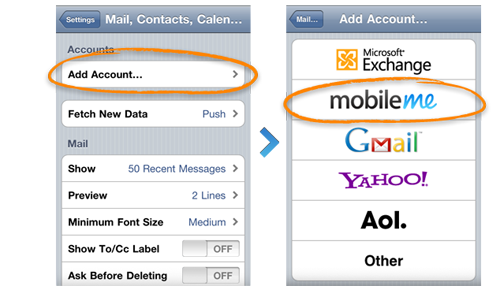
Go to SETTINGS>MAIL, CONTACTS, CALENDARS

Step 3:

Click on ADD ACCOUNT>MOBILEME

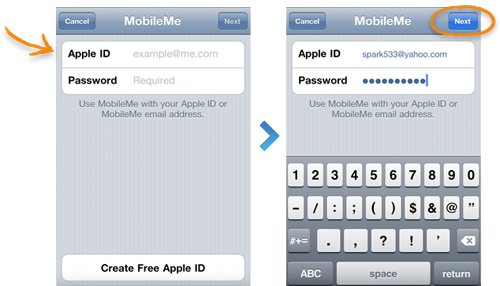
Step 4

Enter your Apple ID and Password.

If you already have an account with the iTunes store, or you’ve bought something from Apple’s online store, then you already have an Apple ID.

If you don’t have one, then click “Create Apple ID” at the bottom of the screen and follow the prompts.

If you’re a MobileMe subscriber already, then simply enter your .me or .mac email address and password.

Step 5

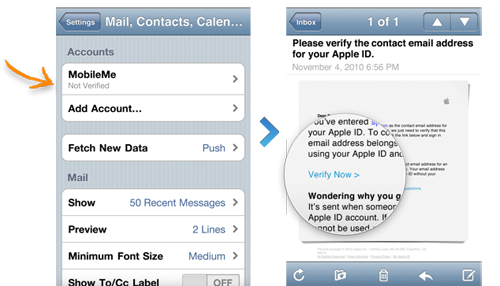
Verify your account.

If it says “Not Verified” under your MobileMe account, go to your email inbox and look for a message from Apple that was just sent to you. Open the email, click the Verify Now link, and sign in with your new Apple ID that you just created.

If you don’t see an email from Apple in your inbox, then click on your MobileMe account, and click “Resend Verification Email.”

Step 6

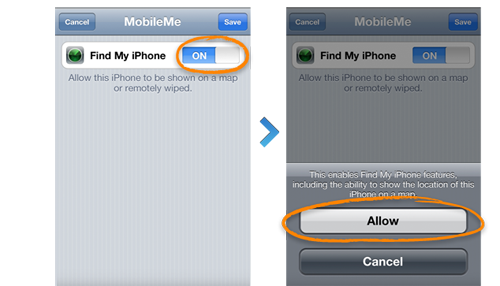
Go back to the MobileMe screen and turn on “Find My iPhone.” When the “Find My iPhone” message pops up, click ALLOW.

Step 7

Give it a shot! Open up the “Find My iPhone” app that you download and log in. You should be able to see your phone listed, and also be able to locate it. You can also use it to locate other phones that are registered with this service. All you have to do is log in with their Apple ID with the app.

You can also log into www.me.com with your Apple ID, instead of using the app, and do the same thing.

UPDATE: Here’s How to Get it to Work on an iPhone 3G or 3GS

A reader wrote in and asked it this worked on an iPhone 3G or 3GS. So I did some research, and according this post on Lifehacker.com, it does!

You just need to use a qualifying iOS device, meaning a 2010 or later iOS device, to set it up. Use a friend’s if you don’t happen to have one, because you can delete their device from your account after you set up your device on the service.

Simply follow the steps above with either your or a friend’s 2010 iOS device using YOUR Apple ID. Once the newer iOS device is registered with your Apple ID, follow the same steps above with your iPhone 3G or 3GS, also using your Apple ID.

Test the locating of your device with the service by using the app on the newer iOS device (or on any other iOS device with the free Find My iPhone app, which they can download from the app store if they don’t have it), or by logging into www.me.com.

After you confirm that the 3G or 3GS works, if the newer iOS device is not yours or you don’t want it attached to your Apple ID, on the newer iOS device, delete your MobileMe account (SETTINGS > MAIL, CONTACTS, CALENDARS > MobileMe account > Delete Account). If you do want to keep it attached, just leave it alone.

After that, you should be good to go!

Update: I just tested it and this does work.

Things You Need to Know

  • Your iOS device needs to be ON in order for you to be able to locate it, so KEEP YOUR BATTERY CHARGED (that was another factor against my friend in the story above…the phone had only 7% on it, so when we tried to call it, it went to straight to voicemail, which means it was off)
  • If you’re trying to locate an iPod Touch or iPad, since the service cannot use cell triangulation, your iOS device will need to be connected to a wifi network in order for it to be found, because the service locates the device by locating the router that is broadcasting the wireless signal that your iOS device is currently on
  • You can prompt your iOS device to pop up a message that tells people your device is lost, and you would appreciate it if they returned it. Your message will pop up with a loud sound that will sound, even if the sound is turned off. And no one will be able to turn the sound off.
  • If you don’t think you’re going to be able to retrieve it, you can remotely wipe your iPhone of all of your data just by logging into www.me.com and selecting that service. Apple’s got your back!

TROUBLESHOOTING: This service will not work for you if…

  • iPhone is not on or currently not connected to a data network (Edge, 3G or Wi-Fi)
  • iPad or iPod Touch is currently off or not connected to a Wi-Fi network
  • “Push” is not enabled in (SETTINGS > MAIL, CONTACTS, CALENDARS > FETCH DATA)
  • You tried to initiate a remote wipe of the phone (wiping all of the data remotely; you would only do this if you lost it or if it were stolen, and you did not think you would ever get it back)
  • You have multiple MobileMe accounts on the iPhone
  • The date isn’t right on your iPhone
  • The device’s iOS version is not up to date (or at least iOS 4.2; SETTINGS>GENERAL>ABOUT>VERSION)
  • Your MobileMe account is not configured correctly in your iOS device (try deleting it and adding it again; see steps on how to do this above)
  • The “Find My iPhone” service is not on (SETTINGS > MAIL, CONTACTS, CALENDARS > Your MobileMe Account > Make sure “Find My iPhone” is ON)
  • Your iPhone is in and out of service (doesn’t have a strong signal)
  • Location Services is not enabled (SETTINGS > GENERAL)
  • You’re living in a country where Apple does not offer this service
  • If it says, “Location not available,” (it might even say “Message pending” underneath “Location not available”) and you’ve gone through and tried all of the above troubleshooting items, then try deleting the MobileMe account (SETTINGS > MAIL, CONTACTS, CALENDARS > MobileMe account > Delete Account), and then add it back in, BUT…TURN OFF “Find My iPhone” BEFORE you save it. AFTER you save the new account, THEN go back in and TURN ON “Find My iPhone.” That’s what finally fixed it for me.

TROUBLESHOOTING

For more trouble shooting tips, go here:

http://support.apple.com/kb/TS2734?viewlocale=en_US

Now you have it set up and…surprise, surprise…it works!


So now you’re in a MUCH better place than my unfortunate friend was when her iPhone got stolen. You’re educated on how to backup your iOS device so you’ll always have your data, and on how to use “Find My iPhone” to locate it if you’re ever in the unfortunate circumstance where you can’t find your iOS device.

Be sure and share this post with your friends on Twitter, Facebook, via email, and wherever else you hang out online so they can benefit as well.

And if you have any comments or any stories to share, the comment section is below!

BONUS: An Informative Review of “Find My iPhone”

Just thought you guys might enjoy this informative review of the “Find My iPhone” app that has real life examples of its use:

[youtube]http://www.youtube.com/watch?v=2vkTCeZN5Ts[/youtube]

 
Match.com: #1 Dating Site – View Pics for Free


Los Angeles Computer Repair | Los Angeles Computer Tech | Computer Repair Services

Share:
Reading time: 10 min
Page 1 of 3123»

FREE DOWNLOADS


Get immediate access to the first 315 pages of Nirvana Zarabi-Smith’s famous Quantum Encyclopedia book and get 10% OFF!

Click here!

LIMITED TIME ONLY!

Now compatible with iPad and Android tablets!


Get immediate access to the first 100 pages of the 6th edition of Nirvana Zarabi-Smith’s incredibly useful A-Z Protocols book and get 10% OFF!

Click here!

LIMITED TIME ONLY!

Now compatible with iPad and Android tablets!

25% OFF Biofeedback Certification Training!

Have you been yearning to get certified as a biofeedback professional? Would you like to deepen your biofeedback knowledge so you can get the most out of your device?

Then take advantage of this
LIMITED TIME OFFER of getting 25% OFF of Nirvana Zarabi-Smith’s amazing Biofeedback Certification Training Program!

Click here!

LIMITED TIME ONLY!

Recent Posts

Do you find personalized ads on your smartphone “creepy”?  Here’s how to opt-out.

Do you find personalized ads on your smartphone “creepy”? Here’s how to opt-out.

January 31, 2016
How to get rid of the annoying Windows 10 Free Upgrade notification

How to get rid of the annoying Windows 10 Free Upgrade notification

August 29, 2015
How to turn any song into a cool iPhone ringtone (mp3)

How to turn any song into a cool iPhone ringtone (mp3)

March 12, 2015
Is your Mac slow?  Here are the 6 top ways to speed up your Mac!

Is your Mac slow? Here are the 6 top ways to speed up your Mac!

February 6, 2015

Blog Post Categories

Archives

© 2020 copyright Ian Brown // All rights reserved