ianbrown.cc – computer tech & repair services – onsite and remote
  • Home
  • About Ian
  • Services
    • 10% Off Mobile Onsite Computer Repair – Greater Hartford, CT
  • Testimonials
  • Blog Archives
  • For Sale
  • Biofeedback Resources
    • + FREE DOWNLOAD
      The first 315 Pages of Nirvana Zarabi-Smith’s famous Quantum Encyclopedia ebook
      LIMITED TIME ONLY!
    • + FREE DOWNLOAD
      The first 100 pages of Nirvana Zarabi-Smith’s A-Z Protocols – INDIGO/SCIO ebook
      LIMITED TIME ONLY!
    • 25% Off Biofeedback Certification Courses at The Quantum Academies!
      LIMITED TIME ONLY!
  • Payments
  • Contact
Home
About Ian
Services
    10% Off Mobile Onsite Computer Repair – Greater Hartford, CT
Testimonials
Blog Archives
For Sale
Biofeedback Resources
    + FREE DOWNLOAD
The first 315 Pages of Nirvana Zarabi-Smith's famous Quantum Encyclopedia ebook
LIMITED TIME ONLY!

    + FREE DOWNLOAD
The first 100 pages of Nirvana Zarabi-Smith's A-Z Protocols – INDIGO/SCIO ebook
LIMITED TIME ONLY!

    25% Off Biofeedback Certification Courses at The Quantum Academies!
LIMITED TIME ONLY!

Payments
Contact
ianbrown.cc – computer tech & repair services – onsite and remote
  • Home
  • About Ian
  • Services
    • 10% Off Mobile Onsite Computer Repair – Greater Hartford, CT
  • Testimonials
  • Blog Archives
  • For Sale
  • Biofeedback Resources
    • + FREE DOWNLOAD
      The first 315 Pages of Nirvana Zarabi-Smith’s famous Quantum Encyclopedia ebook
      LIMITED TIME ONLY!
    • + FREE DOWNLOAD
      The first 100 pages of Nirvana Zarabi-Smith’s A-Z Protocols – INDIGO/SCIO ebook
      LIMITED TIME ONLY!
    • 25% Off Biofeedback Certification Courses at The Quantum Academies!
      LIMITED TIME ONLY!
  • Payments
  • Contact
Browsing Category
Mac
Mac•Tips and Tricks•Video

How to Burn an .ISO File with Your Mac [VIDEO]

How to Burn an ISO File with Your Mac
April 30, 2011 by Ian Brown No Comments

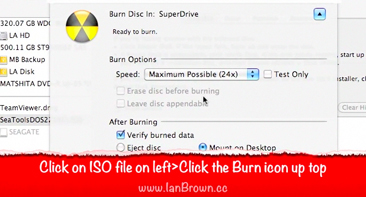
Want to know how to burn an .ISO file with your Mac? Here’s a quick video that I made that walks you through the entire process.

If you’re not sure what an .ISO file is, it’s simply a disk image file that, when you burn it to a CD, it creates an exact duplicate of the CD that the ISO file was made from. You usually download an ISO file from the Internet so you can burn it to CD.

Here’s the video:

[youtube]http://www.youtube.com/watch?v=a-ZoH3H9Tsw[/youtube]

And here are the written instructions on how to do it so you have them:

1. Insert a blank CD into your Mac
2. Go to Applications>Utilities>Disk Utility
3. Go to File
4. Select “Open Disk Image”
5. Browse to the .ISO file you want to burn
6. Click Open
7. Click on .ISO file listed on left side of Disk Utility
8. Click the “Burn” icon at the top of the Disk Utility window
9. Select “Eject Disk” or “Mount on Desktop” to choose what you want it to do after it finishes burning
10. Click Burn (it may take longer to burn your ISO file; SeaTools is only 8.9MB in size)
11. It should come up with the message, “Image “Name of .ISO File” burned successfully.”
12. The disk will either eject automatically or appear on your Desktop, depending on what you chose in Step #9
13. Double-click on the CD to make sure the files got burned to the CD (insert the CD again if it you chose for it to eject automatically)
14. Done!


Los Angeles Computer Repair | Los Angeles Computer Tech | Computer Repair Services

Share:
Reading time: 1 min
Cool Products & Services•Mac•Software•Tips and Tricks

A cool and efficient way to take notes with your Mac!

March 13, 2011 by Ian Brown No Comments

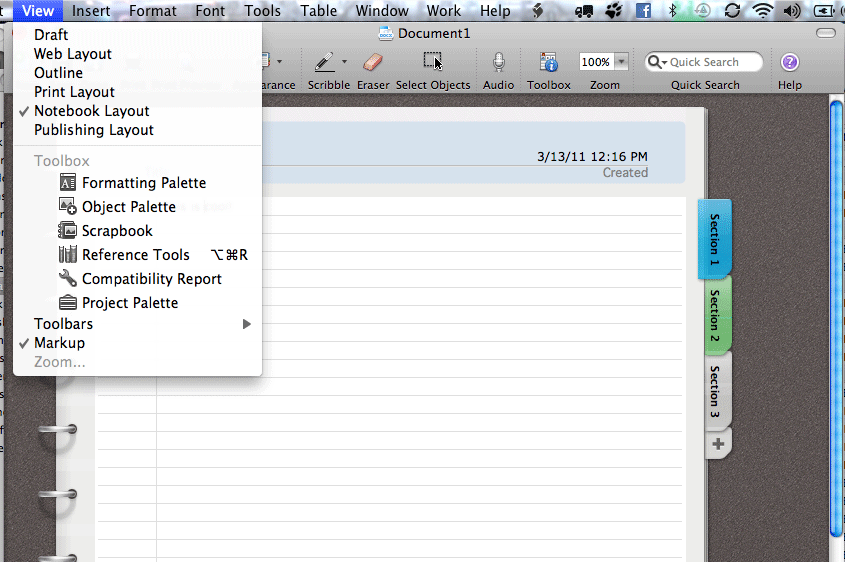
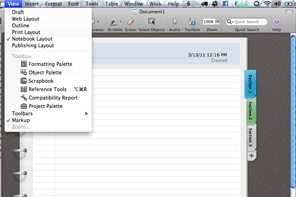
I was sitting in Starbucks doing some work when I saw a girl going over her notes on her Mac in MS Word, but with a very cool layout…a layout that not only looked like a real notebook, but that also had tabs! Just having the notebook layout may be cool for students, but it’s not very functional. However, adding the use of tabs to the mix makes all the difference.

Take a look:

MS Word Notebook Layout

Why does tabs add so much more to it?

Let’s say you’re at a seminar with multiple speakers. Instead of having one LONG documents that has notes from each speaker, or instead of having multiple docs, one for each speaker, you can now have ONE document with your notes from each speaker separated by tabs! So much easier to work with and find things.

To activate it, all you have to do is go to VIEW>NOTEBOOK LAYOUT. Then click on each tab on the right to go to that section of the document. To ADD a tab, just click on the “+” below the last tab. And to delete a tab, just RIGHT-click the tab you want to delete and select “delete.”

The version of MS Office that I’m running is MS Office Home and Business for Mac, but, of course, it’s also a feature in Word in MS Office Home & Student.

Enjoy!


Los Angeles Computer Repair | Los Angeles Computer Tech | Computer Repair Services

Share:
Reading time: 1 min
Mac•Software•Tips and Tricks

Did you upgrade an app from the Mac App Store, but when you launch it, it is still the older version?

Pages '09
March 2, 2011 by Ian Brown 1 Comment

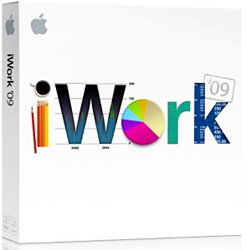
iWork 09I recently bought Pages ’09 (for only $19.99, btw) for a client via the Mac App Store on my Mac, because you need at least Mac OS X 10.6 to get the Mac App Store on your computer, which he did not have. And my client wanted to buy Pages separately. He did not want to buy the whole iWord suite. He also didn’t feel like leaving the house. ;) So logged onto the Mac App Store, bought it, and downloaded it thinking I could just take the installation file, copy it onto a USB flash drive, and then install it on his computer.

However, that’s not how it went down. I ended up having to keep it, because at the time, it looked like when you buy an app from the Mac App Store, you don’t buy the installation file, you buy the installation of the program on the Mac that you are using to buy the app, because right after it downloaded, it installed without asking me. And nowhere on my Mac was there an installation file for it.

However, I just found out yesterday that if you log into your account on the Mac App Store on another Mac of yours, you can download and install an app that you have already purchased and installed on the Mac that you used to buy it. Very cool of Apple to do that.

Anyway, back to issue at hand. So what happened was I already had Pages ’08 on my Mac. So I figured that when I downloaded and installed Pages ’09, it would simply take the place of the older version. NOT SO. Pages ’08 and Pages ’09 can co-exist on the same Mac, meaning they can both be installed on the same Mac and each be fully functional without any issues. I did not know this. So when I launched Pages from my Dock (the launch pad on the bottom of the screen of every Mac where you launch apps), it would launch Pages ’08.

I didn’t know why, so I called Apple Care (800.APL.CARE) and they told me that when you buy an app that is part of a suite (e.g. the iWork suite is made up of the following apps: Pages, Numbers, and Keynote), it does not put it in the folder for that suite. It simply installs it as a standalone app and lists it with all of the other apps in the Applications folder, NOT in the suite folder.

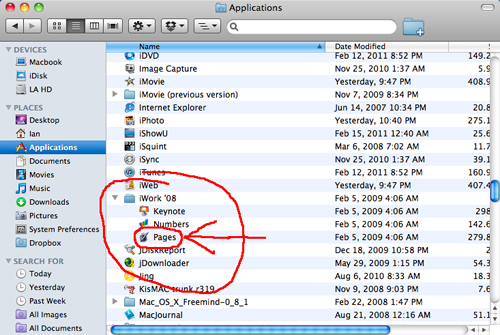
To give you a visual, here is a screenshot of how the iWork ’08 suite is listed in the Applications folder when it is installed as a suite from a disk:

Pages '08

You see how Pages is INSIDE the iWork ’08 folder?

Now here is a screenshot of how Pages ’09 is listed in the Applications folder on your Mac when you buy it from the Mac App Store and download & install it:
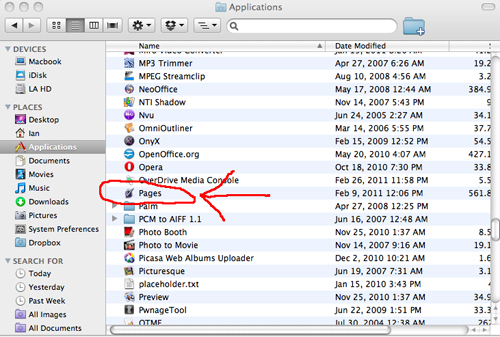
Pages '09

As you can see, this time Pages is listed with all of the other apps. It’s not in the iWork folder. This proves that Pages ’08 and Pages ’09 can co-exist on the same computer, because they are not located in the same folder. So, in order to launch Pages ’09, I either have to go into the Applications folder, which is not necessary, or I can just drag the icon for Pages ’09 from the Applications folder down to my Dock, which is exactly what I did.

And with regard to the icon for Pages ’08 that is already on my Dock, I can either click on it, drag it up, and let it go on the desktop so it will disappear in a puff of smoke, and I will just have one icon for Pages in my dock, or I can just leave both of them in the Dock and remember which one is which, or put them in different locations on my Dock.

So if you ever buy an app separately on the Mac App Store that is part of a Mac suite like iWork or iLife, then remember to go into the Applications folder, click on the icon for the newly installed app, which will be listed with all of the other apps, and drag it down to your Dock.

Enjoy!


Los Angeles Computer Repair | Los Angeles Computer Tech | Computer Repair Services
Share:
Reading time: 3 min
Cool Products & Services•Mac•PC•Viruses, Spyware & Malware

Don’t want to deal with your computer problems or tasks on your own? Let me help you.

February 21, 2011 by Ian Brown No Comments

Do you have some computer problems that, even if you knew how to fix, you just would not want to take the time or effort to fix them? Or, do you have some things that need to be done with your computers or computer network, and you need someone to come to you to take care of it so you don’t have to go through the hassle of disconnecting all of the cords and lugging in your computer equipment to some shop across town? Then let me take care of that for you while you continue to do what you do best.

I am a mobile computer tech, and will come to your home or office and take care of all of your computer issues and tasks. You will have a very confident feeling when I leave, because you will know that all of your computer needs have been taken care of, and you can get back to being productive and efficient with your time.

But don’t take my word for it. Check out what some of my clients have been saying about me.

What services do I offer?

Here is a list of them:

  • Rid your computer of popups
  • Block popups from appearing again
  • Rid your computer of spyware, malware, viruses, and all other threats
  • Protect your computer from future threats
  • Speed up your computer
  • Repair your computer
  • Rebuild your computer
  • Upgrade your computer
  • One on one computer/internet training
  • Network your computers via cables or wirelessly
  • Computer setup & installation
  • Extremely Reliable Web Hosting
  • And more!

Call me for a free assessment of what you need. I really care about my clients, and will go the extra mile to make sure that you are 100% happy with my services.

Call me now at 424.354.1141.

Or, if you prefer, you can email me.

Either way, if you don’t reach me right away, I will get back to you within 24 hours.

I work in the greater Los Angeles area, but I also do work remotely. Check out my Phone Support page for more info.


Los Angeles Computer Repair | Los Angeles Computer Tech | Computer Repair Services
Share:
Reading time: 1 min
Page 3 of 20« First...«2345»1020...Last »

FREE DOWNLOADS


Get immediate access to the first 315 pages of Nirvana Zarabi-Smith’s famous Quantum Encyclopedia book and get 10% OFF!

Click here!

LIMITED TIME ONLY!

Now compatible with iPad and Android tablets!


Get immediate access to the first 100 pages of the 6th edition of Nirvana Zarabi-Smith’s incredibly useful A-Z Protocols book and get 10% OFF!

Click here!

LIMITED TIME ONLY!

Now compatible with iPad and Android tablets!

25% OFF Biofeedback Certification Training!

Have you been yearning to get certified as a biofeedback professional? Would you like to deepen your biofeedback knowledge so you can get the most out of your device?

Then take advantage of this
LIMITED TIME OFFER of getting 25% OFF of Nirvana Zarabi-Smith’s amazing Biofeedback Certification Training Program!

Click here!

LIMITED TIME ONLY!

Recent Posts

Do you find personalized ads on your smartphone “creepy”?  Here’s how to opt-out.

Do you find personalized ads on your smartphone “creepy”? Here’s how to opt-out.

January 31, 2016
How to get rid of the annoying Windows 10 Free Upgrade notification

How to get rid of the annoying Windows 10 Free Upgrade notification

August 29, 2015
How to turn any song into a cool iPhone ringtone (mp3)

How to turn any song into a cool iPhone ringtone (mp3)

March 12, 2015
Is your Mac slow?  Here are the 6 top ways to speed up your Mac!

Is your Mac slow? Here are the 6 top ways to speed up your Mac!

February 6, 2015

Blog Post Categories

Archives

© 2020 copyright Ian Brown // All rights reserved