ianbrown.cc – computer tech & repair services – onsite and remote
  • Home
  • About Ian
  • Services
    • 10% Off Mobile Onsite Computer Repair – Greater Hartford, CT
  • Testimonials
  • Blog Archives
  • For Sale
  • Biofeedback Resources
    • + FREE DOWNLOAD
      The first 315 Pages of Nirvana Zarabi-Smith’s famous Quantum Encyclopedia ebook
      LIMITED TIME ONLY!
    • + FREE DOWNLOAD
      The first 100 pages of Nirvana Zarabi-Smith’s A-Z Protocols – INDIGO/SCIO ebook
      LIMITED TIME ONLY!
    • 25% Off Biofeedback Certification Courses at The Quantum Academies!
      LIMITED TIME ONLY!
  • Payments
  • Contact
Home
About Ian
Services
    10% Off Mobile Onsite Computer Repair – Greater Hartford, CT
Testimonials
Blog Archives
For Sale
Biofeedback Resources
    + FREE DOWNLOAD
The first 315 Pages of Nirvana Zarabi-Smith's famous Quantum Encyclopedia ebook
LIMITED TIME ONLY!

    + FREE DOWNLOAD
The first 100 pages of Nirvana Zarabi-Smith's A-Z Protocols – INDIGO/SCIO ebook
LIMITED TIME ONLY!

    25% Off Biofeedback Certification Courses at The Quantum Academies!
LIMITED TIME ONLY!

Payments
Contact
ianbrown.cc – computer tech & repair services – onsite and remote
  • Home
  • About Ian
  • Services
    • 10% Off Mobile Onsite Computer Repair – Greater Hartford, CT
  • Testimonials
  • Blog Archives
  • For Sale
  • Biofeedback Resources
    • + FREE DOWNLOAD
      The first 315 Pages of Nirvana Zarabi-Smith’s famous Quantum Encyclopedia ebook
      LIMITED TIME ONLY!
    • + FREE DOWNLOAD
      The first 100 pages of Nirvana Zarabi-Smith’s A-Z Protocols – INDIGO/SCIO ebook
      LIMITED TIME ONLY!
    • 25% Off Biofeedback Certification Courses at The Quantum Academies!
      LIMITED TIME ONLY!
  • Payments
  • Contact
Browsing Category
Jailbreaking & Unlocking
Apple•Cell Phone Tips•iPhone & Mobile•iPhone Tips•Jailbreaking & Unlocking

How to find out the bootrom version of your iPhone [VIDEO]

November 5, 2011 by Ian Brown 1 Comment

Since the jailbreak for iOS 5 is still tethered, I wanted to find out if my iPhone 3GS had the old bootrom version or the new one. The old version will allow you to have an untethered jailbreak, which means you will NOT have to hook up your iPhone to your computer to keep the jailbreak every time you restart your iPhone, you turn it off, or it dies.

Watch the video below to see how to do it. And for those of you who would like the written instructions, I put them below the video.

Enjoy!

[youtube]http://www.youtube.com/watch?v=lcxyBKL1HZM[/youtube]

Instructions

  1. Connect your iPhone to your computer
  2. Turn iPhone off
  3. Start iTunes
  4. Hold Power and Home buttons together for 10 seconds or so
  5. Release Power button but keep holding the Home button until your computer recognizes a new USB device
  6. iTunes will now recognize your iPhone
  7. Note: Your iPhone screen at this time should be black (black in color), if not, then you are most likely in Recovery Mode, not DFU mode.

    Here’s a visual for you that shows the difference between “Recovery Mode” and “DFU Mode”:

  8. Click on the background image of your desktop (not an icon) OR click on “Finder” at the bottom of your screen in the dock, all the way to the left
  9. Click on “Go” at the top of your screen in the menu bar and select “Utilities”
  10. Double-click on “System Profiler”
  11. Click on USB on the left
  12. On the right, you should see “Apple Mobile Device (DFU Mode).” Click on it.
  13. After you click on it, a new section should appear below it.
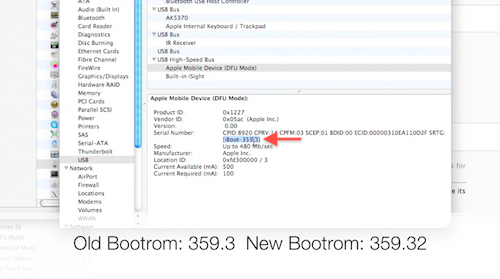
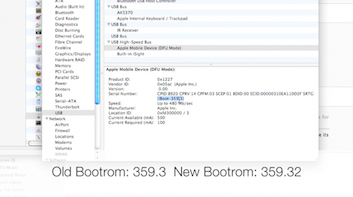
  14. You should see “Serial Number.” Right below the serial number, you should see [iBoot-359.3] or [iBoot-359.32]. The second one is the new bootrom. The first one is the old one.
  15. Done!

If you have the old bootrom, count yourself LUCKY! You can go and jailbreak/unlock your iPhone and it will be an untethered jailbreak, which means once you jailbreak it, it’s jailbroken. You will NOT need to hook up your iPhone to your computer every time your iPhone restarts or dies, which is what everyone else has to do as of now, until the iPhone Dev Team produces an untethered jailbreak for iOS 5.

Match.com: #1 Dating Site – View Pics for Free


Los Angeles Computer Repair | Los Angeles Computer Tech | Computer Repair Services

Share:
Reading time: 1 min
iPhone & Mobile•iPhone Tips•Jailbreaking & Unlocking•Tips and Tricks

How to Restore Your Cydia Apps if You Didn’t Back Them Up From Your iPhone or iPod Touch

May 6, 2011 by Ian Brown No Comments

If you have a jailbroken iPhone/iPod Touch and you bought some apps via Cydia that you forgot to backup before you upgraded to the latest version of iOS, then have no fear. Your Cydia purchases are intact! All you have to do after you jailbreak your iOS device again is log into Cydia, download and install the app that wasn’t backed up, and re-register it. It should remember your registration number. It did for my iPhone anyway. I just downloaded the Cydia app that I had bought before, opened it, clicked on “Register,” and on the page it brought up, my registration number was already filled in. I just had to click “Activate” and I was good to go! Pretty cool.

Even if you get another iPhone/iPad (upgrade to the latest version, for example), Cydia apparently transfers your purchase history to your new device. I haven’t tried that yet, but that’s what they said on HowardForums.com, one of the most well-known and respected cell phone forums on the net.

Just to be clear, though, unless you backed up your Cydia apps BEFORE you did the jailbreak (in which case you wouldn’t have a need to read this), then all of your inputted data in the app will be lost, as well as the settings. But that’s to be expected, right, since you’re downloading the latest version of the app directly from Cydia? But at least you didn’t have to buy it again!

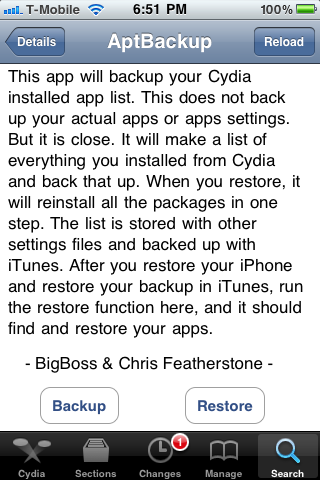
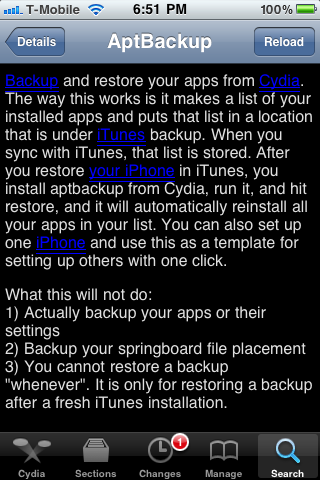
If you want to backup your apps before you upgrade to the latest iOS, then you can do it with a free app called AptBackup that you can download from Cydia. But just know that it only backs up the LIST of apps that you downloaded, not the actual apps themselves or the app settings.

PLEASE NOTE that it does say in the instructions (see below) that you first have to “restore your iPhone and restore your backup in iTunes“, which I do NOT recommend doing. When I restored my iPhone from a backup, my battery drained crazy fast! I did a ton of research (which I will be posting soon), and found out that the reason why my battery was draining so fast was that I had restored it from a previous backup. You must set it up as a NEW PHONE if you don’t want that to happen, which means you will NOT be restoring from a backup. So this app would not work for how I suggest upgrading your iOS device based on my experience, unfortunately.


Los Angeles Computer Repair | Los Angeles Computer Tech | Computer Repair Services
Share:
Reading time: 2 min

FREE DOWNLOADS


Get immediate access to the first 315 pages of Nirvana Zarabi-Smith’s famous Quantum Encyclopedia book and get 10% OFF!

Click here!

LIMITED TIME ONLY!

Now compatible with iPad and Android tablets!


Get immediate access to the first 100 pages of the 6th edition of Nirvana Zarabi-Smith’s incredibly useful A-Z Protocols book and get 10% OFF!

Click here!

LIMITED TIME ONLY!

Now compatible with iPad and Android tablets!

25% OFF Biofeedback Certification Training!

Have you been yearning to get certified as a biofeedback professional? Would you like to deepen your biofeedback knowledge so you can get the most out of your device?

Then take advantage of this
LIMITED TIME OFFER of getting 25% OFF of Nirvana Zarabi-Smith’s amazing Biofeedback Certification Training Program!

Click here!

LIMITED TIME ONLY!

Recent Posts

Do you find personalized ads on your smartphone “creepy”?  Here’s how to opt-out.

Do you find personalized ads on your smartphone “creepy”? Here’s how to opt-out.

January 31, 2016
How to get rid of the annoying Windows 10 Free Upgrade notification

How to get rid of the annoying Windows 10 Free Upgrade notification

August 29, 2015
How to turn any song into a cool iPhone ringtone (mp3)

How to turn any song into a cool iPhone ringtone (mp3)

March 12, 2015
Is your Mac slow?  Here are the 6 top ways to speed up your Mac!

Is your Mac slow? Here are the 6 top ways to speed up your Mac!

February 6, 2015

Blog Post Categories

Archives

© 2020 copyright Ian Brown // All rights reserved