ianbrown.cc – computer tech & repair services – onsite and remote
  • Home
  • About Ian
  • Services
    • 10% Off Mobile Onsite Computer Repair – Greater Hartford, CT
  • Testimonials
  • Blog Archives
  • For Sale
  • Biofeedback Resources
    • + FREE DOWNLOAD
      The first 315 Pages of Nirvana Zarabi-Smith’s famous Quantum Encyclopedia ebook
      LIMITED TIME ONLY!
    • + FREE DOWNLOAD
      The first 100 pages of Nirvana Zarabi-Smith’s A-Z Protocols – INDIGO/SCIO ebook
      LIMITED TIME ONLY!
    • 25% Off Biofeedback Certification Courses at The Quantum Academies!
      LIMITED TIME ONLY!
  • Payments
  • Contact
Home
About Ian
Services
    10% Off Mobile Onsite Computer Repair – Greater Hartford, CT
Testimonials
Blog Archives
For Sale
Biofeedback Resources
    + FREE DOWNLOAD
The first 315 Pages of Nirvana Zarabi-Smith's famous Quantum Encyclopedia ebook
LIMITED TIME ONLY!

    + FREE DOWNLOAD
The first 100 pages of Nirvana Zarabi-Smith's A-Z Protocols – INDIGO/SCIO ebook
LIMITED TIME ONLY!

    25% Off Biofeedback Certification Courses at The Quantum Academies!
LIMITED TIME ONLY!

Payments
Contact
ianbrown.cc – computer tech & repair services – onsite and remote
  • Home
  • About Ian
  • Services
    • 10% Off Mobile Onsite Computer Repair – Greater Hartford, CT
  • Testimonials
  • Blog Archives
  • For Sale
  • Biofeedback Resources
    • + FREE DOWNLOAD
      The first 315 Pages of Nirvana Zarabi-Smith’s famous Quantum Encyclopedia ebook
      LIMITED TIME ONLY!
    • + FREE DOWNLOAD
      The first 100 pages of Nirvana Zarabi-Smith’s A-Z Protocols – INDIGO/SCIO ebook
      LIMITED TIME ONLY!
    • 25% Off Biofeedback Certification Courses at The Quantum Academies!
      LIMITED TIME ONLY!
  • Payments
  • Contact
Browsing Category
Archive
Announcements•Biofeedback Devices•For Sale

Helping a client sell their Quantum Biofeedback SCIO EPFX Device

September 2, 2011 by Ian Brown No Comments

This SCIO is actually SOLD, but check out the list of Quantum Biofeedback SCIOs & Indigos that are currently for sale below:

======================================================

CURRENT LIST OF QUANTUM BIOFEEDBACK SCIOS & INDIGOS FOR SALE

    I. Quantum Biofeedback SCIO with FREE 17" Laptop

  • I. Quantum Biofeedback SCIO EPFX system with FREE 17″ Laptop
    Price: Only $10,497! SOLD!
    1. Includes over $4000 in accessories
    2. The owner will give you a FREE two day one-on-one training (a $2400 value!)

    II. Quantum Biofeedback SCIO EPFX system (LIKE NEW) with FREE Training CDs/DVDs/Books

  • II. Quantum Biofeedback SCIO EPFX (LIKE NEW) with FREE Training CDs/DVDs/Books
    Price: $12,497 or Best Offer!
    1. LIKE NEW – Only 20 hours of use!
    2. FREE Training CDs/DVDs/Books – English AND Spanish!
    3. FREE One-on-One SCIO Training Session with a SCIO Expert!

    III. Quantum Biofeedback SCIO EPFX with a FREE BRAND NEW 17" Laptop & Training Materials

  • III. Quantum Biofeedback SCIO EPFX with a FREE BRAND NEW 17″ Laptop & Training Materials
    Price: $7997 or Best Offer! SOLD!
    1. Includes a FREE BRAND NEW 17″ Laptop with the SCIO software already installed!
    2. The owner will give you a FREE One-Day One-On-One Training (a $1200 value!)

    IV. Quantum Biofeedback SCIO with FREE 15" Laptop

  • IV. Quantum Biofeedback SCIO EPFX with FREE 15″ Laptop & Training Materials
    Price: $6,997 or Best Offer!
    1. FREE 15″ Laptop
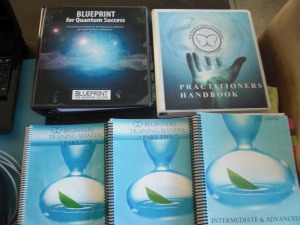
    2. FREE Training Manuals/DVDs/Exclusive Videos (Beginner, Intermediate, & Advanced)
    3. FREE One-on-One SCIO Training Session with a SCIO Expert!

    V. Quantum Biofeedback SCIO EPFX with a FREE 15″ Laptop & Training Materials

  • V. Quantum Biofeedback SCIO EPFX with a FREE 15″ Laptop & Training Materials
    Price: $7997 or Best Offer!
    1. FREE 15″ Quantum Computers Laptop
    2. FREE One-on-One SCIO Training Session with a SCIO Expert!
    3. FREE Quantum Biofeedback Practitioner Business Builder Kit
    4. FREE Full Homeopathic Coaching Course (a 16 DVD set with spiral books created by the inventor of the SCIO!)

    VI. Quantum Biofeedback Indigo with a FREE 15″ Indigo Laptop & Training Materials

  • VI. Quantum Biofeedback Indigo with a FREE 15″ Indigo Laptop & Training Materials
    Price: $17,997 or Best Offer!
    1. FREE 15″ Quantum Computers Indigo Laptop
    2. FREE One-on-One Indigo Training Session with an Indigo Expert!
    3. FREE USB Flash Drive with A TON of Biofeedback Knowledge
    4. FREE Caress Kit

If you are interested in one of the SCIOs, contact me.

If you would like to be notified of any price changes or of any new Quantum Biofeedback SCIO listings, please enter your email address below and you will be notified as soon as there are any changes to the current listings or additional listings added.

======================================================

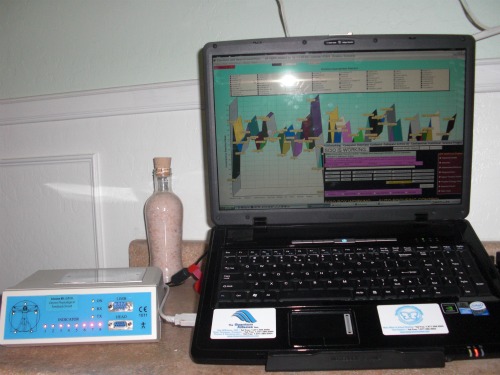
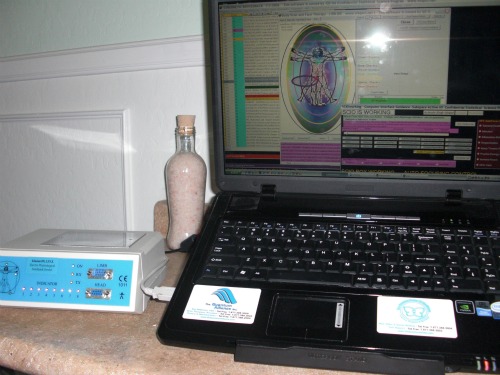
I am helping a client sell their Quantum Biofeedback SCIO device that comes with a FREE 17″ Quantum Computers laptop. I have posted a bunch of pictures and videos on a page in my For Sale section here.

So if you know any health practitioners who are looking to create an added income stream that can earn them up to $300/hr, let me know.

And for those of you who don’t feel like clicking, I’ve duplicated the page below. So all you have to do is scroll down.

Quantum Biofeedback EPFX SCIO QXCI System with FREE 17″ Laptop

 
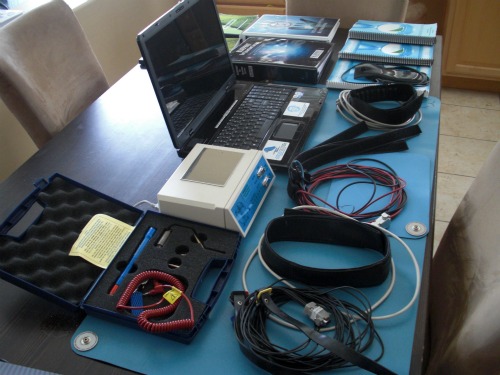
This Quantum Biofeedback SCIO EPFX system belongs to a client of mine. It was purchased in November of 2007, is in mint condition, and sold for between $22,000 and $25,000 new.

This is a complete system and includes everything you need for personal or business use.

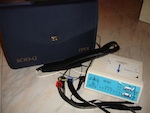
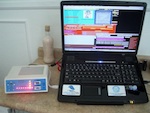
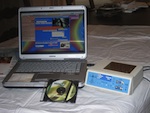
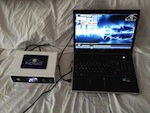
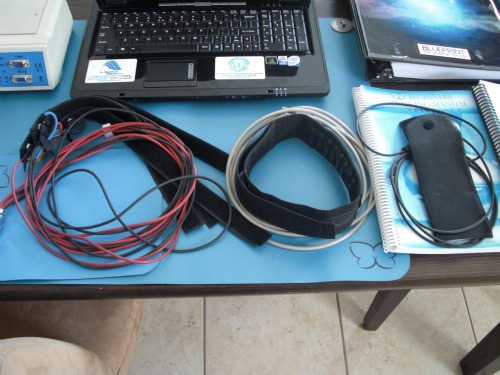
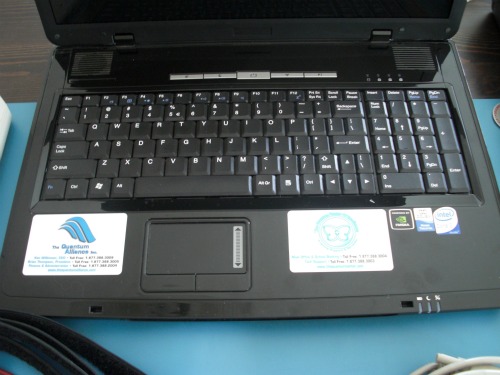
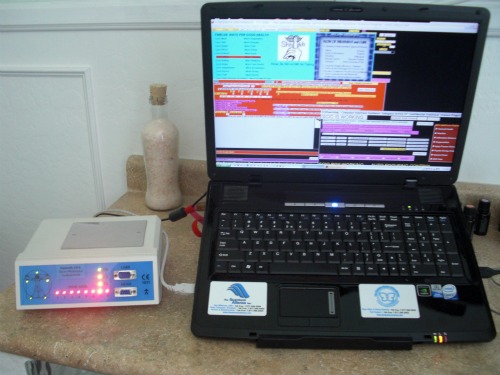
Here are some more pictures of it:

Here Are Some Great Quantum Biofeedback SCIO Video Testimonials

Quantum Biofeedback SCIO Video Testimonial #1
Leija loved it so much that she bought one!

[youtube]http://www.youtube.com/watch?v=x62gJyln-98[/youtube]

Quantum Biofeedback SCIO Video Testimonial #2
Adrian – “How does that little machine know all of that about me?”

[youtube]http://www.youtube.com/watch?v=cCim75GoGYo[/youtube]

Quantum Biofeedback SCIO Video Testimonial #3
A great Quantum Biofeedback SCIO Success Story from Therese

[youtube]http://www.youtube.com/watch?v=n_tRads6qx4[/youtube]
 
Here is a professional presentation of the SCIO
SCIO Presentation Part 1
[vimeo]http://vimeo.com/19367389[/vimeo]

SCIO Presentation Part 2
[vimeo]http://vimeo.com/19344644[/vimeo]

Included is the following:

  • SCIO Digital Interface Unit
  • Clasp 32 Master Disc
  • FREE 17″ Quantum Computers Laptop running the most stable SCIO software, 07.07.06
  • FREE Operations and Owner’s Manuals for BIOFEEDBACK SYSTEM
  • FREE Complete Beginners and Intermediate & Advanced Training Manuals
  • FREE Training DVD’s
  • The original harnesses, as well as the upgraded harness that clips off and upgraded headset
  • Quantum Carress Kit with the Quantum Q-Wand
  • Small and Medium Bio Pad
  • Meridian Pad
  • 2 Silver Lining Face Veils
  • 5 Replacement Face Veils
  • Quantum Encylopedia
  • Lots of Protocols

TECH SUPPORT is available. Ask for more info.

PROFESSIONAL TRAINING CLASSES are also available.

PRICE: $11,997 or Best Offer!

Contact me if you’re interested.

By the way, if you want more info on this system and the technology, check out this Quantum SCIO EPFX Blog. It even has videos and testimonials about the system.


Match.com: #1 Dating Site – View Pics for Free


Los Angeles Computer Repair | Los Angeles Computer Tech | Computer Repair Services

Share:
Reading time: 4 min
Apple•Cool Products & Services•iPad•iPhone & Mobile•iPhone Tips•Mobile•Tips and Tricks•Video

Stop Thief! How to Backup Your iPhone & Use “Find My iPhone” to Track Down Your Lost or Stolen iPhone

by Ian Brown 2 Comments


Ok, so 2 days ago, a friend of mine had her iPhone 4 stolen. She was in a Starbucks, got up from her table to leave, threw out her empty coffee cup, walked outside about 20 feet, and quickly realized that she forgot her iPhone. She looked in through the window at the table where she was just sitting and saw that her iPhone was already gone! Crazy.

I helped her look for it EVERYWHERE! In the trash, under all of the tables, in the corner, in the guy’s bag who had sat down at the same table where she was sitting…nada!

So we went through the options:

  • Did she subscribe to MobileMe? –> Nope!
  • Had she backed up her iPhone via iTunes? –> ‘Fraid not! Never did. Not even once.
  • Did she have insurance on her iPhone? –> Ummm…nope!

Unfortunately, she had not prepared for such a situation because she lives and hangs out in a really nice area of town. But, alas…this is LA! However, in her defense, one of the workers at that Starbucks who has worked there for a while said something gets stolen from a customer there maybe once or twice a year. So it just so happened that she was one of those two! Not cool.

But because that unfortunate incident happened, you guys benefit, because I’m going to hook you up with some info that will help you protect your iPhone (and your other iOS devices), or at the very least, protect your data, in case this happens, which hopefully it won’t!

Back it up!

First off, you MUST MUST MUST backup your phone. It’s super easy. All you have to do is hook up your iPhone to your computer via USB. Use the same cord you use to charge it, but take off the adapter that allows it to plug into the wall so you can plug that end into the USB port of your computer.

Then, select the music, movies, etc. that you want on your iPhone by clicking on the corresponding tabs at the top of iTunes, and putting check marks in the boxes next to the items that you want to put on your iPhone. Then click APPLY in the bottom right corner of iTunes. Let it do its thing (sync/copy the files), and then you’re done! Every time it syncs, it will backup your iPhone’s data, unless you tell it not to in the Preferences of iTunes.

Here, watch this for a visual:

[youtube]http://www.youtube.com/watch?v=5KHMLLpEYSs[/youtube]

OK. Cool. So now you have all of the data on your iPhone backed up, including SMS, photos, call history, music, email…everything. Nice. That way, if you don’t happen to get your iPhone back because the guy that took it is just too large for you to handle, then you can at least get another iPhone, sync it to your computer, put all of your data that was on your old iPhone onto the new one, and get your life back. However, you can always go to the cops and have them take on the large one who took your phone.

How to Use “Find My iPhone”

After you back up your iPhone, you want to register for the “Find My iPhone” service.

But first, before we do that, watch this video so you have a visual of how “Find My iPhone” works:

[youtube]http://www.youtube.com/watch?v=HlbJ4xePvL0[/youtube]

Isn’t that a cool service? And the best part? If you have an iPhone 4, an iPad, or a 4th generation iPod Touch, it’s FREE! Apple is so cool to us customers.

So, let’s get your iPhone registered right now.

First, you’ll need to download and install the “Find My iPhone” app, if you haven’t already.

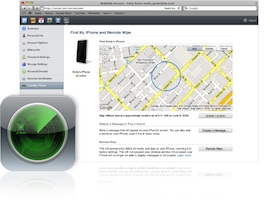
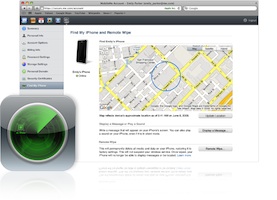
To do this, just click on the App Store app on your iPhone, click on the “Search” tab at the bottom of the screen, and then type in “Find My iPhone” (no quotes) in the search field at the top of the screen. The icon for it should pop up (it’s the same one as the green circle that’s in the main image for this blog post). Just click on it to go to the page for that app, and then click “Install”.

Once you have “Find My iPhone” installed on your iPhone, follow the steps below.

Step 1:

Make sure your iPhone is running iOS 4.2. The way to check is go to SETTINGS>GENERAL>ABOUT>and look at the number next to VERSION. If you have that version or higher, great. Let’s keep going.

If you don’t, then update your iPhone OS simply by connecting your iPhone to your Mac or PC and follow the onscreen instructions in iTunes (open iTunes if it doesn’t open automatically when you connect your iPhone to your computer).

If you’re creating a free account for the first time, you’ll need an iPhone 4.

Step 2:

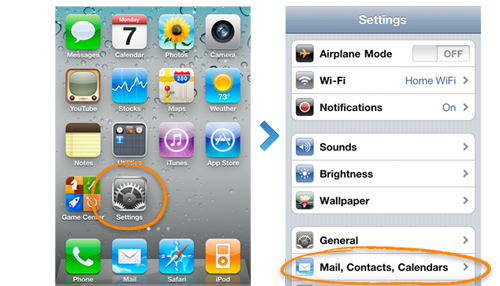
Go to SETTINGS>MAIL, CONTACTS, CALENDARS
Step 3:

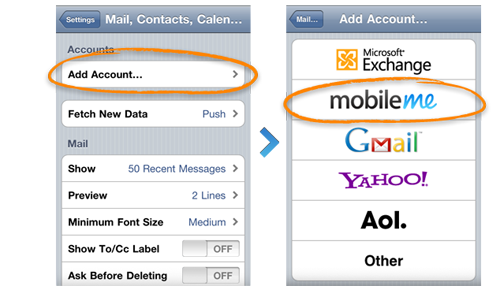
Click on ADD ACCOUNT>MOBILEME
Step 4

Enter your Apple ID and Password.
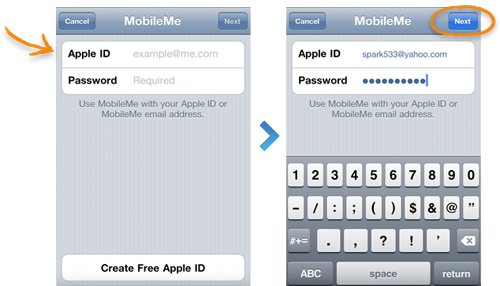
If you already have an account with the iTunes store, or you’ve bought something from Apple’s online store, then you already have an Apple ID.

If you don’t have one, then click “Create Apple ID” at the bottom of the screen and follow the prompts.

If you’re a MobileMe subscriber already, then simply enter your .me or .mac email address and password.

Step 5

Verify your account.
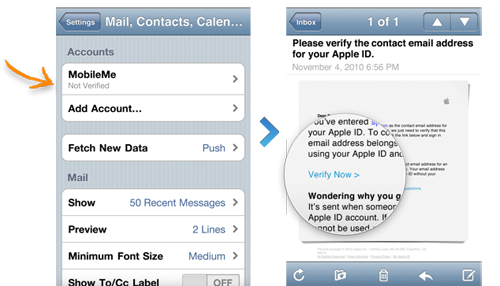
If it says “Not Verified” under your MobileMe account, go to your email inbox and look for a message from Apple that was just sent to you. Open the email, click the Verify Now link, and sign in with your new Apple ID that you just created.

If you don’t see an email from Apple in your inbox, then click on your MobileMe account, and click “Resend Verification Email.”

Step 6

Go back to the MobileMe screen and turn on “Find My iPhone.” When the “Find My iPhone” message pops up, click ALLOW.
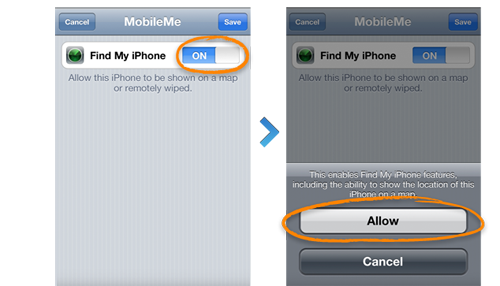
Step 7

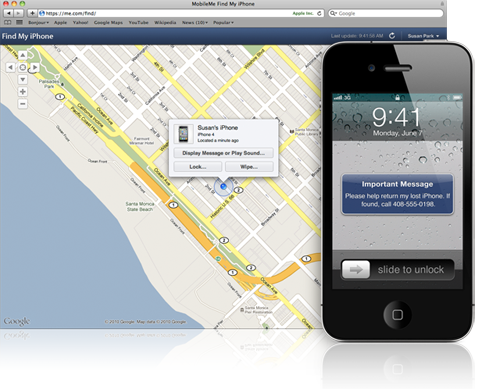
Give it a shot! Open up the “Find My iPhone” app that you download and log in. You should be able to see your phone listed, and also be able to locate it. You can also use it to locate other phones that are registered with this service. All you have to do is log in with their Apple ID with the app.

You can also log into www.me.com with your Apple ID, instead of using the app, and do the same thing.
UPDATE: Here’s How to Get it to Work on an iPhone 3G or 3GS

A reader wrote in and asked it this worked on an iPhone 3G or 3GS. So I did some research, and according this post on Lifehacker.com, it does!

You just need to use a qualifying iOS device, meaning a 2010 or later iOS device, to set it up. Use a friend’s if you don’t happen to have one, because you can delete their device from your account after you set up your device on the service.

Simply follow the steps above with either your or a friend’s 2010 iOS device using YOUR Apple ID. Once the newer iOS device is registered with your Apple ID, follow the same steps above with your iPhone 3G or 3GS, also using your Apple ID.

Test the locating of your device with the service by using the app on the newer iOS device (or on any other iOS device with the free Find My iPhone app, which they can download from the app store if they don’t have it), or by logging into www.me.com.

After you confirm that the 3G or 3GS works, if the newer iOS device is not yours or you don’t want it attached to your Apple ID, on the newer iOS device, delete your MobileMe account (SETTINGS > MAIL, CONTACTS, CALENDARS > MobileMe account > Delete Account). If you do want to keep it attached, just leave it alone.

After that, you should be good to go!

Update: I just tested it and this does work.

Things You Need to Know

  • Your iOS device needs to be ON in order for you to be able to locate it, so KEEP YOUR BATTERY CHARGED (that was another factor against my friend in the story above…the phone had only 7% on it, so when we tried to call it, it went to straight to voicemail, which means it was off)
  • If you’re trying to locate an iPod Touch or iPad, since the service cannot use cell triangulation, your iOS device will need to be connected to a wifi network in order for it to be found, because the service locates the device by locating the router that is broadcasting the wireless signal that your iOS device is currently on
  • You can prompt your iOS device to pop up a message that tells people your device is lost, and you would appreciate it if they returned it. Your message will pop up with a loud sound that will sound, even if the sound is turned off. And no one will be able to turn the sound off.
  • If you don’t think you’re going to be able to retrieve it, you can remotely wipe your iPhone of all of your data just by logging into www.me.com and selecting that service. Apple’s got your back!

TROUBLESHOOTING: This service will not work for you if…

  • iPhone is not on or currently not connected to a data network (Edge, 3G or Wi-Fi)
  • iPad or iPod Touch is currently off or not connected to a Wi-Fi network
  • “Push” is not enabled in (SETTINGS > MAIL, CONTACTS, CALENDARS > FETCH DATA)
  • You tried to initiate a remote wipe of the phone (wiping all of the data remotely; you would only do this if you lost it or if it were stolen, and you did not think you would ever get it back)
  • You have multiple MobileMe accounts on the iPhone
  • The date isn’t right on your iPhone
  • The device’s iOS version is not up to date (or at least iOS 4.2; SETTINGS>GENERAL>ABOUT>VERSION)
  • Your MobileMe account is not configured correctly in your iOS device (try deleting it and adding it again; see steps on how to do this above)
  • The “Find My iPhone” service is not on (SETTINGS > MAIL, CONTACTS, CALENDARS > Your MobileMe Account > Make sure “Find My iPhone” is ON)
  • Your iPhone is in and out of service (doesn’t have a strong signal)
  • Location Services is not enabled (SETTINGS > GENERAL)
  • You’re living in a country where Apple does not offer this service
  • If it says, “Location not available,” (it might even say “Message pending” underneath “Location not available”) and you’ve gone through and tried all of the above troubleshooting items, then try deleting the MobileMe account (SETTINGS > MAIL, CONTACTS, CALENDARS > MobileMe account > Delete Account), and then add it back in, BUT…TURN OFF “Find My iPhone” BEFORE you save it. AFTER you save the new account, THEN go back in and TURN ON “Find My iPhone.” That’s what finally fixed it for me.

TROUBLESHOOTING

For more trouble shooting tips, go here:

http://support.apple.com/kb/TS2734?viewlocale=en_US

Now you have it set up and…surprise, surprise…it works!


So now you’re in a MUCH better place than my unfortunate friend was when her iPhone got stolen. You’re educated on how to backup your iOS device so you’ll always have your data, and on how to use “Find My iPhone” to locate it if you’re ever in the unfortunate circumstance where you can’t find your iOS device.

Be sure and share this post with your friends on Twitter, Facebook, via email, and wherever else you hang out online so they can benefit as well.

And if you have any comments or any stories to share, the comment section is below!

BONUS: An Informative Review of “Find My iPhone”

Just thought you guys might enjoy this informative review of the “Find My iPhone” app that has real life examples of its use:

[youtube]http://www.youtube.com/watch?v=2vkTCeZN5Ts[/youtube]

 
Match.com: #1 Dating Site – View Pics for Free


Los Angeles Computer Repair | Los Angeles Computer Tech | Computer Repair Services

Share:
Reading time: 10 min
Apple•Interviews•Mac

The Top 12 Business Lessons I Learned from Steve Jobs

August 24, 2011 by Ian Brown No Comments

I’ve been meaning to post this for a while, but I never got around to it. Been very busy. However, seeing that Steve Jobs just resigned as CEO of Apple today (so sad), I feel today is a very fitting day to post this.

Steve, I know that you will be the Chairman of the Board and director, but you will be sorely missed in the day to day operations of Apple. You’re a brilliant man, and taught us how to “Think Different.” You made a GREAT and POSITIVE impact on not only the computer world, but also the entertainment world. You pushed the human race forward, and I want to thank you for that. You have definitely put a “ding in the Universe,” as you so eloquently expressed to be your foremost desire.

I dedicate one of your own commercials…to you.

[youtube]http://www.youtube.com/watch?v=4oAB83Z1ydE[/youtube]
Here’s my review of a great interview with Steve Jobs conducted by All Things Digital that I should have posted a while ago, but I’m glad I didn’t…

I recently watched a really great interview with Steve Jobs that was conducted at the D8 – All Things Digital conference. You really get to peek inside his head and discover his core values for his business in this interview.

The main core value of Apple is to “build the best products for people.” He kept on saying that over and over throughout the interview, and he said it with such passion. It was awesome to watch. It’s the foundation for the company. I love it when entrepreneurs display their passion for their values and their company. It shows that it’s not about the money for them. It’s about their vision for their business and what they stand for.

Another thing that I was really intrigued about was that Steve said that Apple is the “largest startup company in the world.” What he meant by that is that Apple is still structured as a startup. What does that mean? Well it means that it is an “incredibly collaborative company.” There are no committees. They have one person in charge of each department, and they trust that “their team will come through with their parts.”

I agree with setting up a company this way, and it’s not just because Apple is highly successful and that’s what they do. I just feel that the whole corporate structure is outdated and does not work in today’s society. People are tired of working for corporations that treat their employees like a number, and that don’t listen to them or their ideas. People want to feel that they are a part of something bigger than themselves, and that they are contributing and making a difference in the company.

Eben Pagan, a very successful Internet marketer, says that great people work for “Impact,” not for money. They want to be involved with a company that is going to make a substantial difference in the world. They are not in it for the cash, because they have such talent, they can make great money no matter where they work. I agree 100%.

In the interview, Steve also explains what he does all day…what his day as CEO of Apple is like. I’m sure you want to know that, right? What does one of the most highly successful CEO’s in the world of one of the most successful and highly valued companies in the world do all day? What does he do with his time? You’ll have to watch the interview to find out.

Here are 10 more things you will find out by watching this interview:

  1. Why Steve would have rather QUIT than let the whole Gizmodo / stolen iPhone 4 prototype issue slide
  2. What are the 3 main reasons why Apple disapproves apps for The App Store
  3. Why HTML5 is better than Flash
  4. Why Steve believes personal computers will eventually “be like trucks” (meaning not many people will have one)
  5. Why Apple is going into the Advertising business (it’s probably not the reason you think)
  6. Where people are spending most of their time when using the iPad
  7. Why mobile ads are great for the advertiser, publisher, and end user
  8. How Apple protects the privacy of their users (much respect, Steve!)
  9. What Steve would like to do with his commencement speech that he made to Stanford in 2005 (see below)
  10. What was wrong with the music industry before the digital download era

And here are the Top 12 Business Lessons that I learned, or that I already knew but were reinforced for me, from watching Steve in this interview:

 
Business Lesson #1

Steve: We focus on developing GREAT products for people (it’s Apple’s core value) and they let us know how we are doing by voting with their wallet

Business Lesson: Always focus on delivering the best product or service possible, and the market will let you know how you are doing by buying (or not buying) your product or service

 
Business Lessons #2 & #3

Steve: You can save a lot of time and energy if you “choose the correct horses to ride” (referring to why he chose to go with HTML5 instead of supporting Flash with the iPhone and iPad; read Steve’s full article, Thoughts on Flash, that he wrote back in April 2010)

1st Business Lesson: Focus on a few great products and be the best at using them, instead of trying to please everyone, spreading yourself too thin, and not really being a master at anything

2nd Business Lesson: Team up with products whose business graphs are going up, not down

 
Business Lesson #4

Steve: Price things aggressively and go for volume (referring to software and content)

Business Lesson: If you want to dine with the classes, you have to sell to the masses (and price things accordingly!)

 
Business Lesson #5

Steve: People are willing to pay for content on the Internet (iTunes)

Business Lesson: There will be times where you will have an idea and people will say, “How could that possibly work? People aren’t going to buy that! They can get that for free!” But the only way you’ll find out if something will work is to TEST it, like a good marketer and entrepreneur always should be doing. Don’t try to THINK what the masses will do, FIND OUT by TESTING on a small scale. If it works, SCALE IT UP and make BANK!

 
Business Lesson #6

Steve: We started with the iPad FIRST. But then I realized we could make a phone out of the touchscreen technology we had developed, and we decided to go with that first and shelve the iPad until we “got our breath back” from the launch of the iPhone.

[Brilliant business choice since the iPhone accounts for almost 50% of their revenue! (46.6% to be exact)]

Business Lesson: ALWAYS be flexible enough to change your plans along the way, no matter how much time, effort, and focus you have put into the development of a certain product/service. If it makes better business sense to change plans, DO IT!

 
Business Lesson #7

Steve: Personal computers are going to be like trucks. They are still going to be around, but not many people are going to have them (watch the interview to see why Steve believes that)

Business Lesson: Always be focused on where things are going in your industry and plan accordingly

 
Business Lesson #8

Steve: We get 10,000 – 20,000 apps submitted to us each week, and we approve 95% of them within 7 days (Impressive!)

Business Lesson: Have things set up in your business to be ready to handle your success

 
Business Lesson #9

Steve: We originally disapproved of a political cartoon app because we had one rule: “You can’t defame people” [which I really admire]. However, that was one consequence of that rule that we did not see coming. So we made political cartoons the one exception.

Business Lesson: Always be willing to change the rules.

 
Business Lesson #10

Steve: We make mistakes along the way, and we fix them as fast as we can.

Business Lesson: You see, even the most successful companies in the world make a fair amount of mistakes. So don’t let making mistakes stop you from achieving your dreams. It is part of the process, and always will be no matter how successful you get.

 
Business Lesson #11

Steve: If you want to hire great people, you have to let them make a lot of the decisions.

Business Lesson: You must be willing to let your employees/team members make a lot of the decisions. People work best in an autonomous environment (check out the book “Drive” by Dan Pink for more on that). That’s how you hire and KEEP great people. Otherwise, they will not feel as if they are part of the team, nor will they feel like they are making a difference in the company, let alone the world. They’ll feel more like a puppet in a controlled environment in which they have no say. Consequently, they will jump ship and go to a company that does have an autonomous environment where they and the company will thrive.

 
Business Lesson #12

Steve: You have to be run by ideas, not hierarchy. The best idea must win, not the “best person” with the most power or seniority.

Business Lesson: In business, you have to be humble and be quick to recognize a great idea, no matter who it comes from. Reiterating what was said in Business Lesson #11 above, if you want to keep great people, you must appreciate their brilliance, use their ideas, and reward them for it.

 
So those are the top 12 business lessons that I learned by watching Steve Jobs in this interview. I hope you can use some of them to help your business. Comment below and let me know how these ideas have helped you, and feel free to mention any business lessons that you learned from watching this interview.

Watch the full interview below and enjoy!

Steve Jobs at D8 (an All Things Digital Conference) – Full Video


And here is Steve’s brilliant commencement speech that he gave at Stanford in 2005:

[youtube]http://www.youtube.com/watch?v=UF8uR6Z6KLc[/youtube]

Remember to comment on what you learned from either my article or the interview…or both!

Match.com: #1 Dating Site – View Pics for Free


Los Angeles Computer Repair | Los Angeles Computer Tech | Computer Repair Services
Share:
Reading time: 8 min
Announcements•Apple•Mac

Steve Jobs Resigns as CEO of Apple

by Ian Brown 1 Comment

What a sad day it is. Steve Jobs, the co-founder and pioneer of Apple resigns as CEO. However, don’t get your head all down, because he did propose to be Chairman of the Board and director. The board BETTER accept his proposal is all I have to say. Apple without Steve Jobs is like the light bulb without Thomas Edison.


Here is his letter:


To the Apple Board of Directors and the Apple Community:

I have always said if there ever came a day when I could no longer meet my duties and expectations as Apple’s CEO, I would be the first to let you know. Unfortunately, that day has come.

I hereby resign as CEO of Apple. I would like to serve, if the Board sees fit, as Chairman of the Board, director and Apple employee.

As far as my successor goes, I strongly recommend that we execute our succession plan and name Tim Cook as CEO of Apple.

I believe Apple’s brightest and most innovative days are ahead of it. And I look forward to watching and contributing to its success in a new role.

I have made some of the best friends of my life at Apple, and I thank you all for the many years of being able to work alongside you.

Steve

Match.com: #1 Dating Site – View Pics for Free

Share:
Reading time: 1 min
Page 8 of 58« First...«78910»203040...Last »

FREE DOWNLOADS


Get immediate access to the first 315 pages of Nirvana Zarabi-Smith’s famous Quantum Encyclopedia book and get 10% OFF!

Click here!

LIMITED TIME ONLY!

Now compatible with iPad and Android tablets!


Get immediate access to the first 100 pages of the 6th edition of Nirvana Zarabi-Smith’s incredibly useful A-Z Protocols book and get 10% OFF!

Click here!

LIMITED TIME ONLY!

Now compatible with iPad and Android tablets!

25% OFF Biofeedback Certification Training!

Have you been yearning to get certified as a biofeedback professional? Would you like to deepen your biofeedback knowledge so you can get the most out of your device?

Then take advantage of this
LIMITED TIME OFFER of getting 25% OFF of Nirvana Zarabi-Smith’s amazing Biofeedback Certification Training Program!

Click here!

LIMITED TIME ONLY!

Recent Posts

Do you find personalized ads on your smartphone “creepy”?  Here’s how to opt-out.

Do you find personalized ads on your smartphone “creepy”? Here’s how to opt-out.

January 31, 2016
How to get rid of the annoying Windows 10 Free Upgrade notification

How to get rid of the annoying Windows 10 Free Upgrade notification

August 29, 2015
How to turn any song into a cool iPhone ringtone (mp3)

How to turn any song into a cool iPhone ringtone (mp3)

March 12, 2015
Is your Mac slow?  Here are the 6 top ways to speed up your Mac!

Is your Mac slow? Here are the 6 top ways to speed up your Mac!

February 6, 2015

Blog Post Categories

Archives

© 2020 copyright Ian Brown // All rights reserved