Have you ever sent an email, and just seconds after, you were like, “OH NOOOO!!! I did NOT mean to send that!”, or “Whoops!! I didn’t mean to send that to that person!”
I know I have, and it totally sucks when it happens.
Well, if you use gmail, I have a solution for you, and it’s a rather simple one!
Gmail’s Solution
There is a setting in Gmail’s Lab section called “Undo Send” by developer, Yuzo F.
You simply need to activate it, and change one setting if you want up to 30 seconds to “undo/unsend” the email, and that situation will never happen to you again (as long as you catch yourself within that 30 second period)!
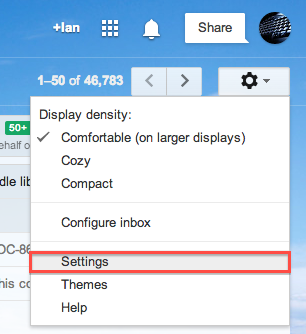
Click on the gear icon in the upper right corner of your browser, right under your name and icon, and click on SETTINGS
Select LABS (see screenshot below)
Scroll down the page and select ENABLE for the feature, “Undo Send” by Yuzo F (it will probably be towards the bottom of the page; it’s on top in the screenshot below because it’s enabled)
Click on the SAVE CHANGES button located either on top or below the list of Google’s LAB features (see screenshot below)
Click to enlarge
DONE!
And if you really want to be on the safe side, you can change the settings so that you have up to 30 seconds to UNDO/UNSEND your email.
Here’s how:
Click on the gear icon in the upper right corner of your browser, right under your name and icon, and click on SETTINGS, just like you did above (see screenshot above under Step #2)
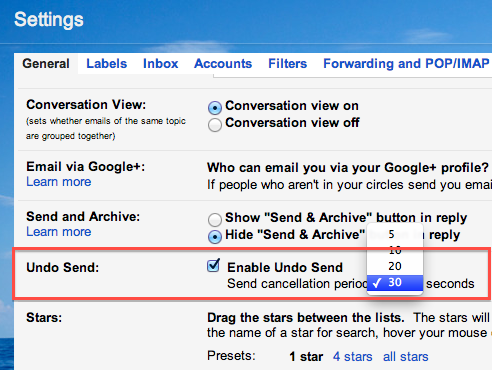
Under the GENERAL tab, you should see UNDO SEND between SEND & ARCHIVE and STARS (see screenshot below)
You’ll see a checked box next to ENABLE UNDO SEND, and under that will be a drop down menu for setting the SEND CANCELLATION PERIOD (how long you will have to unsend the email)(see screenshot below)
You can choose from 5, 10, 20, and 30 seconds. Select 30 seconds, or whichever time period suits you. (myself, I go with 30 seconds, because you just never know!)(see screenshot below)
Scroll down to the bottom of the GENERAL tab and click the SAVE CHANGES button
DONE!
After you do that, you should be good to go!
But let’s test it, just to be sure.
Here’s how:
Compose a new email, write something quick, and address it to yourself (or to another email address of yours, if you have one)
Click SEND
After it goes away, towards the top of your gmail webpage, you will see a yellow bar across the page with UNDO | VIEW MESSAGE in it. Click UNDO to unsend your email.
Seconds after you click UNDO, the message you just “sent” should pop right back up! Whew!! That was a close one! Thanks, Google!
So if you use Gmail, make sure you add this feature NOW, while you are thinking of it. You never know when you’re going to need it. Better to be safe than sorry!
A Possible Solution for Outlook
Now, if you use Outlook, apparently, Outlook has one as well, according to a commenter on Claire Diaz-Ortiz’s blog post on this very subject. However, I have not tested it. So I cannot confirm it.
But in case you want to give it a shot, here is how they say to do it:
Go to your Sent items
Double click on the email in question to open a new window
On the Message tab, click on OTHER ACTIONS and in the drop down menu that appears, click on RECALL THIS MESSAGE.
In the window that appears, choose from the options proposed and click OK.
It’s done and works only if the recipient has not read the message yet.
PLEASE NOTE: This Outlook solution is not a foolproof method. Some have reported that often the recipient will receive the message anyway, and when you try to recall the message, they will get notified of that, which is definitely not good.
So an alternative would be to set up Outlook so that it does not send right away when you click SEND. It will only send the email the next time you click the SEND/RECEIVE button, or the next time Outlook is set to automatically send/receive your email.
There are many versions of Outlook, and MS seems to like changing things around to make it “new.” So here is a generic way how to set that up, but it may be a bit different for your version of Outlook:
In Outlook, select TOOLS>OPTIONS
Go to the Mail Setup tab
UNCHECK the option for SEND IMMEDIATELY WHEN CONNECTED
Click OK
OK! So that’s how to save your butt when it comes to email! Heed my words and change the setting NOW, while you’re thinking of it. You’ll thank me later. ;)
By the way, if you have a story to share about sending an email that you didn’t want to send, or sending the right email to the wrong person, or the wrong email to the right person, share it below in the comments…
A client of mine recently asked me why their iPad was charging so slowly. I asked him what he was using to charge it. He told me that he was using his iPhone charger.
“BINGO! That’s the reason!” I told him.
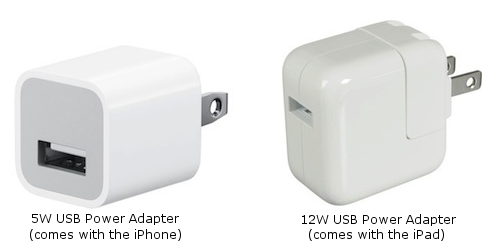
You see, the iPhone’s wall charger only has a 5W USB Power Adapter, whereas the iPad’s wall charger uses a 12W USB charger.
Charge your iPhone 2X as fast with the iPad’s 12W USB Power Adapter!
So the iPad’s wall charger has over twice the charging power as the iPhone wall charger. Once he switched back to his iPad charger, its charging speed went back up to where it should be.
I then decided to switch that situation around and charge my iPhone with the iPad 12W USB charger.
Result?
BAMM! It charged twice as fast! So sweet!
Before I did that, I researched it to make sure it is safe to do, and it is.
So, if you want to charge your iPhone twice as fast when you plug it into the wall, simply get the Apple 12W USB Power Adapter.
You can use the same cord that came with your iPhone. Just take off the 5W USB charger on the end (see picture above), and replace it with the 12W USB charger (see picture above).
Or, if you have an iPad, you can use your iPad charger for your iPhone.
And it doesn’t matter if you have an iPhone 5 with a lightening connection and an iPad 3 with 30 pin connection, it will still work. Just put the 12W USB Power Adapter on the cord you will use to charge your iPhone.
A great tip for those busy professional types and for those who value time like I do. ;)
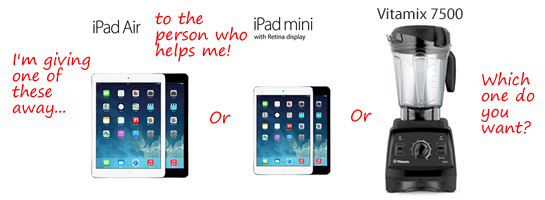
UPDATE (4.5.14): I updated this post to reflect that I’m now giving away either an iPad Air, iPad Mini with a retina display, or a Vitamix 7500!
Am I serious? Yes. Very. I’m giving away a brand spanking new iPad Air, iPad Mini with retina display, or a Vitamix 7500! Your choice!
Why am I doing this? Out of the goodness of my heart?
Partly, yes, and partly for selfish reasons. Well they aren’t really selfish reasons. It’s to raise money to help me get back to perfect health.
Let me explain.
A few months ago, I woke up one morning and I was so dizzy that I could not keep my balance and I fell right into my closet door knocking it off it’s tracks!
I was like, WTH? I eat organic, I work out two hours every day without fail, I never get sick…what the heck is going on?
Then I remembered, “Oh yeah, one of my back teeth split and part of it fell out. And it just so happened that this particular tooth had a “silver” amalgam (which is really mercury) filling in it (still does), and now I am much more exposed to that silver filling.”
So I did some research on the internet, and sure enough! I was suffering from mercury poisoning and toxicity from my “silver” fillings.
Did you know that the silver fillings that many dentists in the US put in teeth have 50% mercury in them? Did you also know that mercury is the most toxic non-radioactive metal on the planet and it can cause over 50 chronic diseases including cancer, diabetes, and multiple sclerosis? Well, it is, it does, and I have six silver fillings in my mouth.
I also had a root canal a few years ago. Did you know that root canals are one of the top three causes of cancer? They are. They can cause multiple sclerosis (MS) as well.
Don’t worry, I don’t have either of those health challenges, but I’m not taking any chances! I’m having all of them taken out as soon as possible, and replaced with safe substances for my body.
I do have some health challenges because of the mercury that are not as bad as the above issues, but they are in the early stages, I still feel them, and they are affecting my work and daily life. So I’m going to stop them in their tracks!
Luckily I was able to cure the vertigo (dizziness) that caused me to fall down and slam into my closet door, knocking it off of its hinges.
How did I cure my vertigo? With a special recipe of an amazingly powerful combination of two natural foods called the Budwig Breakfast, which is a natural remedy for cancer, diabetes, arthritis, heart infarction, and digestive issues, among other things.
Here’s the recipe, in case you’re interested:
INGREDIENTS
+ 6 Tbsp of organic lowfat (2% or less) cottage cheese (do not get Horizon, as it is questionable whether theirs is truly organic)
+ 3 Tbsp of organic flax (seed) oil (I recommend you get Barlean’s RED label (NOT blue label)) http://goo.gl/Sq14M
+ 2 Tbsp of whole organic flax seeds http://goo.gl/bSbbU
+ 4 chopped organic strawberries
+ a handful of organic blueberries
DIRECTIONS
Put the cottage cheese and the flax oil into a cup, and mix ONLY those two ingredients for 1 min on low speed, until they are completely emulsified and you can not see a drop of oil. It should have the consistency of yogurt.
Next, put that into a bowl, and then add the fruit.
Then grind the flax seeds and mix it in with everything else with a spoon.
NOTE: You will need to eat it within 15 minutes of grinding the flax seeds, because after that, the seeds either go rancid or they lose their potency.
EQUIPMENT YOU WILL NEED
+ Immersion blender
(NOTE: This recipe will NOT work with any other type of blender; not even a Vitamix)
Here is the one I suggest. It’s the best one on Amazon:
And here’s a video that shows you exactly how to make the Budwig Breakfast:
The Budwig Breakfast: a recipe for a dish that naturally heals cancer, diabetes, arthritis, heart infarction, and digestive issues
Trust me, the Budwig Breakfast really works! I went ONE DAY without it and my vertigo was back with a vengeance!
The vertigo won’t completely leave my body until I get my silver fillings out and I detox my body from mercury, but the Budwig breakfast does an AMAZING job of keeping it at bay.
If you want more info on the dangers of silver fillings and what they can do to you, watch this movie trailer:
You Put What In My Mouth?
As you might have guessed, doing all of this to my teeth will cost a pretty penny, so I’m in the process of raising money for it.
One of the things I am doing to accomplish this is I’m helping a friend sell their beautifully renovated cottage that has a gorgeous view of Long Island Sound.
FOR SALE: Beautifully Renovated Cottage in Guilford, CT, with a Gorgeous View of Long Island Sound that Doubles as a The Ultimate Tax Shelter
It’s located on the coast of Connecticut on a private island that you can just drive right onto via a causeway, and it’s very reasonably priced!
Since my dentist appointment is quickly approaching, I am putting my foot on the gas to speed up the sale of the cottage by offering you a chance to get one of 3 amazing gifts if you refer to me the person who ends up buying the cottage.
Here is the list of the 3 sweet gifts that you can choose from, if you are the lucky one who refers the person to me who buys the cottage (you’ll get to choose 1 of the following 3 gifts):
iPad Air
iPad Mini with Retina Display
Vitamix 7500
Sweet, huh?
All you have to do to jump in the game is send out an email with this PDF (http://goo.gl/5nQ6G) to your friends telling them about this cottage. You never know everything that a friend is looking to do, or who they might know, so you might as well mail to all of your friends, just in case.
I’ve even gone to the trouble of writing a sample email of what you could say to them. You can either copy and paste it, modify it to your liking, or write your own email. Your call.
Here is the sample email I wrote that you can use, if you want:
===
SUGGESTIONS FOR SUBJECT OF EMAIL:
1. Beautifully renovated cottage with a gorgeous view of Long Island Sound
2. Looking for a beautiful cottage on the Connecticut coast?
3. The cheapest way to own a cottage on the Connecticut coast
BODY OF EMAIL:
Hi,
Hope all is well! My friend, Ian, is helping to sell a cottage
that is located on a private island on the coast of Connecticut and
it’s very reasonably priced!
You can actually drive right onto the island via a causeway. It’s
more like a peninsula, but it is an island.
The cottage has a gorgeous view of Long Island Sound, was recently
renovated (they did a GREAT job), and will save you a boat load of
money in property taxes, because you will only have to pay $880 per
year in property taxes instead of $11,000!
It’s the cheapest way to own a cottage on the Connecticut coast!
How is it possible to pay so little in property taxes?
You’ll have to call Ian to get the specifics, but take a look
at the PDF at the link below. It has numerous pictures, as well as
many details about this amazing cottage. You’ll actually enjoy
reading it, because Ian gives an entertaining narrative as he takes
you on a private tour of the cottage.
You can either read it online at the above link, or you can click
on the “Download” button in the upper right section of that page
and download the PDF to your computer so you can read it offline.
If you’re interested, his number is 860.368.0729. His number
is also in the PDF.
And if you don’t happen to be in the market for a beautifully
renovated cottage on a private island on the coast of Connecticut
that has a gorgeous view of Long Island Sound, then feel free to
share the above link with your friends and family by sending it
to them.
Have a great week!
[Your name]
===
NOTE: No spamming please, otherwise you will be disqualified. Only tell those you know, or those who are on your double opt-in email list. Thanks!
If you like that email, then get on it right now and send it off to all of your contacts with the above link to the PDF while you’re thinking of it so you can jump in the game to get that brand new sexy iPad Air, iPad Mini with retina display, or Vitamix 7500!
If you’d rather write your own email, then just type up a quick email that says something similar, include the above link to the PDF, and send it off.
Again, all you have to do is refer the person who ends up buying the cottage, and one of the 3 gifts above has YOUR name on it! Your choice!
Remember to include this link to the PDF in the email that you send out, as it has all of the pics and details about the cottage:
If you would prefer to just send me a monetary gift, I would be forever grateful.
You can send it via PayPal via the button below. There is no need to have a PayPal account. You can just use your credit/debit card to send the funds by simply clicking the “Send a Gift” button below, and then clicking on the link that says “Don’t have a PayPal account?” on the right side of the page and filling in the form that appears.
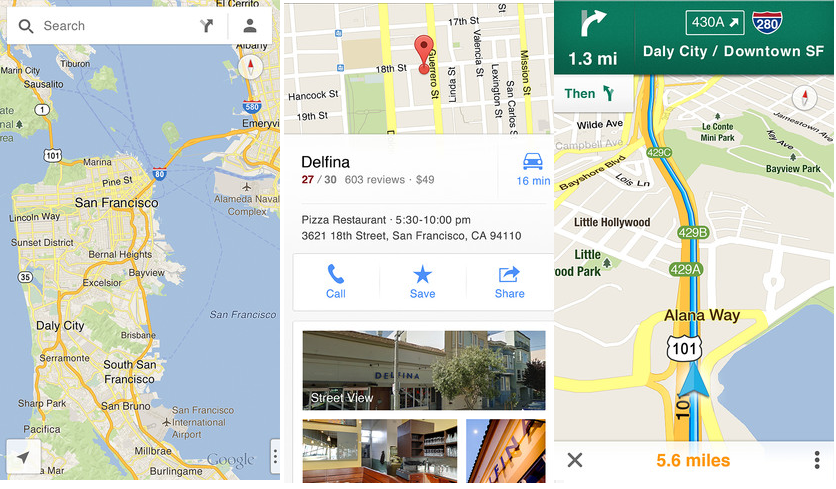
The long awaited Google Maps app for iOS devices FINALLY hit the App Store tonight! Although people have been having fewer and fewer problems with Apple’s Map app, Google still is king of maps, especially with the public transit maps.
And the cool thing is, even if you have an iPhone 4 or 3GS, you get turn-by-turn voice navigation (unlike Apple’s Maps app where you need at least the iPhone 4S for voice navigation)!
You will have to have at least iOS 5.1 installed, though.
Also, you will most likely need to click on this link to get it in the App Store:
It didn’t show up in the App Store search when I did a search for it, probably because it is so new to the store.
Here is the description of the app from the App Store:
Navigate your world with Google Maps, now available for iPhone. Get comprehensive, accurate and easy-to-use maps with built-in Google local search, voice guided turn-by-turn navigation, public transit directions, Street View and more. Use Google Maps to discover great places to eat, drink, shop and play, with ratings and reviews from people you trust. Sign in to save your favorite places and quickly access all your past searches and directions from your computer, right on your phone.
Search
* Find addresses, places and businesses around the world with Google local search.
* Discover places to eat, drink, shop and play, with ratings and local reviews.
* Sign in to sync your searches, directions, and favorite places between your computer and your phone.
Directions
* Get voice guided, turn-by-turn driving directions.
* Find your way by train, bus, subway or walking directions.
* Access live traffic information in cities across the world.
Street View and imagery
* View 360-degree panoramas of places around the globe with Street View.
* See inside more than 100,000 businesses worldwide.
* View high resolution satellite imagery of locations around the world.
Simple and easy to use
* An entirely new Google Maps experience on your iPhone.
* Newly designed and streamlined interface for even easier navigation of your world.
* Use gestures to explore the map and browse results.
Let us know in the comments where in the world you successfully download it from, and how well it works for you.
Have you been yearning to get certified as a biofeedback professional? Would you like to deepen your biofeedback knowledge so you can get the most out of your device?
Then take advantage of this LIMITED TIME OFFER of getting 25% OFF of Nirvana Zarabi-Smith’s amazingBiofeedback Certification Training Program!